XF Camera System Manual |
IQ Digital Back Navigation
IQ Digital Back Overview
Touch Screen Operation
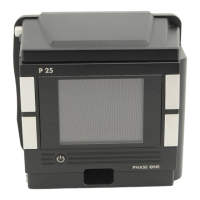
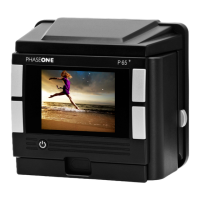
All IQ Digital Backs are equipped with a 3.2-inch touch screen. The touch screen
lets you zoom, pan and browse through images quickly, making it easy to
navigate between dierent menus and features. Operation is achieved using
the touch screen display or the well known and intuitive, 4-key navigation.
Four Key Navigation
The IQ Digital Back is equipped with four external keys. These keys are modal
and will change function to match the menu shown on the display. In addition
the function of the four keys changes once one of the Menu, ISO and WB
options has been selected. In general, the two keys to the left are used to exit
the screen and select a menu option. The two keys to the right are used to
navigate up and down.
Home Screen
The IQ Home Screen is the first view users will see when the back is switched
on. This is the back’s default screen and the starting point from which to
navigate the menu system. It enables direct access to the Play mode to view
captured images, the Menu to configure the IQ Digital Back’s features, and
also to select ISO sensitivity and White Balance (WB) settings.
Info Bar
At the bottom of the screen you will find the Info Bar. This displays from left to
right: Remaining captures on CF card or host computer, Battery status, WiFi
status (if available and turned on), CF card inserted or if a Computer is
connected this will be displayed as a USB3 or FireWire symbol. A flashing icon
means the function is not available, for instance, “No CF-card” or “No WiFi
connection”. Far most to the right is the contextual menu. This gives access to
many other functions, depending on the IQ model you are using and where
you are in the menu context.
Home screen with Info Bar


 To Next Page