1
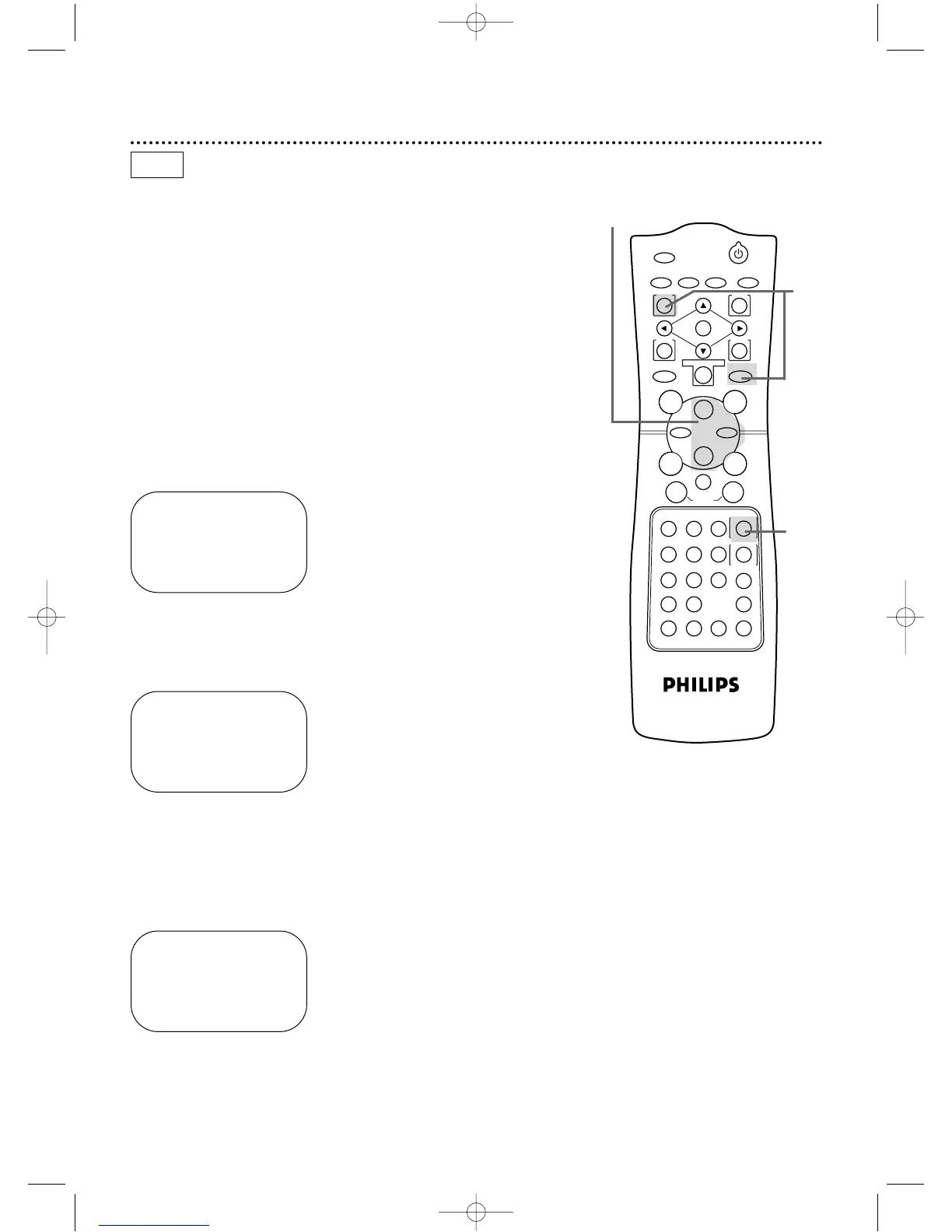
Press the VCR button, then press the MENU button.
2
Press the Play B button or the Stop C button to select
VCR SET UP, then press the Fast Forward g button.
3
Press the Play B button or the Stop C button to select
BLUE BACKGROUND.Then, press the Fast Forward g
button repeatedly so that OFF (or ON) appears beside
BLUE BACKGROUND.
Blue Background 49
2-3
4
If you want the TV screen to be solid blue when a weak signal is
received,set BLUE BACKGROUND to ON.The screen will be
blue and the sound will be muted.
Or,if you want to receive the weak signal,set BLUE BACK-
GROUND to OFF.When you select a channel that is receiving a
weak signal,you will see and hear the static in the TV program-
ming.The channel number will not appear on the screen when you
select a weak channel.
To set BLUE BACKGROUND to ON or OFF,follow these steps.
● Before you begin,place the DVD/VCR in VCR mode.Press the
OUTPUT SELECT button so that the green VCR OUTPUT light
appears on the front of the DVD/VCR.Press the VCR/TV button
so that the VCR/TV light appears on the front of the DVD/VCR.
4
Press the DISPLAY/STATUS/EXIT button.
SELECT op CHOOSE B
→ PROGRAM
VCR SET UP
TUNER SET UP
SET CLOCK
TO END PUSH EXIT
SELECT op CHOOSE B
→ REPEAT PLAY OFF
ON SCREEN MODE
AUDIO OUT
LANGUAGE
BLUE BACKGROUND ON
TO END PUSH EXIT
SELECT op CHOOSE B
REPEAT PLAY OFF
ON SCREEN MODE
AUDIO OUT
LANGUAGE
→ BLUE BACKGROUND ON
TO END PUSH EXIT
VCR
1
DV910(H9100).QX33 01.8.9 10:27 AM Page 49


 To Next Page