Display Screen (DVD) 69
2
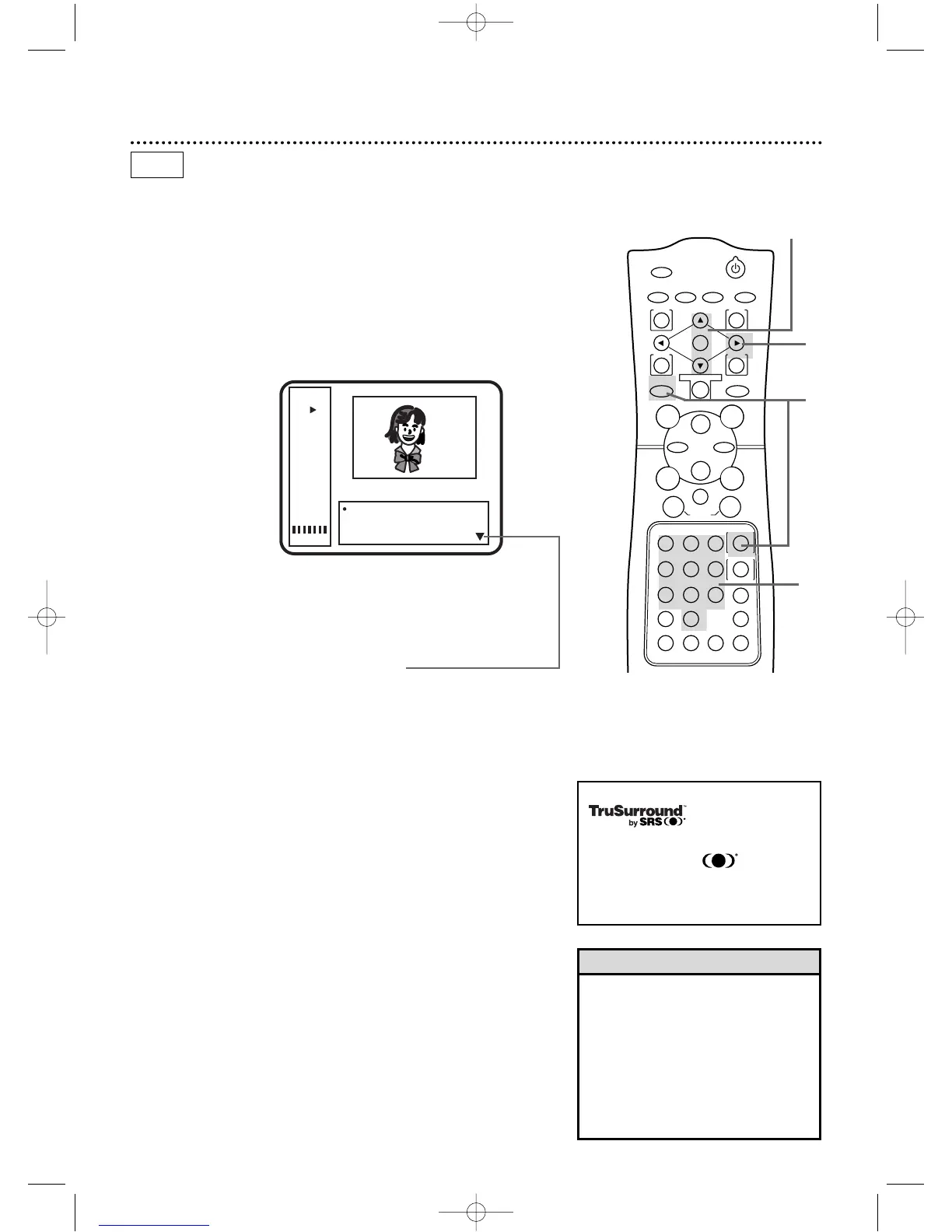
To change a setting,press the Arrow
oopp
buttons to select
an item,then press the OK button.
3
Chapter or Title:Press the Number buttons to select the
Chapter or Title you want.Playback will begin at the Chapter or
Title you select.
Time:Press the Number buttons to enter the disc time at
which you want to start playback.
Audio:Press the Arrow
oopp
buttons to choose one of the
available settings,then press the OK button.
Subtitle:Press the Arrow
oopp
buttons to choose one of the
available settings,then press the OK button.
Angle:Press the OK button repeatedly to choose one of the
available angles.
Marker: Press the Arrow
oopp
buttons to select Marker 1,
Marker 2, Marker 3,Marker 4,or Marker 5,then press the
OK button.Then, press the RETURN button to return to
the Display Screen.Marker details are on page 71.
SRS TruSurround:Press the OK button repeatedly to select
On or Off.
4
Press the DISPLAY/STATUS/EXIT button to remove the
Display Screen.
3
2,3
• Current type of disc
• Playback status
• Repeat status
• Current Title number
• Current Chapter
number
• Elapsed playing time of
current Title
• Remaining playing time
of current Title
• Bit Rate display
•
Current Chapter / Total Chapters in current Title
• Current Title / Total Titles on current Disc
• Total playing time of current Title
• Current settings of Audio,Subtitle,Angle,Marker,
and SRS TruSurround
Indicates additional items are available if you press
the Arrow button
• If you do not want to change the set-
ting at step 3,press the RETURN but-
ton.
• If there are no optional settings for
the feature,nothing will happen when
you press the OK button to select an
item (Angle,Audio,etc.).
• Some DVDs may not allow you to
change features in the display screen.
Helpful Hints
DVD
You can check information about the current DVD by pressing the
DISPLAY/STATUS/EXIT button on the remote control.You can select
or change Disc features using the Display Screen.
● Before you begin,place the DVD/VCR in DVD mode.
Press the OUTPUT SELECT button so that the red DVD
OUTPUT light appears on the front of the DVD/VCR.
1
Press the DVD button,then press the DISPLAY/
STATUS/EXIT button repeatedly during playback to access
or remove the Display Screen.
This unit employs TruSurround system
of SRS Labs,Inc. as virtual technology.
TruSurround and the symbol are
trademarks of SRS Labs,Inc.
TruSurround technology is incorporated
under license from SRS Labs,Inc.


 To Next Page