1
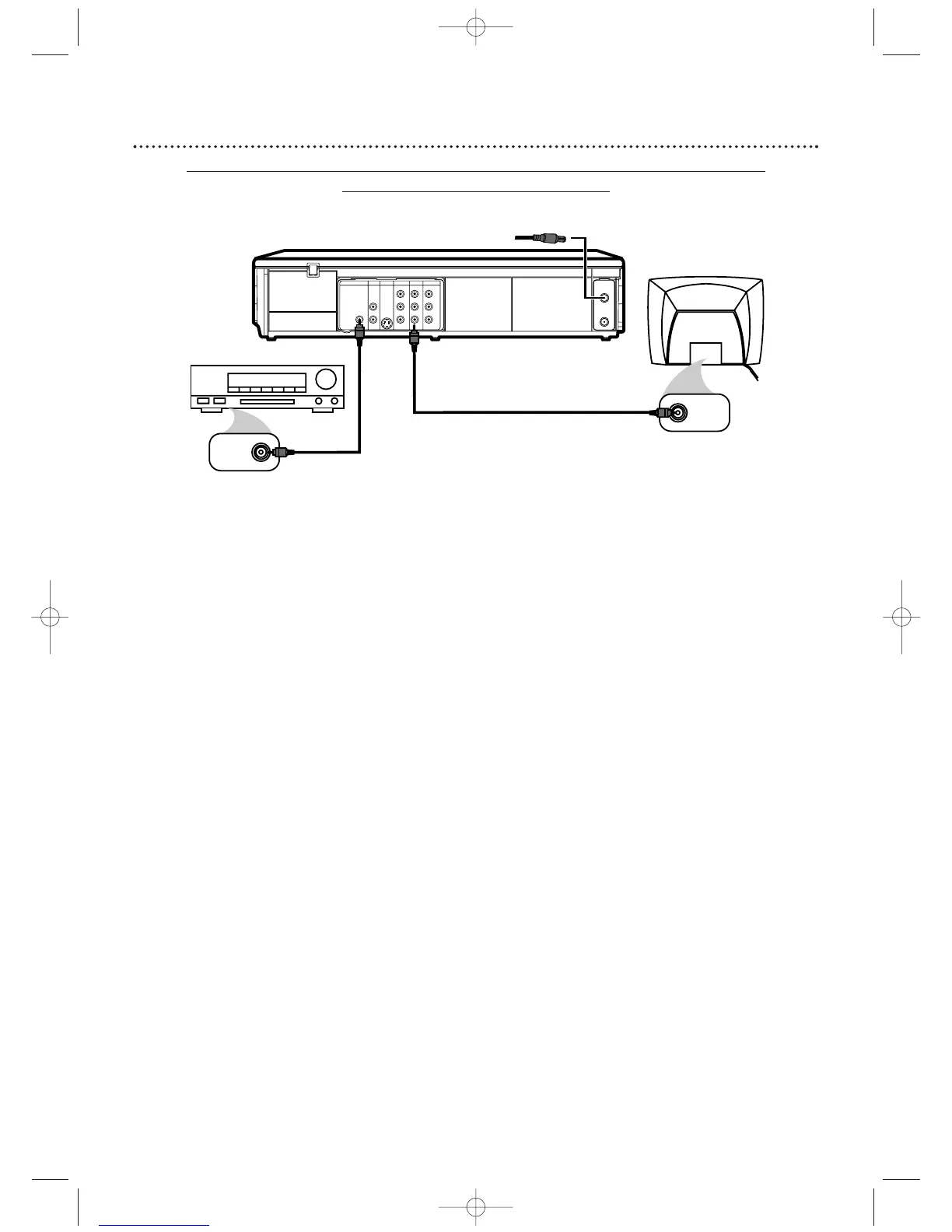
Connect the antenna or Cable TV signal to the ANT-IN (Antenna In) jack
of your DVD/VCR.
2
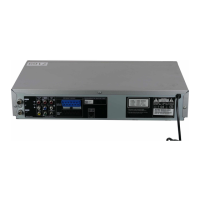
Connect a coaxial digital audio cable (not supplied) to the DVD/VCR’s
COAXIAL DIGITAL AUDIO OUT jack and to the COAXIAL DIGITAL
AUDIO IN jack on the Stereo.
This digital audio connection only provides sound for the DVD Player of the DVD/VCR. So, in
order to use the VCR features or hear TV channels at the DVD/VCR, you still need to either
connect the RF coaxial cable between the ANT-OUT jack of the DVD/VCR and the TV’s Antenna
In jack, or connect the supplied red/white audio cables.To connect the supplied RF coaxial cable,
see step 2 on page 7.To connect the red/white audio cables, see step 2 on page
10.
3
Connect the supplied yellow video cable to the yellow DVD/VCR VIDEO
OUT jack on the DVD/VCR and to the VIDEO IN jack on the TV.
To use
component video cable or S-Video cable instead for the DVD Player, see pages
11-
12.You will still need the yellow video cable or RF coaxial cable for VCR features.
4
Plug in the power cords of the Stereo,TV, and DVD/VCR.Turn on the
Stereo and select its Auxiliary IN channel.Turn on the TV and set it to
the correct Video In channel.
Go to your TV’s lowest channel (01 or 02) and
change channels downward until you see DVD or VCR material on the TV screen.
To help you find the right Video In channel on the TV, turn on the DVD/VCR. Press
DVD to put the DVD/VCR in DVD mode.With no Disc in the Player, a large DVD
Video logo will appear on the TV screen when you get the TV on the correct Video
In channel.
Make sure PROGRESSIVE is OFF and “P.SCAN” does not appear on the
DVD/VCR’s display panel. Disable
Progressive Scan by pressing and holding PLAY
B (DVD) on the front of the DVD/VCR for more than five seconds. Details are
on pages 6 and 63-64.
5
You are ready to turn on the DVD/VCR. Go to page 16 before turning on
the DVD/VCR.
Remember...
Some DVDs are recorded in Dolby Digital 5.1 channel Surround. Select Dolby Digital 5.1
channel Surround Sound in the DVD Disc menu. If Dolby Digital Surround is not recorded
on the Disc, you will not have surround sound available.
If you connect the DVD/VCR to a Dolby Digital Stereo, set DOLBY DIGITAL to ON in the
DVD Player’s Setup menu.
Details are on page 67. If the DVD/VCR is not connected to a
Dolby Digital-compatible Stereo, set DOLBY DIGITAL to OFF. Incorrect settings may cause
noise distortion and damage the speakers.
14
Hookups (cont’d)
DVD/VCR to a TV and to a Stereo that is Dolby Digital-compatible
Using Digital Audio connections



 To Next Page