Change Audio settings based on other equipment you connected
to the DVD/VCR or according to your Disc sound features.These
settings only affect the Audio from the DVD Player of the
DVD/VCR.
1
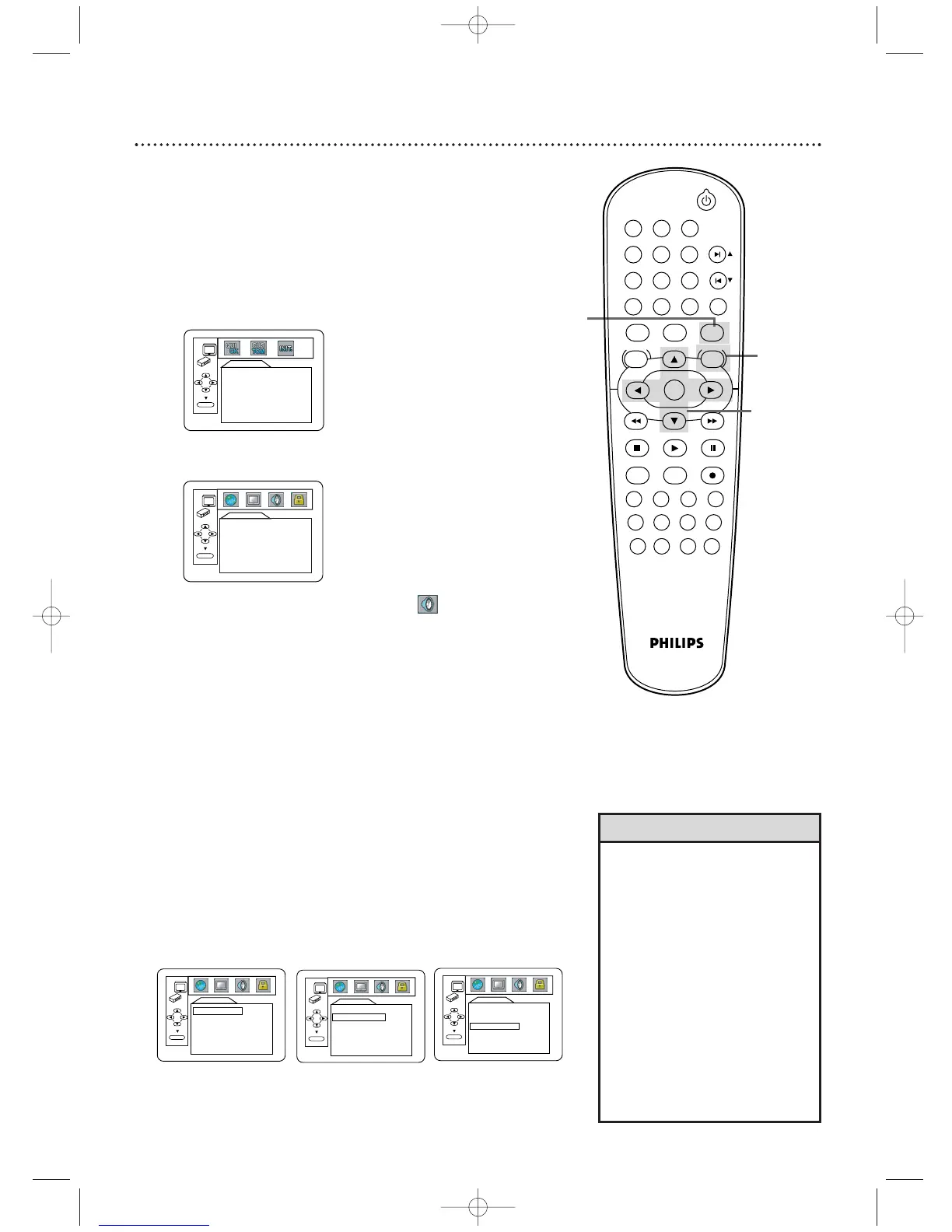
Press DVD to put the DVD/VCR in DVD mode.
2
While play is stopped, press SYSTEM/MENU. The
QUICK SETUP screen will appear.
3
Press s or B to select CUSTOM at the top of the
menu, then press OK.
4
Press s or B to select AUDIO ( ). Press OK.
5
Press
oo
or
pp
to select DRC, DOLBY DIGITAL, or
DOWN SAMPLING, then follow step 6 accordingly.
6
●
If you selected DRC, press OK repeatedly to turn Dynamic
Range Control (DRC) ON or OFF. Choosing ON
compresses the range of volume by suppressing loud sounds
and raising low sounds. DRC is available only on Discs
recorded in the Dolby Digital format.
●
If you selected DOWN SAMPLING, press OK repeatedly to
choose ON or OFF. ON sets downsampling to 48 kHz. OFF
sets downsampling to 96 kHz. DOWN SAMPLING is available
only when the unit is connected to a Stereo using the
COAXIAL DIGITAL AUDIO OUT jack.
●
If you selected DOLBY DIGITAL, press OK repeatedly to
select ON or OFF. Select ON if you used the COAXIAL
DIGITAL AUDIO OUT jack to connect the DVD/VCR to a
stereo that is Dolby Digital compatible. Details are on page 14.
Otherwise, choose OFF.
Audio 67
2,7
• Dolby Digital sound must be
available on the DVD.
•You can adjust DOLBY DIGITAL
in the QUICK SETUP menu that
appears when you first press
SYSTEM/MENU.With QUICK
selected, press OK. Press
p
to
select DOLBY DIGITAL. Press OK
to choose ON or OFF. Press
SYSTEM/MENU to remove the
menu.
• When you play a Disc that has
copyright protection,
downsampling will be at 48 kHz,
even if you set DOWN
SAMPLING to OFF.
Helpful Hints
3-6
1



 To Next Page