Audio Language, Stereo Sound Mode 5
7
Audio Language
You can select a language for DVDs during playback if multiple
languages are available.
1
Press DVD to put the DVD/VCR in DVD mode if
necessary.The DVD light will be on.
2
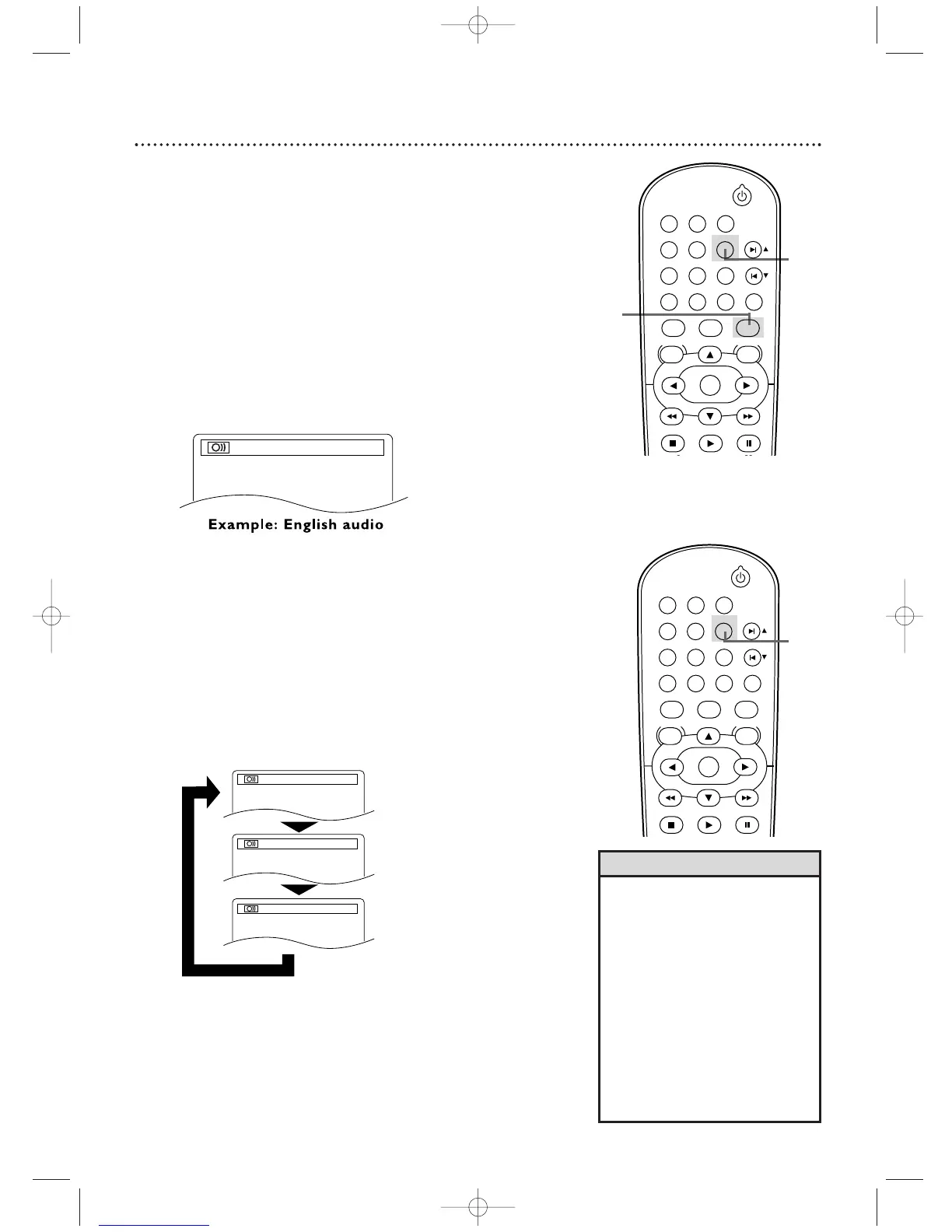
During DVD playback, press AUDIO repeatedly to
choose one of the available languages. The new audio
will be heard.The display will disappear after about five
seconds.
The Audio display may show if the DVD has Dolby Digital
or multi-channel (5.1 CH) sound or its sampling rate (48 k,
for example).The number of available languages appears
after the “ / ” at the right of the display ( /3, for example).
• If a language is not available after
pressing AUDIO several times, the
DVD does not have that language.
• Some DVDs only let you change
the language in the Disc menu.
• Audio languages may be
abbreviated (such as ENG for
English). Or, three dashes (- - -)
may appear instead of an
abbreviation.
•You cannot adjust the Stereo
Sound Mode when Virtual
Surround is active. Details are on
page 69.
Helpful Hints
Stereo Sound Mode
Adjust Stereo Sound to determine whether you will hear the
left channel, the right channel, or both channels (stereo)
during Audio CD or Video CD playback.
If you connected the DVD/VCR to a Stereo using the
COAXIAL DIGITAL AUDIO OUT jack as described on page
14, or if you connected to a TV with only the RF coaxial
cable, you cannot adjust Stereo Sound Mode.
1
Press AUDIO repeatedly during Audio CD or
Video CD play to choose STEREO, L-CH, or R-
CH.



 To Next Page