• Selecting a different TV ASPECT
setting is only effective if it is
available on the DVD. Check the
DVD Disc menu or case for
details.
•You also can adjust TV ASPECT in
the QUICK SETUP menu that
appears when you first press the
SYSTEM/MENU button.With
QUICK selected, press OK. Press
p
to select TV ASPECT, then press
OK. Press
o
or
p
to choose a
setting, then press OK. Press
SYSTEM/MENU to remove the
menu.
Helpful Hints
5
Press o or p to select an item, then press OK.
● If you selected TV ASPECT, press o or p to select a
setting, then press OK.
Choose 4:3 LETTER BOX if you want to see the entire,
widened picture with black bars at the top and bottom of the
screen.This looks like the picture you see when watching
movies in a theater This setting is possible only if the DVD was
recorded in the letterbox or widescreen format.
Choose 4:3 PAN & SCAN for a full height picture, with both
sides trimmed. Some companies refer to this as reformatting
the picture to fit your TV screen and may call it the regular
or normal format.
Choose
16:9 WIDE if a widescreen TV is connected to the
DVD/VCR.
● If you selected STILL MODE, press K or L to select a
setting, then press OK.
This function allows you to adjust the quality of a still image.
AUTO is the default setting.
If you select FIELD, still images will be stabilized but coarse
due to the small amount of data.
If you select FRAME, still images will be highly defined due to
the simultaneous output of two fields.
Display 63
You can change the TV Aspect ratio, Still Mode clarity, Angle Icon
availability, Automatic Power Off, and Progressive Scan features of
the DVD Player in the Display menu.
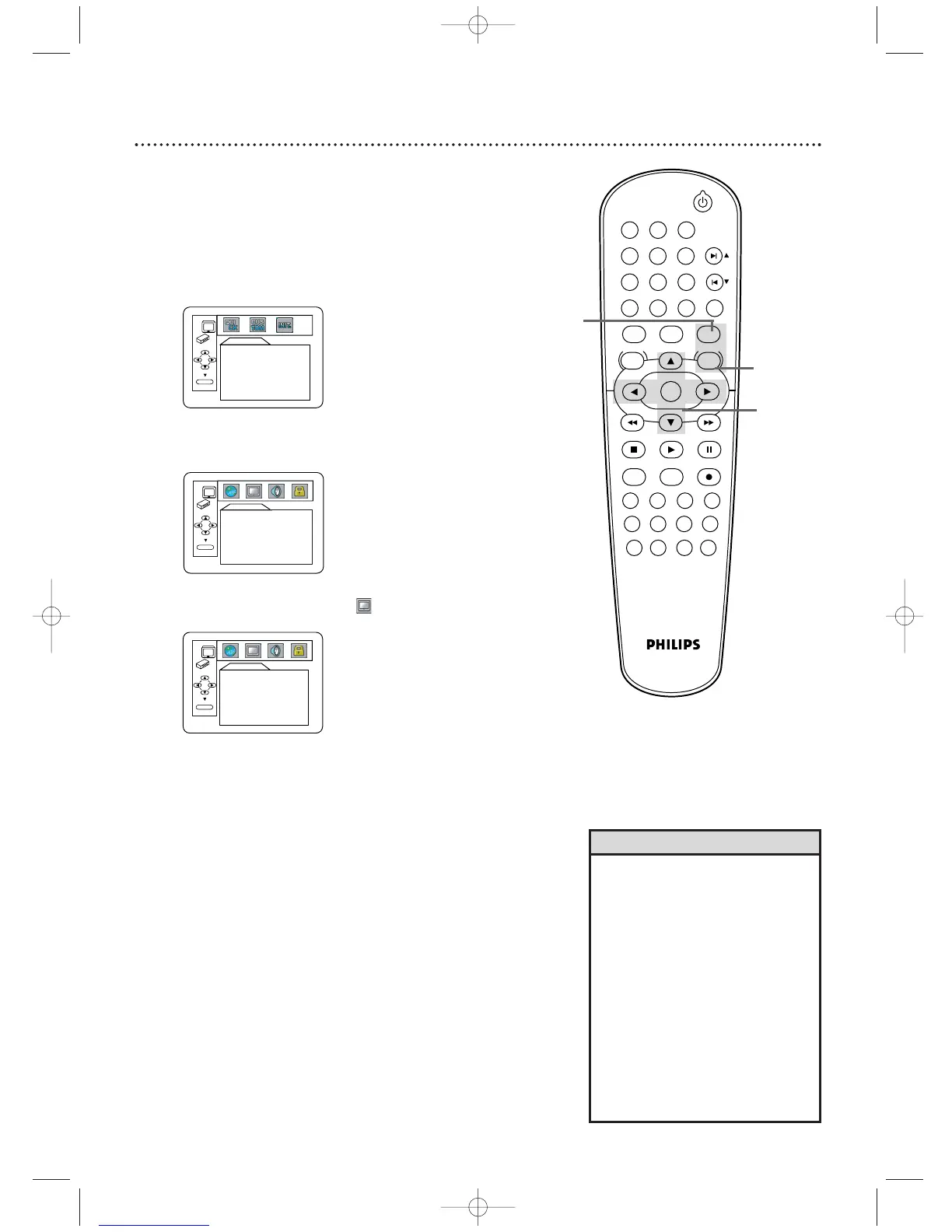
1
Press DVD to put the DVD/VCR in DVD mode.
2
When play is stopped, press SYSTEM/MENU. The
QUICK SETUP screen will appear.



 To Next Page