Title Service Manual, LPCR2 Page
Service Product Drawing
3323299
B
Released State Date 11/14/2017
7000545 Revision A
2. Open the lid.
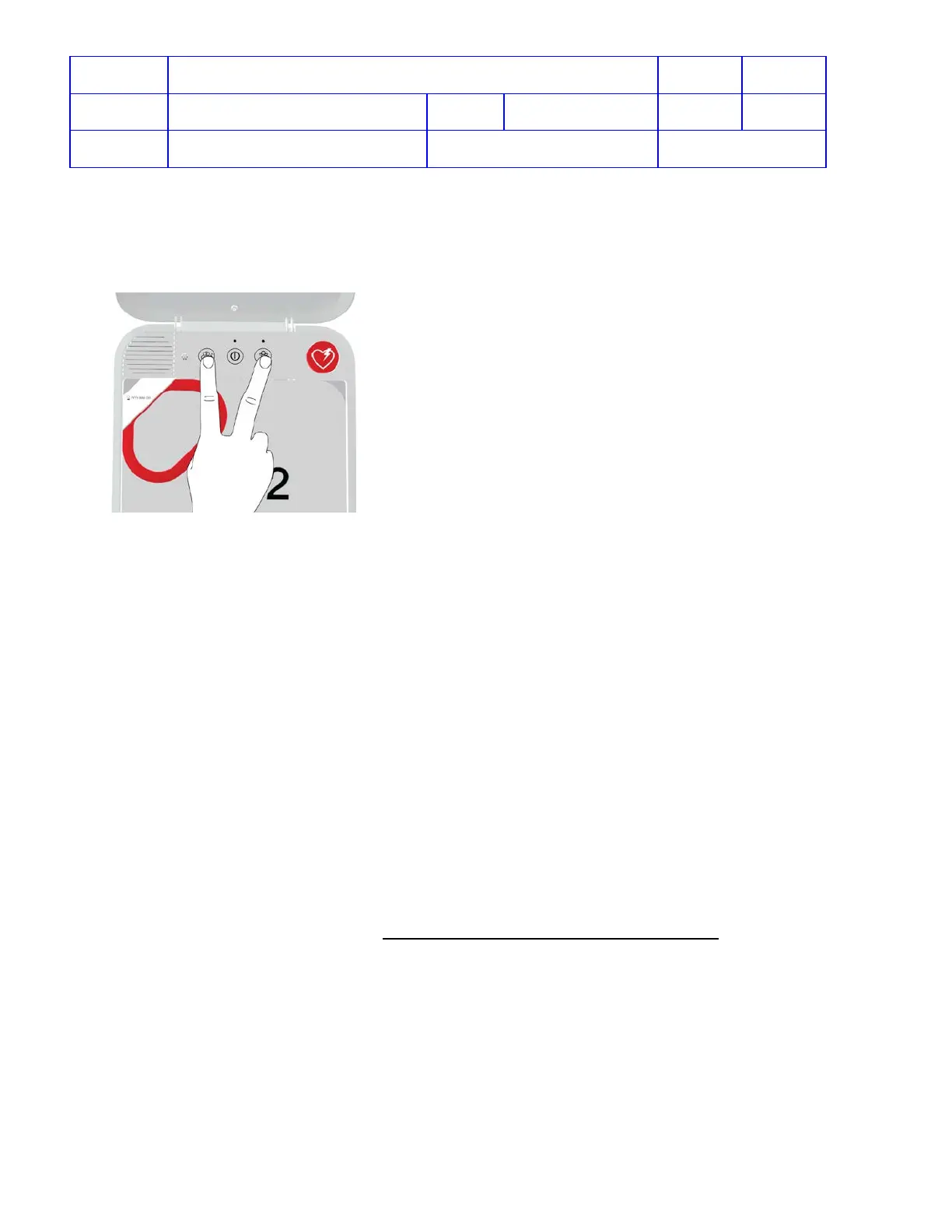
3. Wait until the voice prompts start and then press and hold the LANGUAGE and CHILD MODE buttons
simultaneously.
4. Release the buttons when you hear “Device ready” or “Device not ready.” (NOTE: This voice prompt indicates
whether the AED is ready for a cardiac emergency. It does not indicate whether wireless is ready.)
5. Close the lid and place the CR2 in its permanent storage location.
6. CR2 will attempt a Wi-Fi connection to LIFELINK or LIFENET immediately after the “Device ready” or “Device
not ready” voice prompt.
7. Listen for following voice prompts
• Wi-Fi Connection Initiated
• Connection in progress
• Connection established
If you hear “Unable to establish Wi-Fi network connection,” this may mean that the signal strength at the
location is not strong enough to connect the CR2 to the Wi-Fi network. If possible, move the CR2 installation
closer to the Wi-Fi access point and try again.
8. If the CR2 has cellular capability, it will attempt a cellular connection immediately after the Wi-Fi connection,
whether or not the Wi-Fi connection was successful.
9. Listen for following voice prompts
• Mobile connection initiated
• Connection in progress
• Connection established
10. If you hear “Unable to establish mobile network connection,” this may mean that the cellular signal
strength at the location is not strong enough. If possible, move the CR2 installation and try again.
11. Once a Wi-Fi and/or cellular connection are established, the CR2 will update the LIFELINK or LIFENET
account with its current status. The CR2 will also download any updates available from the account. The CR2
beeps every few seconds during the update process. When all updates are complete, “Communication
complete” will be heard. Then the CR2 will terminate the Wi-Fi and/or cellular connection.
12. If “Connection Failed” is heard, refer to Unable to establish Wi-Fi network connection
Check CR2 Device Readiness Status
Overview: For connected CR2 devices, after the initial connection is done, device data is transferred from the CR2 to
LIFELINK or LIFENET System. From the LIFELINK or LIFENET website, customers or service can remotely monitor
device readiness status including battery status, expiration dates, device self-test results, and test log.
The CR2 will automatically check in to LIFELINK or LIFENET and update the status once a month.
To Check CR2 Device Readiness Status:
1. Log in to LIFELINK or LIFENET account.
2. Verify CR2 readiness from LIFELINK or LIFENET website.



 To Next Page