Title Service Manual, LPCR2 Page
Service Product Drawing
3323299
B
Released State Date 11/14/2017
7000545 Revision A
5. Follow the onscreen instructions to finish installing Wi-Fi Configuration Tool.
6. If an older version is detected during the installation, remove the previous version and repeat from step 3.
Store Wi-Fi Settings on CR2
Overview: The CR2 has no screen and keyboard, to setup Wi-Fi configuration on CR2, the Wi-Fi Configuration Tool
software application is used from a computer, and a USB cable is used to transfer the Wi-Fi settings to the CR2. This
procedure describes how to store Wi-Fi settings in the CR2.
Prerequisites:
• LIFENET or LIFELINK account.
• Wi-Fi hotspot available at the intended location of the CR2
Required Tools:
• USB cable type 2.0 A Male to Micro-B (PN 3321551-000, Cat # 11512-000003)
• Computer with Windows
®
7 or above operating system
• Internet access available from computer
• Wi-Fi network ID and password
Required Time:
• Less than 10 minutes is required for storing Wi-Fi settings on the CR2.
Steps:
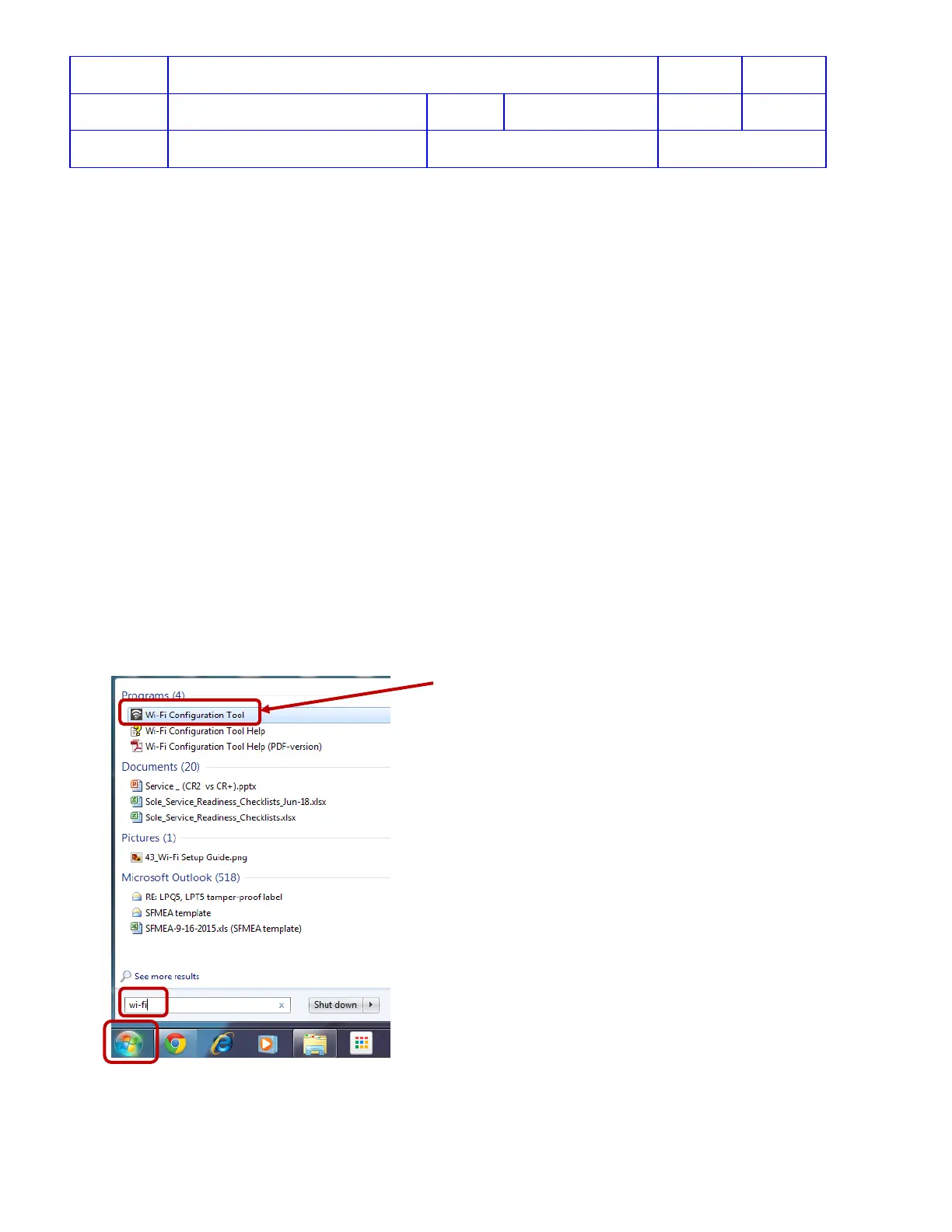
1. Launch the Wi-Fi Configuration Tool, Click the Start button, type “Wi-Fi” in the search bar, and select Wi-Fi
Configuration Tool
2. Select your country (only required the first time using the Wi-Fi Configuration Tool), and enter your LIFENET
or LIFELINK credentials:
NOTE:



 To Next Page