Title Service Manual, LPCR2 Page
Service Product Drawing
3323299
B
Released State Date 11/14/2017
7000545 Revision A
10. To see which devices are linked to this profile, click the 'View Devices' icon,
Steps (using LIFENET login as an example)
1. Login to LIFENET (both customers’ accounts or service accounts can perform this function)
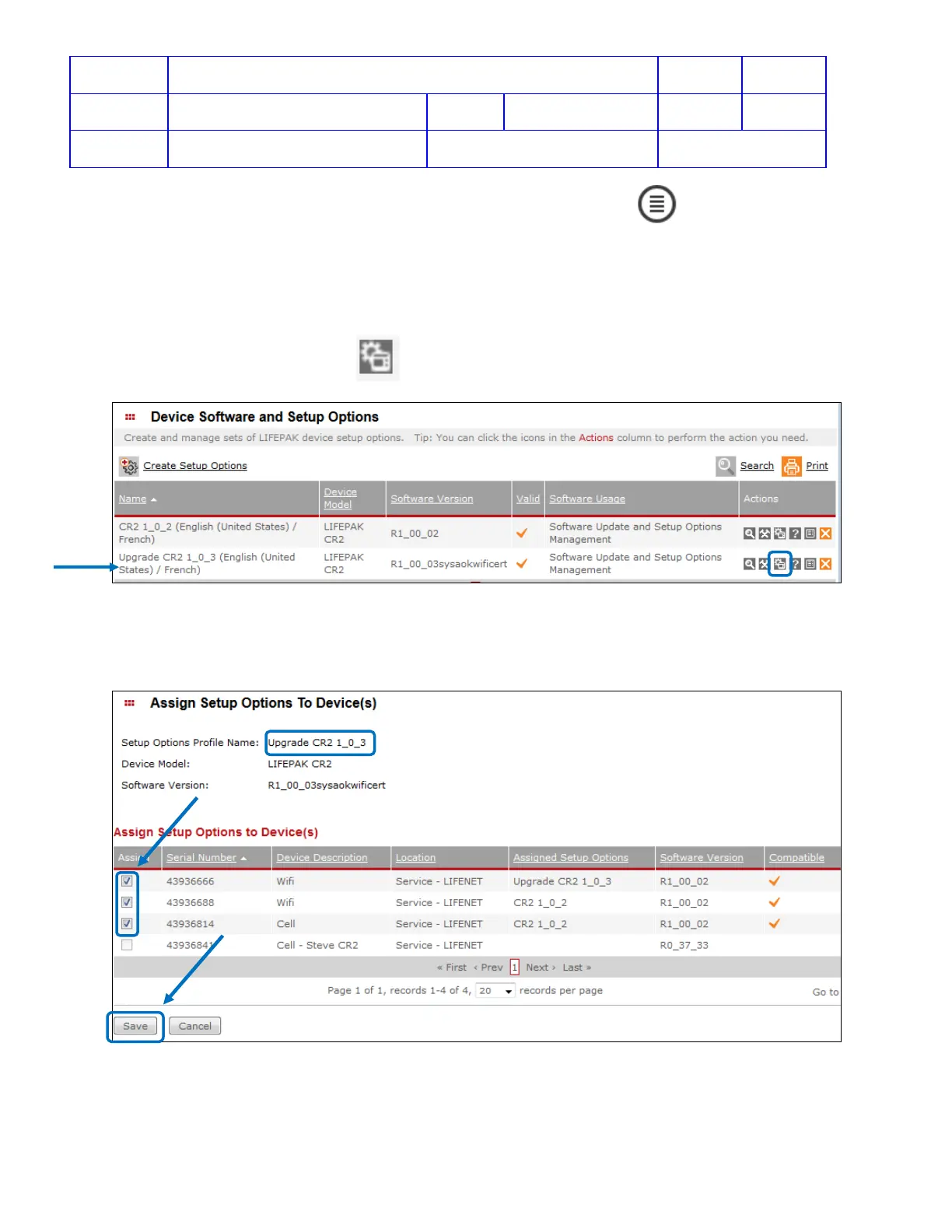
2. Click on Asset, and select Device Software and Setup Options
3. Click Create Setup Options to make a new profile, and name the profile properly
4. After the new profile is created, from the row of Setup Option profile, under the Action Column, select Assign
Setup Options To Device(s) icon,
to appy the profile to the device(s)
5. Select the Serial Number checkbox and click Save to apply the Setup Option Profile to the device.
For example, in following Setup Option Profile “Upgrade CR2 1_0_3”, select three Assign Checkboxes for
Serial Numbers, 43936666, 43936688, 43936841, and click Save.
6. Once the new Setup Option Profile has been assigned to the Serial Number, the update will apply to the CR2
device when device check-in to LIFENET system.




 To Next Page