System
28
4.1.3 Overview of features
Switching between different menus
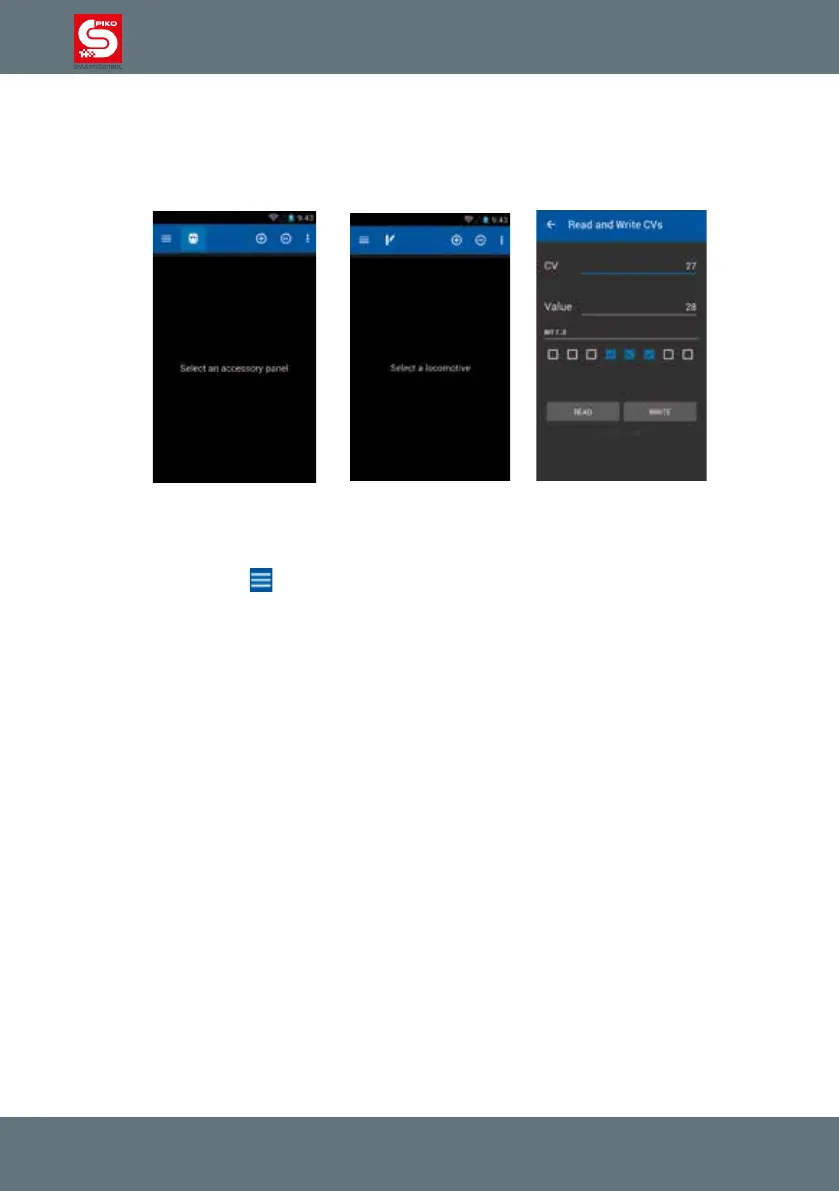
The control panel and switch panel can be accessed by touching the relevant symbols in the menu bar
on top of the screen (loco symbol = control panel / switch symbol = switch panel).
Switch Panel Control Panel CV-Programming
Via the Main-Menu button
you can access „settings“ , as well.
The hardware menu button (below display) and the three little dots (display top right) will show you the
available options for the different panels.
In the control panel for example these are „create loco“, „edit loco“, “create consist” and “settings”.
Switching within a menu
Within a main-menu you easily can switch between different pages by swiping over the display.
You can also touch a name to switch to that side. Active items are underlined, non active items are not
underlined or are colored in light grey.
In the control panel you can switch between locos, in the switch panel between different panels.
More functions and symbols
In a menu you can easily add or remove locos or other items using the buttons „plus“ and „minus“.
When pressing “minus” an item will be removed from the overview.
When pressing “plus” you will be forwarded to another menu where you can choose a stored item or
create a new one.


 To Next Page