System
52
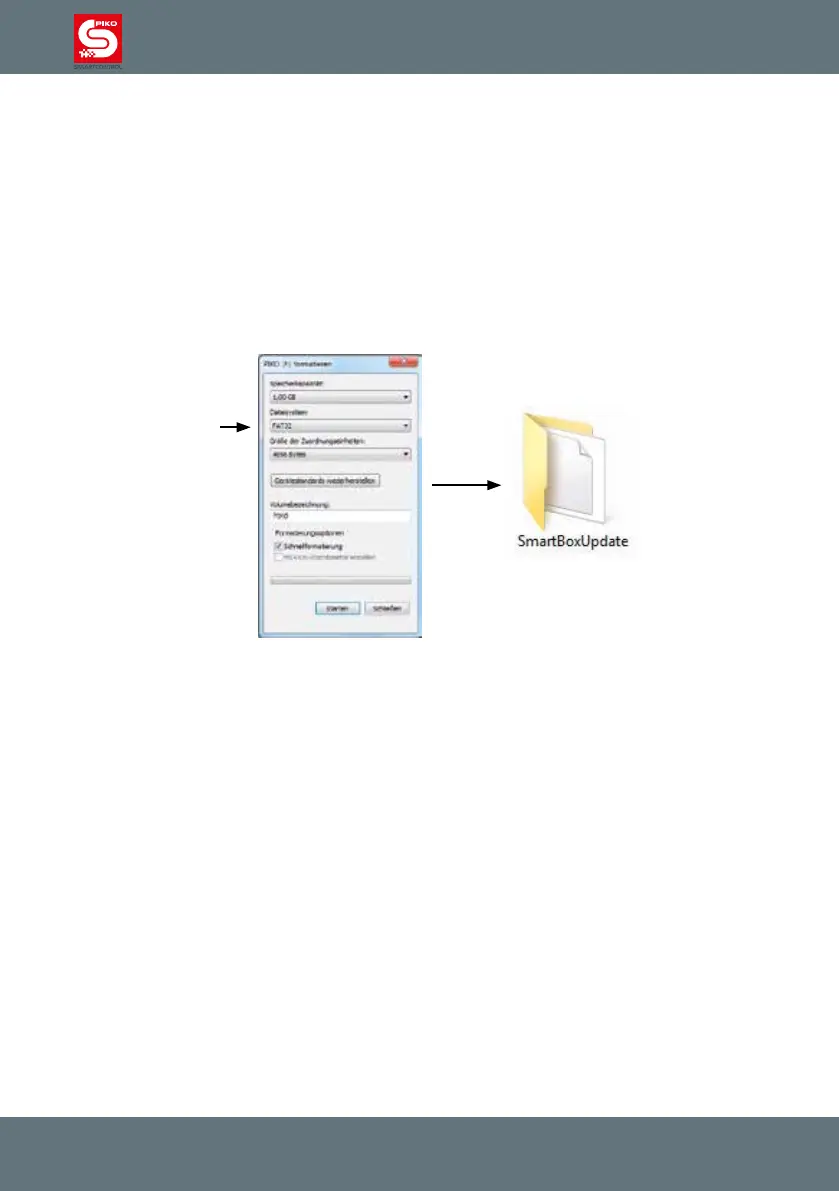
Preparing the USB-stick for the Update
The USB-stick has to be formatted with a FAT32 le system (choose under “le system”).
One the stick is formatted please create a folder on it named “SmartBoxUpdate” (please note
that the folder name is case sensitive). You need to place the update-le, which is usually called
“PIKO_SmartBox
®
_ Update_date.bci”, in this folder.
As soon as the update starts the status-LED will start blinking.
Note: If any failure occurs during this process the PIKO SmartBox
®
will cancel the update and remain
in rescue-mode. The LED will light permanently. In this case, just unplug the USB-stick and reinsert it.
After a successful update the LED will stop blinking and the PIKO SmartBox
®
will reboot.
5.4.3 BackUp and Restore / Rescue of the PIKO SmartBox
®
Create a BackUp-le
The PIKO SmartBox
®
offers the possibility to store your settings and data on an USB-stick. Just
plug in a USB-stick when the PIKO SmartBox
®
is activated and push the button for “BackUp” (see
chapter 2.3). The PIKO SmartBox
®
will now create a new folder on the USB stick called
“SmartBoxBackup”. A text le will be stored in this folder.
Please note: If a Backup-le was already stored in this folder it will be replaced.
Restore from a BackUp-le
Plug a prepared USB-stick into your PIKO SmartBox
®
and wait for ca. 5 seconds (time for the PIKO
SmartBox
®
to identify the USB-stick). Then press “Restore/BackUp” (see chapter 2.3). The PIKO
SmartBox
®
will now look for the Backup le and restore your settings and data.
Please note that the connection between PIKO SmartBox
®
and PIKO SmartControl
®
will be lost in
this case. You can easily restore the connection with WPS (see “WiFi settings” in chapter 3.2).
Attention:
If there is more than one backup le stored on the USB-stick the PIKO SmartBox
®
will choose one
randomly.


 To Next Page