PowerFleet
®
VAC4 and VAC4S Hardware User’s Guide
Data Input Screens
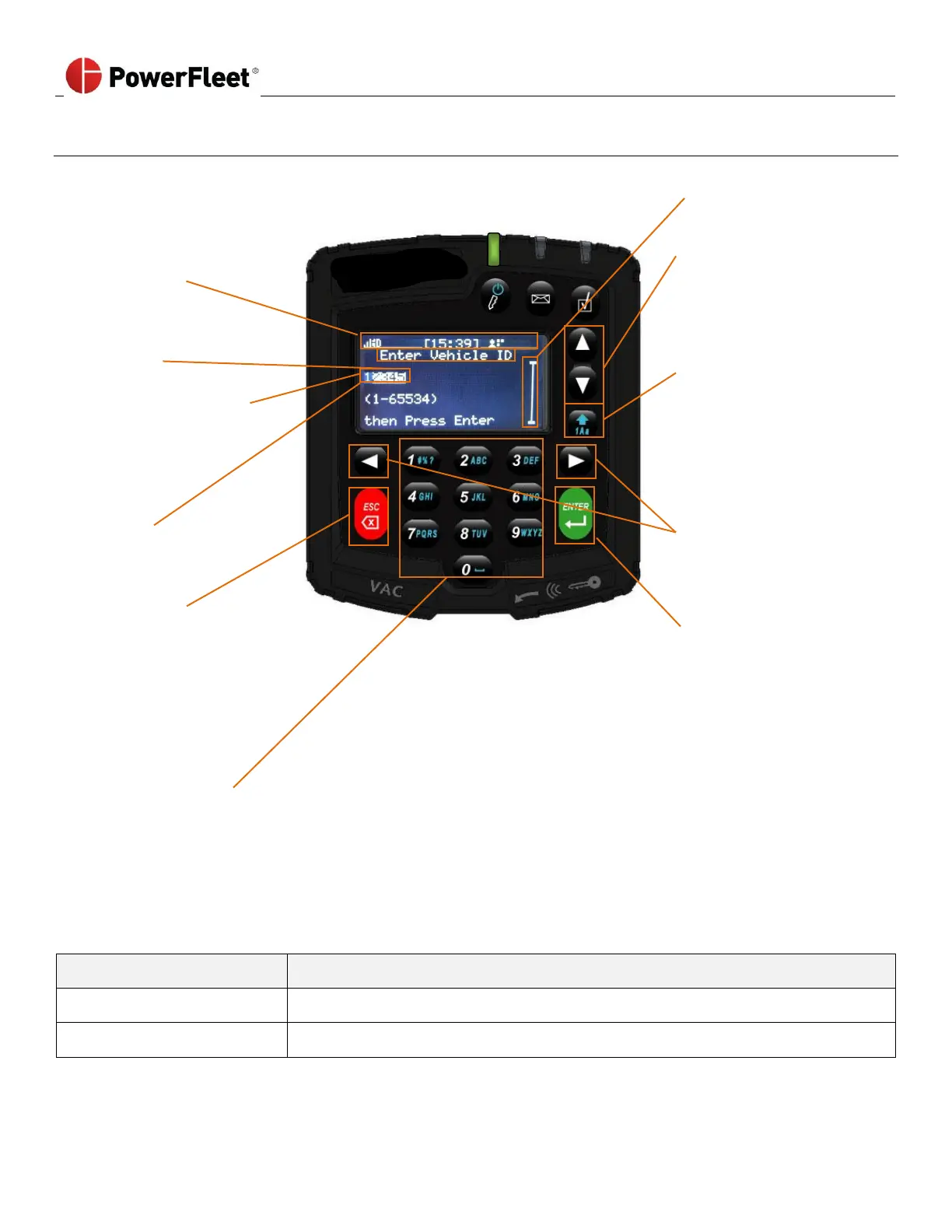
Data input screens allow the operator to enter data when prompted by the VAC system.
Scroll indicator vertical bar
Up and Down ARROW keys
scroll through available rows
(Returns to the top row
when advancing past the last
row)
Character toggle key -
up arrow:
1: numeric characters
A: upper case alpha/
symbols*
a: lower case alpha/
symbols*
Character replaced by any
text entry. (Blinking cursor)
Text currently available for
text entry (Highlighted)
Left and Right ARROW keys
move blinking cursor left or
right
Quick press: ESC key exits to
the previous screen
Long press: ESC key exits to
the home screen
Quick press: ENTER key
confirm the entered text,
proceed to the next text
entry row (if applicable), or
advance to the next screen if
on the last row
Long press: ENTER key
advance to the next screen
from any position
Enter alphanumeric characters in the currently selected mode.
(Cursor auto-advances one character if no key is pressed for more than 1 second)
(Cursor auto-advances one character if a different key is pressed than the previous)
* Common symbols used during text entry are as follows:
• 0 = [space] when not in numeric entry mode.
• 1 = symbols when not in numeric entry mode.
= + - * / ( ) { } [ ] % < >
? , @ ! : . # _ \ & “ ‘ ; ^ | $ ~



 To Next Page