PowerFleet
®
VAC4 and VAC4S Hardware User’s Guide
The VAC will automatically download the configuration data associated with that vehicle ID and display one of the
following messages:
The replacement VAC is successfully configured.
Some configuration data is missing or different than the previous VAC (This is likely to occur if
the replacement VAC has a newer firmware version than the VAC being replaced). In this case,
a Maintenance operator must manually configure the replacement VAC as if it was a new
vehicle installation, using the VAC’s Install Wizard. Refer to PowerFleet® Installation Guide.
The previous VAC had a significantly older version of firmware than the replacement VAC. In
this case, contact the local System Administrator or PowerFleet support team.
The VAC ID is not found in the system database. In this case, the vehicle ID should be double-
checked with the local System Administrator, and the “CloneVAC” process re-run. Then the
correct vehicle type and vehicle ID can be entered.
Note: If a VAC is moved from one vehicle to another vehicle, use the VAC’s Install Wizard, not the “CloneVAC” function.
(See Section 2: Configuring the VAC).
Checking VAC Synchronization Status
For communication efficiency purposes, there are many VAC profile segments that can be updated and synchronized
independently. The Vision Pro software displays the synchronization status for all communicating vehicles. However,
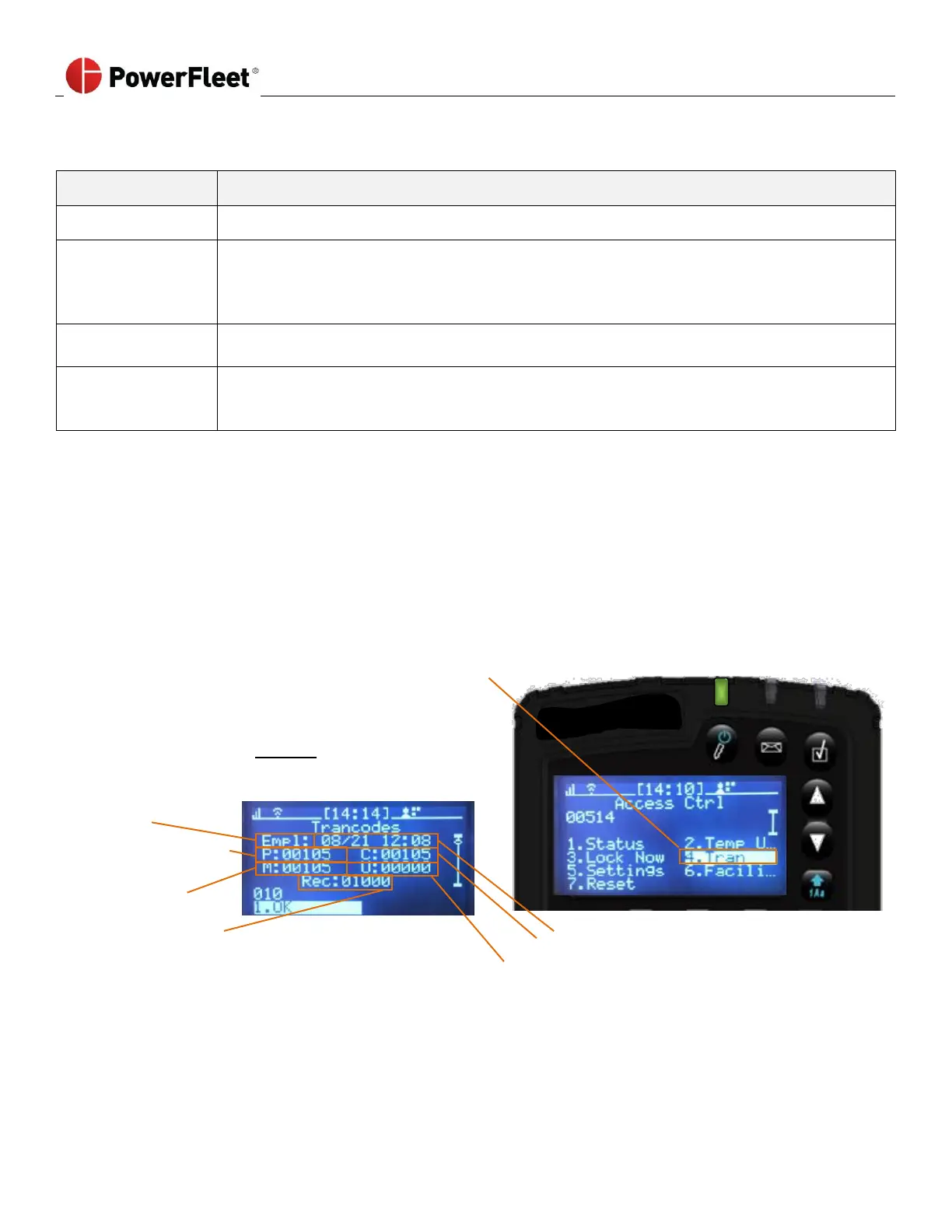
the following explains the content. On the VAC menu screen:
1. Select ACCESS.
2. Select TRAN, to check on a particular VAC’s synchronization status.
Incremental count when in range
(always increments in range)
Note: If the “M” number is less than the “C” number, then
the VAC’s segment is not updated.
Date and Time of last completed update
Records received for synchronizing segments
Latest version on the VAC
Version retained following a firmware upgrade



 To Next Page