PowerFleet
®
VAC4 and VAC4S Hardware User’s Guide
Manually Enabling Impact Calibration
If impact errors are reported and the impact sensor needs to be remounted and/or recalibrated to resolve the issue, the
recalibration process may be manually enabled; (As opposed to waiting for the automatic daily self-calibration to occur,
to ensure the issue has been fixed).
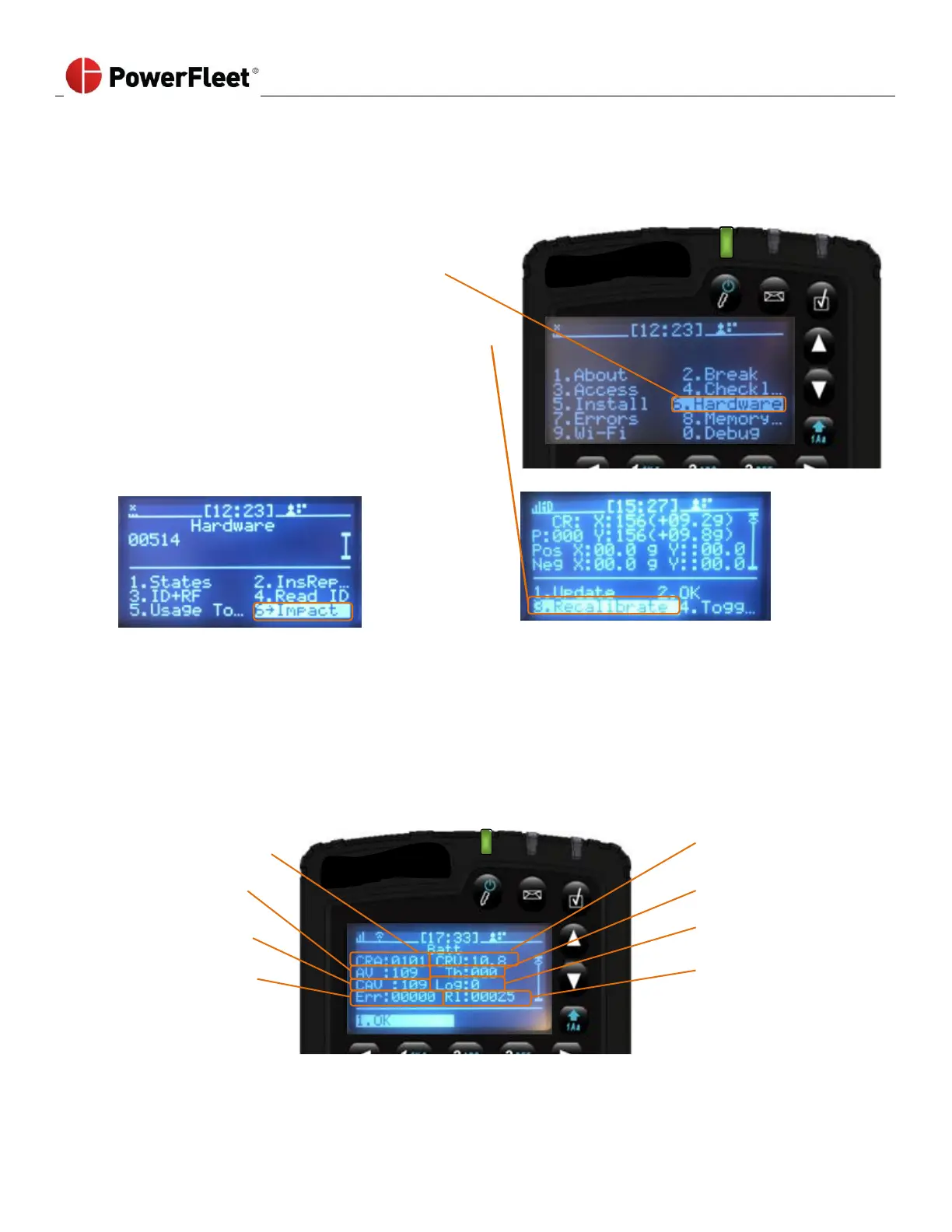
1. Log into the vehicle.
2. On the first menu screen, select HARDWARE.
3. On the “Hardware” sub-menu, select IMPACT.
4. On the “Impact” sub-menu, select RECALIBRATE.
Note: The recalibration process is instantaneous and may
be repeated as many times as needed.
The “CR:” X and Y reading should change to ± 00.0g or
± 00.1g to indicate a valid calibration.
Note: Selecting UPDATE will update the current reading display without recalibration.
5. Select OK when the calibration is acceptable.
Note: The ToggleLog option enables and disables (default) detailed impact sensor reading logs which will rapidly
consume the VAC memory. The ToggleLog option should only be selected at the request of PowerFleet Support.
Check Vehicle Battery Voltage Monitoring
The vehicle battery charge state is monitored in terms of voltage using the vehicle cable’s RED (B+) wire. The status of
the monitoring can be checked at any time. From the VAC menu screen: Select HARDWARE. From the second menu
screen, Select V-In.
Low battery
warning threshold
0 = Not enabled;
1 = Enabled
Error count over all
readings



 To Next Page