PowerFleet
®
VAC4 and VAC4S Hardware User’s Guide
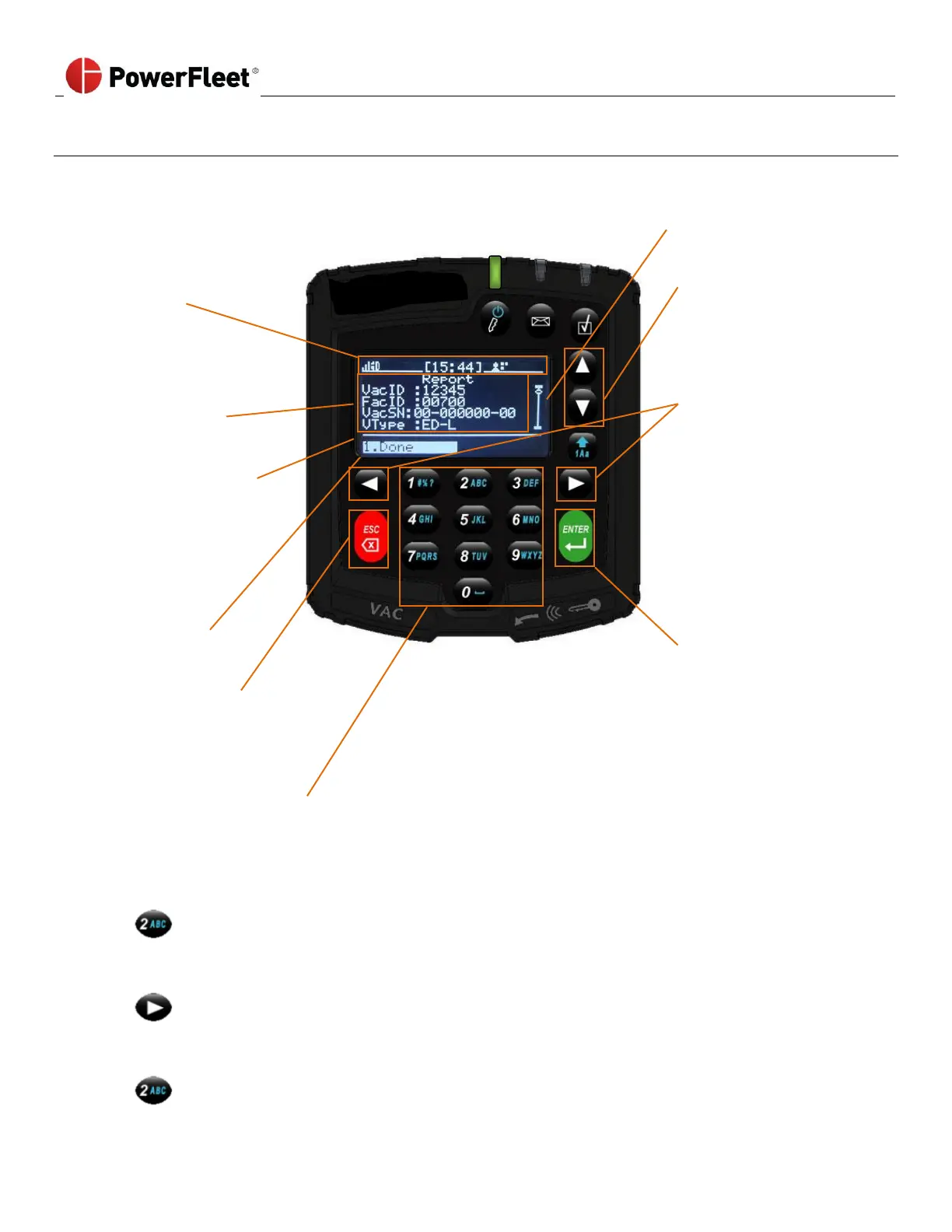
Menu Screens
The Menu screens allow the operator to read and scroll through multiple lines of text as well as rapidly scan through and
select the menu item of choice.
Scroll indicator vertical bar
with handle
Up and Down ARROW keys
scroll through available text
rows (if handle displayed).
(Returns to the top row when
advancing past the last row)
Text related to VAC
menu options
Left and Right ARROW keys
scroll through menu options,
and additional pages when
the left pointed arrow or
right pointed arrow (→ or ←)
are displayed next to the first
or last menu item.
(menu options displayed
Wraps beginning-end and
end-beginning)
Horizontal line separating
text and available responses
(Each section auto-resizes
based on the number of
menu options)
Current selected response is
highlighted
ENTER key confirms the
highlighted selection and
advance to the next screen.
Quick press: ESC key exits to
the previous screen
Long press: ESC key exits to
the home screen
Screen Display (first page)
Quick press: Highlights menu option corresponding to key pressed, then ENTER must be pressed to make the
selection. Long press: Press and hold on the number keys that corresponds to the menu option advances to the next
screen, without pressing ENTER.
The following is an example of the Quick Press or Long Press feature:
Press and HOLD the 2 button for more than 2 seconds to highlight the menu option.
Select 2. OK to advance to the next screen.
Press the right arrow button to move the highlighted selection from:
Select 1. UPDATE
Select 2. OK
Then press ENTER.
Press the 2 button to highlight
Select 2. OK. Then press ENTER.



 To Next Page