PowerFleet
®
VAC4 and VAC4S Hardware User’s Guide
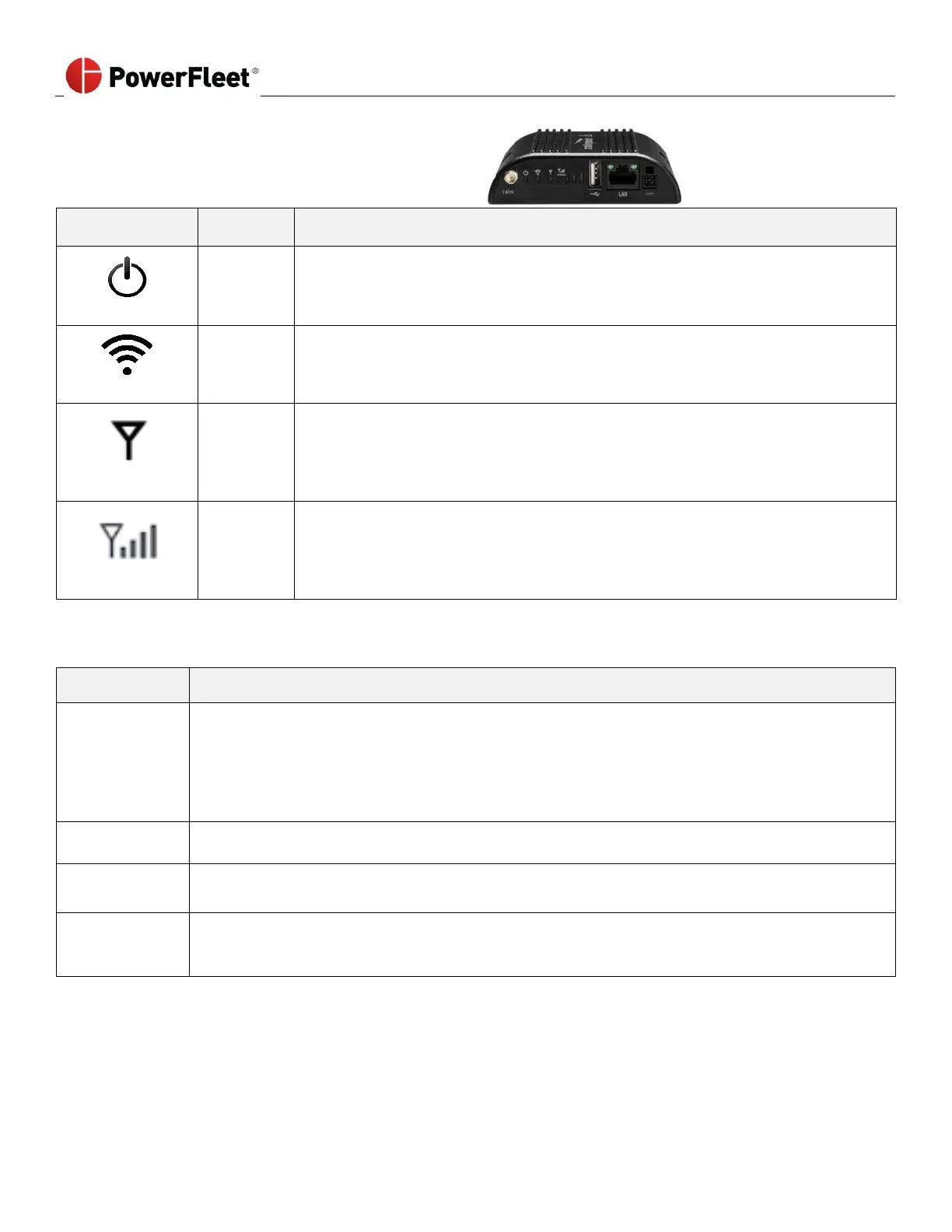
Cradlepoint Modem LEDs Explained
Green = Indicates presence of DC power when lit.
Flashing Amber = Attention required
Green = 2.4 GHz Wi-Fi on and operating normally
Blue = 5 GHz Wi-Fi on and operating normally
Yellow = Wi-Fi attention required (this feature it NOT required for proper WAM use)
Green = Modem has established an active connection.
Blinking Green = Modem is connecting.
Blinking Amber = Data connection error. No modem connection possible.
Blinking Red = Modem is in the process of resetting.
4 Solid Bars = Strongest signal
1 Blinking Bar = Weakest signal (blinking bar indicates half of a bar
• Test electrical outlet for power. If no power is present, consult electrician.
• If the outlet has power, plug the modem power adapter into the outlet and test adapter’s
barrel plug (the end that plugs into modem) for power.
o If no power is present, follow RMA procedures for the power adapter.
o If power is present, reconnect to the modem power input and re-check PWR LED status.
Check your cellular carrier map for the communication coverage in your area. If coverage is
present in the area, move the WAM to a location where the CD light illuminates.
• Make sure you have 4G signal strength for the provider with any other device
• Power-cycle the modem, if the problem persists, follow RMA procedures.
Signal LEDs -
less than 1 on
Check your cellular carrier map for the communication coverage in your area. If coverage is
present in the area, move the WAM to a location where 1 or more LEDs light up. If there is no
coverage, contact PowerFleet.
If any of these troubleshooting remedies fail, please refer to the following RMA instructions:
• Complete a return merchandise authorization (RMA) form (Appendix A).
• Call PowerFleet Customer Service for the RMA number.
• Vehicles will continue to function while the WAM is being repaired/ replaced; however, no system configuration
changes (e.g. adding operators) will be possible, and system data will only be stored, not available/ viewable,
until an operable WAM is restored.



 To Next Page