Changing the VAC Facility ID
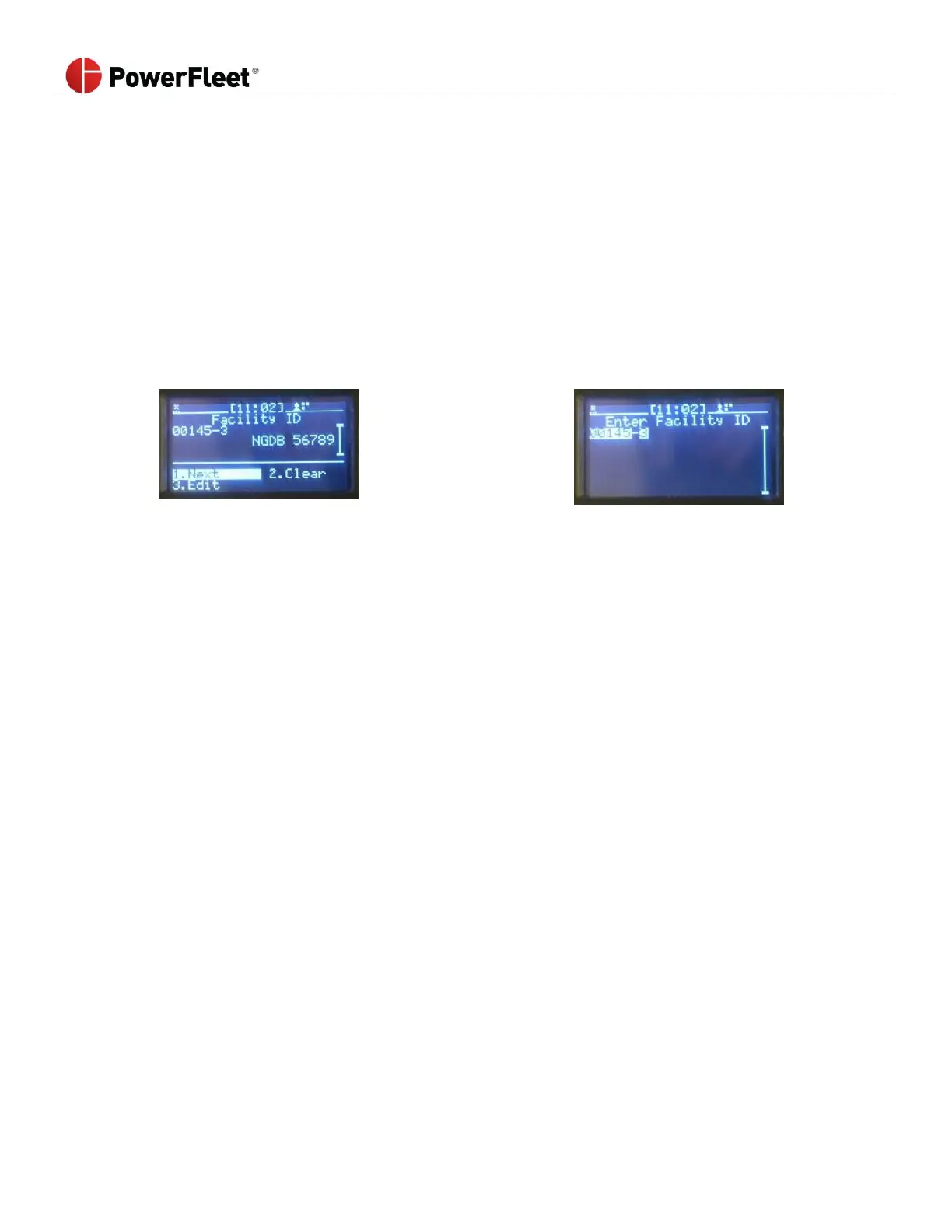
The facility ID entered in the VAC is the unique identifier that allows the VAC to communicate with the correct
PowerFleet Vision Pro software database. The facility code is first entered during the VAC configuration process but can
be updated at any time. From the VAC menu screen, perform the following steps:
1. Select ACCESS.
2. Select FACILITY ID.
You can obtain your facility ID from PowerFleet’s Support. Alternatively, if you are using WAMs or a customer-
hosted Wi-Fi system perform the following:
3. Select CLEAR or enter zero in the facility ID field.
The VAC will communicate with, and display the Facility ID of, the first system within wireless communication range.
Note: When the VAC is within wireless communication range of a facility ID different than the one entered during
configuration, diagnostic error #25 will appear on the VAC display screen.
Forcing the VAC to Low Power Mode (Hibernate)
The VAC’s power consumption is extremely low. However, when installed on internal combustion vehicles, it is
programmed to automatically enter a low-power mode otherwise known as ‘hibernate’ after a period of non-use. If you
need to force the VAC to hibernate mode (e.g. vehicle is in maintenance for a long period of time), from the VAC menu
screen, select HARDWARE, and then select HIBERNATE menu option.
Note: In Hibernate mode, the VAC will occasionally automatically wake up and check for activity to determine if it should
return to full power mode.
1. Log into the vehicle.
2. From the VAC menu screen, select HARDWARE.
3. On the “HARDWARE” sub-menu, select HIBERNATE.
As soon as Hibernate is selected, the VAC will change to low power mode and log the operator out.



 To Next Page