PowerFleet
®
VAC4 and VAC4S Hardware User’s Guide
High and Severe impacts, failure to complete a safety checklist in
the defined period (non-compliance), and checklist critical
responses will shut down the vehicle and lock it out, to prevent
Standard operators from using that vehicle.
Note: Vehicles in “Any ID” mode, are NOT subject to lockouts.
To view the cause of a lockout, log in to the locked vehicle. From
the VAC menu screen, perform the following steps:
1. Select ACCESS.
2. Select STATUS.
To clear a vehicle lock-out and return the vehicle to operation, a
Master operator (or a Maintenance operator) must perform the
following:
Log into the locked vehicle.
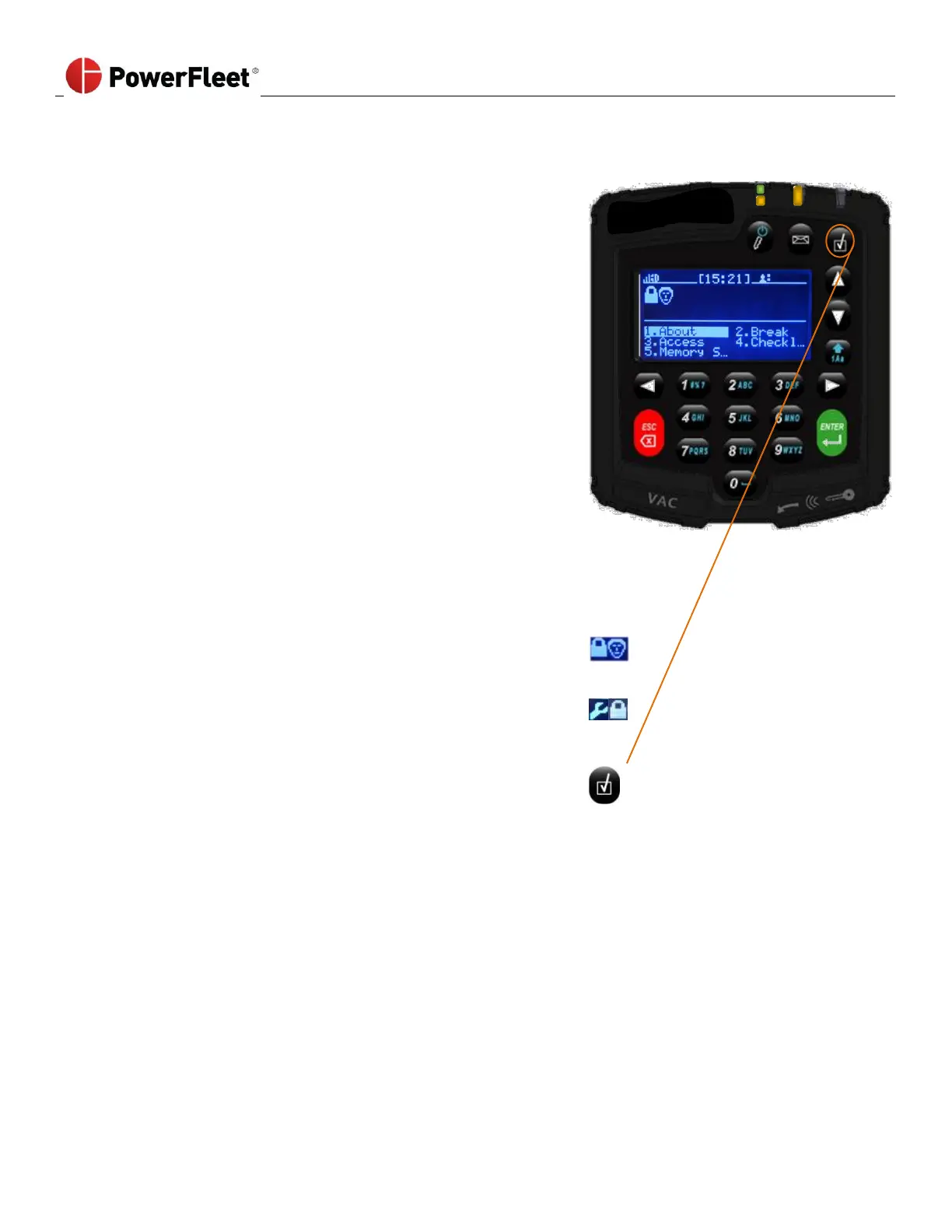
The screen displays the following:
Lock and Operator icon is for impact and non-compliance
events.
Wrench and Lock icon is for critical response events
(Maintenance only)
Press the VAC’s CHECK button and answer the checklist questions.
If the responses indicate that there are no critical safety issues, the
lock-out will be cleared and the LED will turn off. If the responses
indicate another critical issue, a new lockout will occur.
If there are no critical safety issues, simply log out.
The vehicle will then be available to authorized Standard operators.



 To Next Page