Q40 Tape Library Installation and Operations Manual
511026 Rev. 07-01-19 42
4 Initial Setup of the Library
The library provides two main interfaces:
• Operator Control Panel (OCP) — With the OCP, you can monitor, configure, and control the library
from the front panel.
• Remote Management Interface (RMI) — With the RMI, you can monitor, configure, and control the
l
ibrary from a web browser. The RMI hosts a dedicated, protected Internet site that displays
a
gr
aphical representation of the library.
4.1 Using the OCP
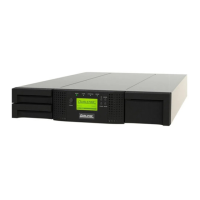
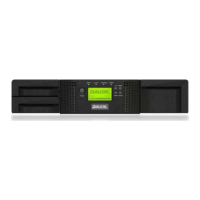
The OCP has a power button, an LCD display, six navigation buttons, and five LEDs. With the OCP you
can monitor, configure, and operate most library functions from the library front panel. To navigate the
OCP, use the six navigation buttons (up/down, left/right, Enter, Back).
T
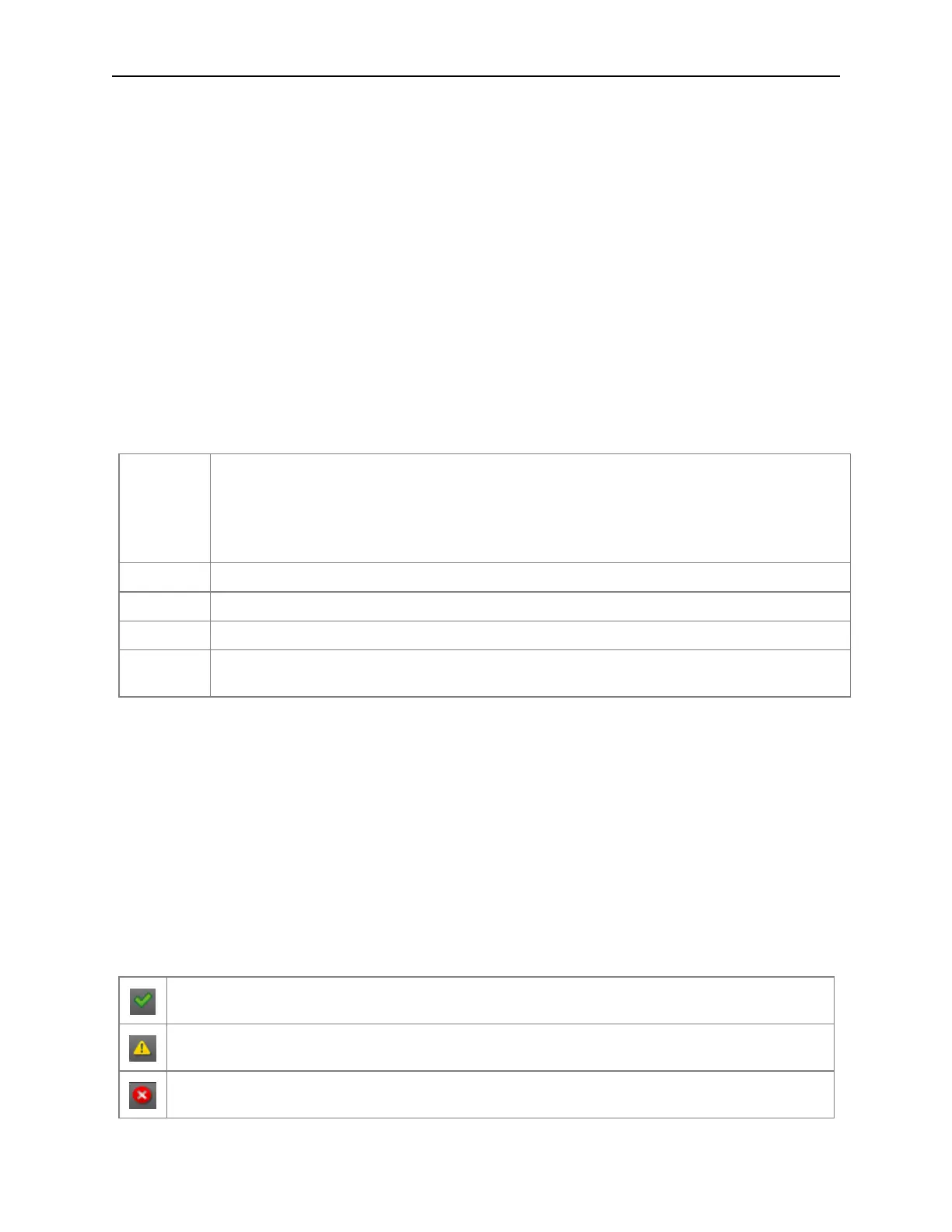
able 10: Front Panel LED Indicators
Unit ID
Blue when activated. The unit identification (UID) LEDs are controlled by the user through
the RMI Maintenance > UID LED Control screen. The UIDs on the OCP and base module
back panel are activated and deactivated together. In addition, UIDs on drives and
expansion module back panels can be activated separately. The UIDs are helpful for
locating components of the library in a data center.
Ready Green, steady when power is on, blinking during tape drive or library robotic activity
Clean Amber when a tape drive is requesting cleaning
Attention Amber blinking if the library has detected a condition for which user attention is necessary.
Error
Amber if an unrecoverable tape drive or library error occurs. A corresponding error
message is displayed on the LCD screen. User intervention is required.
4.2 Using the RMI
With the RMI, you can monitor, configure, and operate most library functions from a web browser. To
start the RMI, open the latest version of a supported HTML browser and enter the IP address of the
library. When possible, it is recommended that the RMI be used as the primary library interface because
the web interface provides access to additional features and is easier to use. However, the RMI is not
required to use the product, except to configure advanced features, such as SNMP, IPv6, encryption, and
partitions. Before using the RMI, you must configure the library network settings with the OCP. This can
be done with the Initial Configuration Wizard.
Supported browsers include Internet Explorer, Firefox, Chrome and Safari.
T
able 11: RMI Status Icons
The green Ready LED indicates that the library is fully operational and that no user interaction
T
he blue Attn LED indicates that user attention is necessary, but that the device can still
perform most operations.
T
he red Error LED indicates that user intervention is required and that the device is not
capable of performing some operations.


 To Next Page