511026 Rev. 07-01-19
45
5 Operating the Library using the Operator Panel
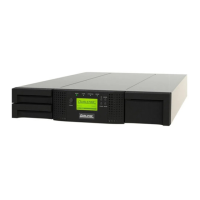
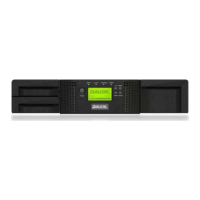
The OCP contains a power button, an LCD display, six navigation buttons, and five LEDs. With the OCP
you can monitor, configure, and operate most library functions from the library front panel. To navigate
the OCP, use the six navigation buttons (up/down, left/right, Enter, Back).
In addition, on each module two buttons are available to unlock magazines or I/O stations.
The OCP provides a subset of menu items compared to the full capability of the RMI. Menu items that are
similar to the RMI are not described. For details please refer to the corresponding item in the section
Operating the Library using the RMI
.
Table 12: Front Panel LED Indicators
Unit ID
Blue when activated. The unit identification (UID) LEDs are controlled by the user through
the RMI Maintenance > UID LED Control screen. The UIDs on the OCP and base module
back panel are activated and deactivated together. In addition, UIDs on drives and
expansion module back panels can be activated separately. The UIDs are helpful for
locating components of the library in a data center.
Ready Green, steady when power is on, blinking during tape drive or library robotic activity
Clean Amber when a tape drive is requesting cleaning
Attention Amber blinking if the library has detected a condition for which user attention is necessary.
Error
Amber if an unrecoverable tape drive or library error occurs. A corresponding error
message is displayed on the LCD screen. User intervention is required.
O
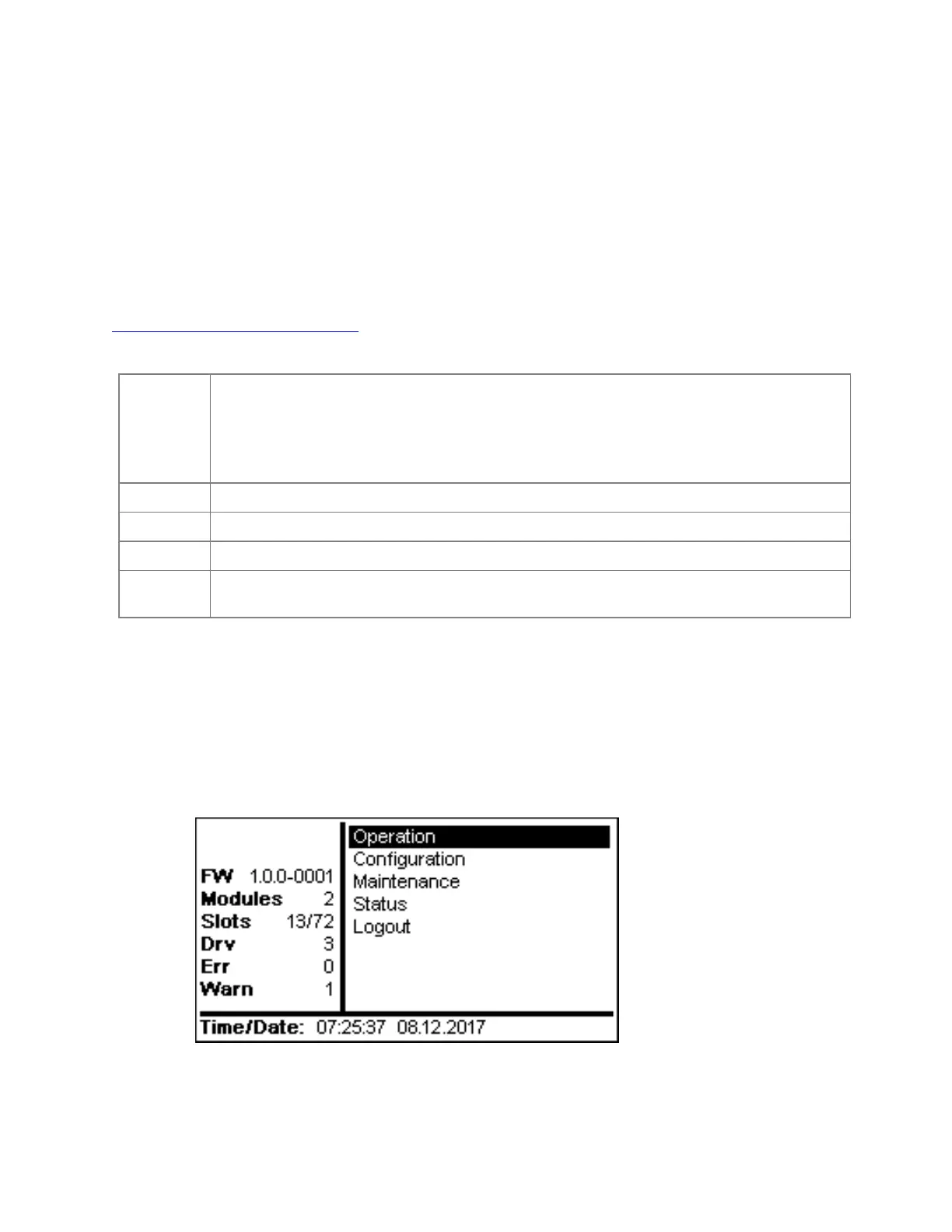
CP main screen layout
• Left Pane - Displays the library status (firmware revision, number of modules, number of
slots, number of drives, number of errors, number of warnings
• Center Pane - provides access to operate and configure the library and to view additional
status information (Operation, Configuration, Maintenance, Status, Logout)
• Bottom Pane - Displays additional status information (library status, time/date, IPv4 or IPv6
addr
ess). The bottom pane will automatically scroll through the various status items every
10
s
econds.


 To Next Page