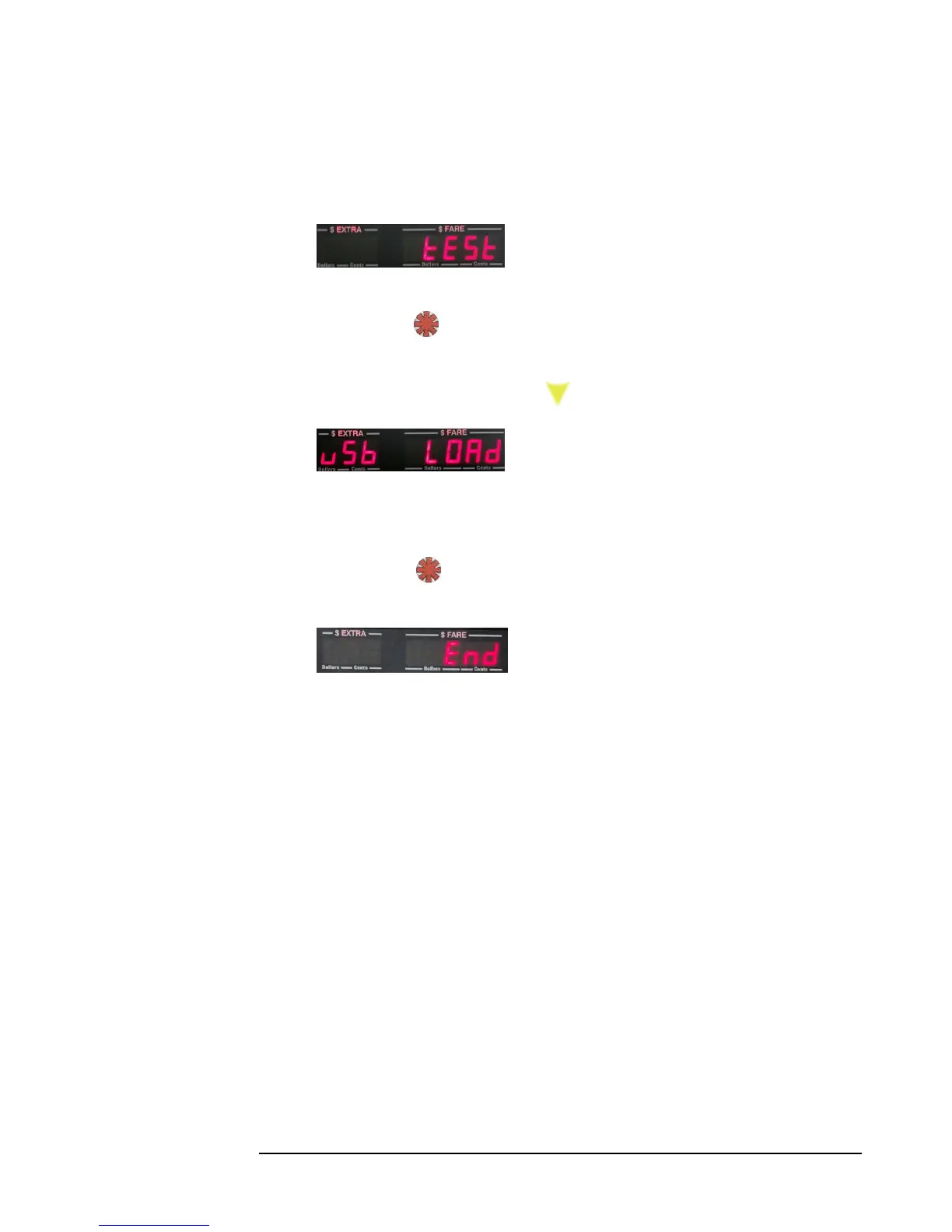
If you are using a Bluetooth printer, the CG3 will search for the
printer, connect to it, and execute a test print. This will take a short
while.
4. This function allows you to manually execute a
test print.
Press . You can repeat this procedure as many times as you would
like.
When finished, press the to advance to the next menu option.
5. The USB LOAD function allows you to upload
to the CG3 your receipt header from a text file located on an attached USB
flash drive. See the next section on the details for this file and how to create
one.
Press to upload the file. When completed, the CG3 will flash
“Done”. Detach the USB flash drive to return to Vacant Mode.
6. The End option allows you to exit the Printer
Menu back to the CG3 Vacant Mode (4.1).


 To Next Page