4.7 Configuring Dispatch Communication
As of this writing, the CG3 has two different dispatch command sets (protocols) built-
in. You have the option of configuring the taximeter to use either set, depending on
compatibility with your existing dispatch system. As well, you have the option of using
either RS-232 or Bluetooth serial communication for dispatch. Follow the steps below
to setup the CG3 for dispatch capability:
1) Enter Configuration Mode (see section 4.4.1).
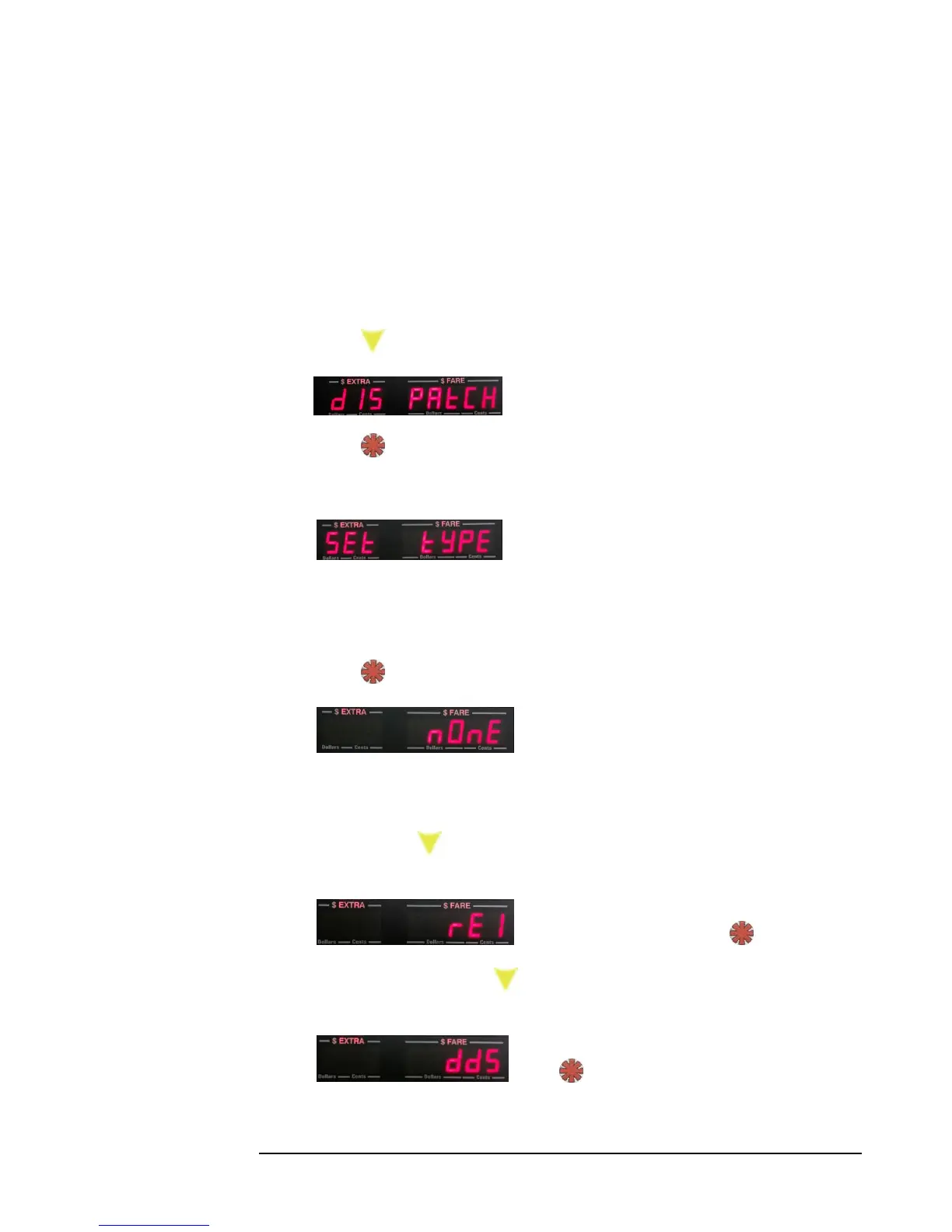
2) Press: 3 times. The display will show the following:
3) Press: . This enters Dispatch Configuration Mode.
4) The display will show:
This indicates that you have the option of now setting the dispatch type to use.
If you wish to do so, proceed to step 5. If you have previously set this,
proceed to step 6 to configure the communication type and Baud.
5) Press: . The display will show:
This means that the current dispatch type is “None”. If you wish to use our
freely available Android app with the CG3, it must be set to “None”.
Press: . Now, the display will give you the option to select “REI”
dispatch mode:
If this is what you want, Press: .
Otherwise, press . You now have the option of selection “DDS”
dispatch mode:
Press: to select DDS mode.


 To Next Page