Create Template
Template is an image corresponding to the materials to be engraved by 1:1 ratio. Load a template most
similar to the materials to be engraved, and enter the texts to be engraved. This way allows you to create
the location of engraving and the size of texts to be engraved more easily and conveniently.
Circle, heart, square and diamond templates are initially provided by the program and users can freely
add more templates. The shape of a template can be designed by graphic program (Illustrator, Photoshop,
CorelDraw, etc.) or a scan file of materials can be saved as jepg, bmp, png, srg file types to use.
[Add template1]
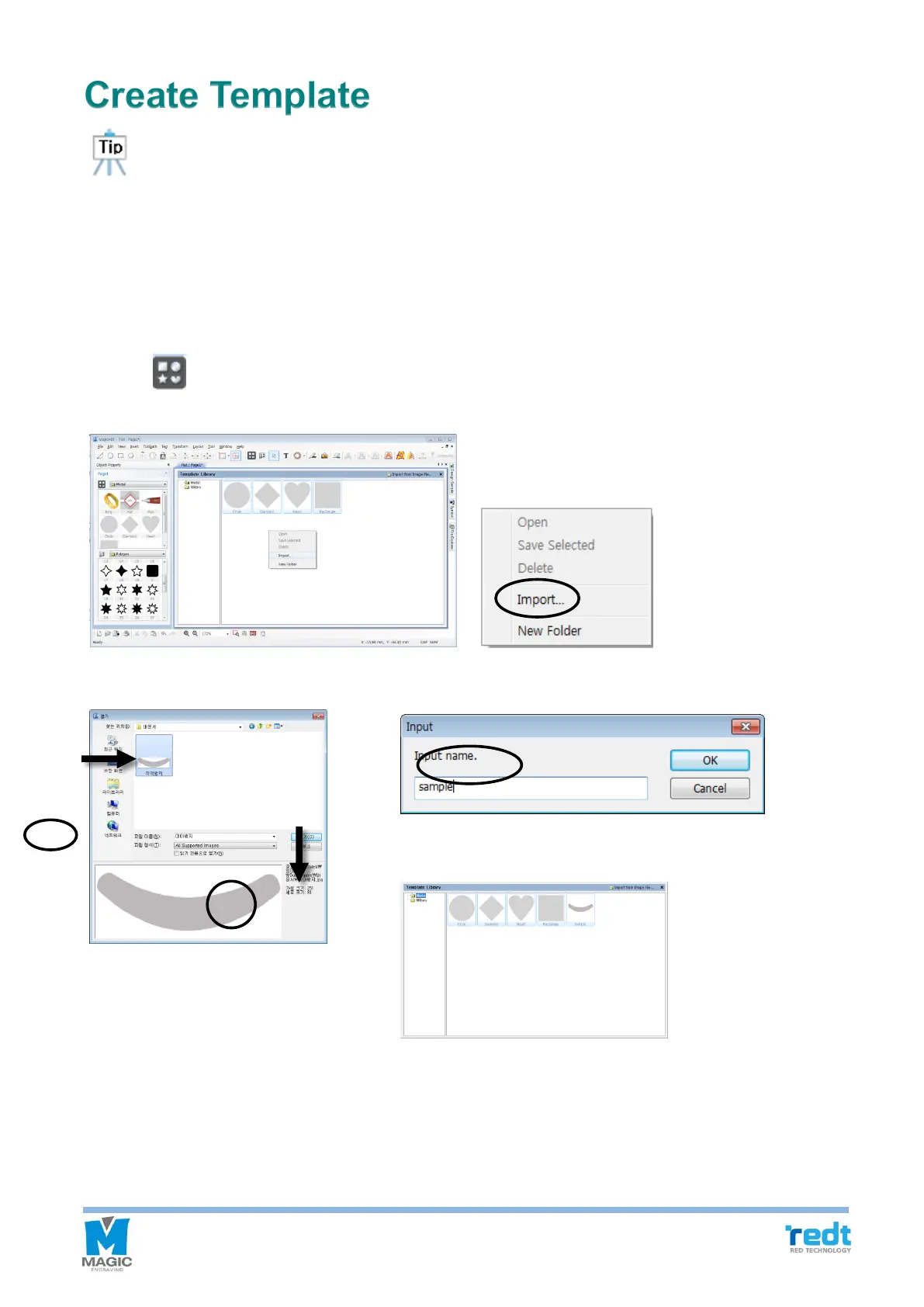
1. Click [Template] button, then “Template Library” window appears as below. Click the template list window
with mouse right button and click Import button, then “Open” window will appear.
2. Select picture files (jepg, bmp, png, etc.) from the “Open” window, and click “Open” button, then a window for
naming appears. Enter a name for new template, and click “OK” button to add the template to the library.
Click mouse right button in the template category window to add or delete a folder. Click the mouse right button in
a template list window to delete template list.


 To Next Page