28 WiNG-MGR User Guide 800.518.1519
3 Web Interface
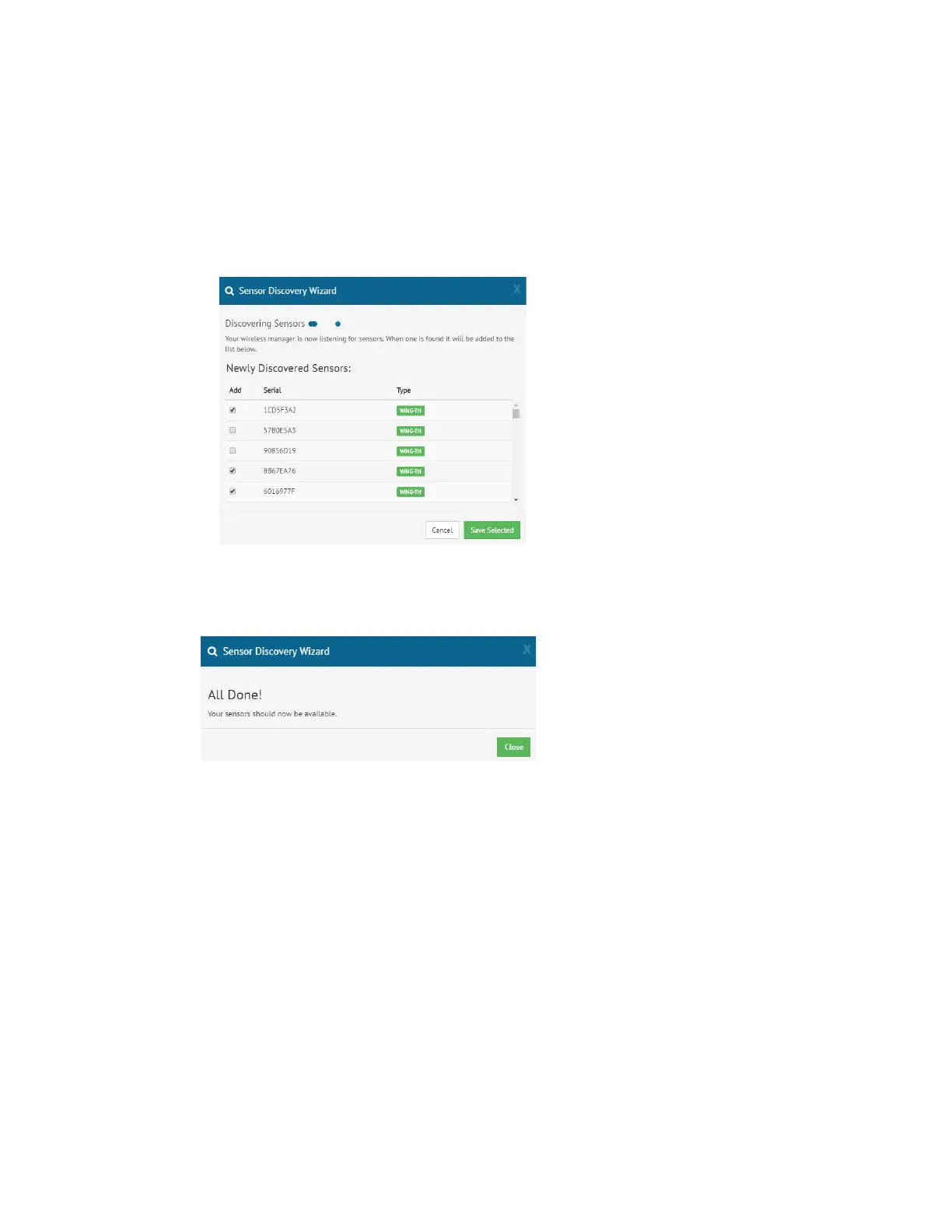
checkbox in front of it. If you would like the sensor to be associated with this WiNG-MGR,
leave the checkbox checked. Uncheck the boxes next to the sensors that should NOT be
configured within this WiNG-MGR at this time. Verify the serial numbers of the sensors to
ensure you’re adding the correct sensors.
The animated ball image will continue as long as the modal window is open, so you don’t
have to wait for it to stop before you make your selections.
Once you’ve selected the appropriate sensors, click the Save Selected link.
Figure 3.4
Sensor Discovery Wizard - Select the Sensors for This WiNG-MGR
4
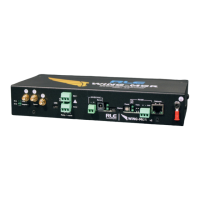
Click the Close button to close the modal and return to the Sensors page of the website.
Figure 3.5
Close the Sensor Discovery Wizard
The selected sensors will be added to the system and will appear at the end of the list of
sensors on the dashboard. Confirm the placement of all the new sensors in the sensor list.
From this point you have two options:
a Use the sensor’s serial number to locate it in the list and configure it per the instruction in
“Individual Sensor Pages” on page 31. Be sure to click the Save Changes button on every
page.
b Configure global alarm and warning settings for all the sensors, following the directions
in “Alarms” on page 62.
5 Once you have configured all you alarm parameters, your sensor discovery is complete. Be
sure to save a copy of the system configuration. Reference “Sensors” on page 58 to
download the sensors CSV file for safekeeping.


 To Next Page