rletech.com WiNG-MGR User Guide 29
3 Web Interface
3.1.4 Refresh
Click this icon to manually check for system and sensor status updates. The WiNG-MGR will
refresh all its data and poll all connected devices for their most recent data. The Refresh link is
especially helpful if the system’s refresh rate is set at a long interval, or when new equipment
is connected to the system. Instead of waiting for the WiNG-MGR to refresh on its own, click
the link to force a system refresh.
3.1.5 Support Information
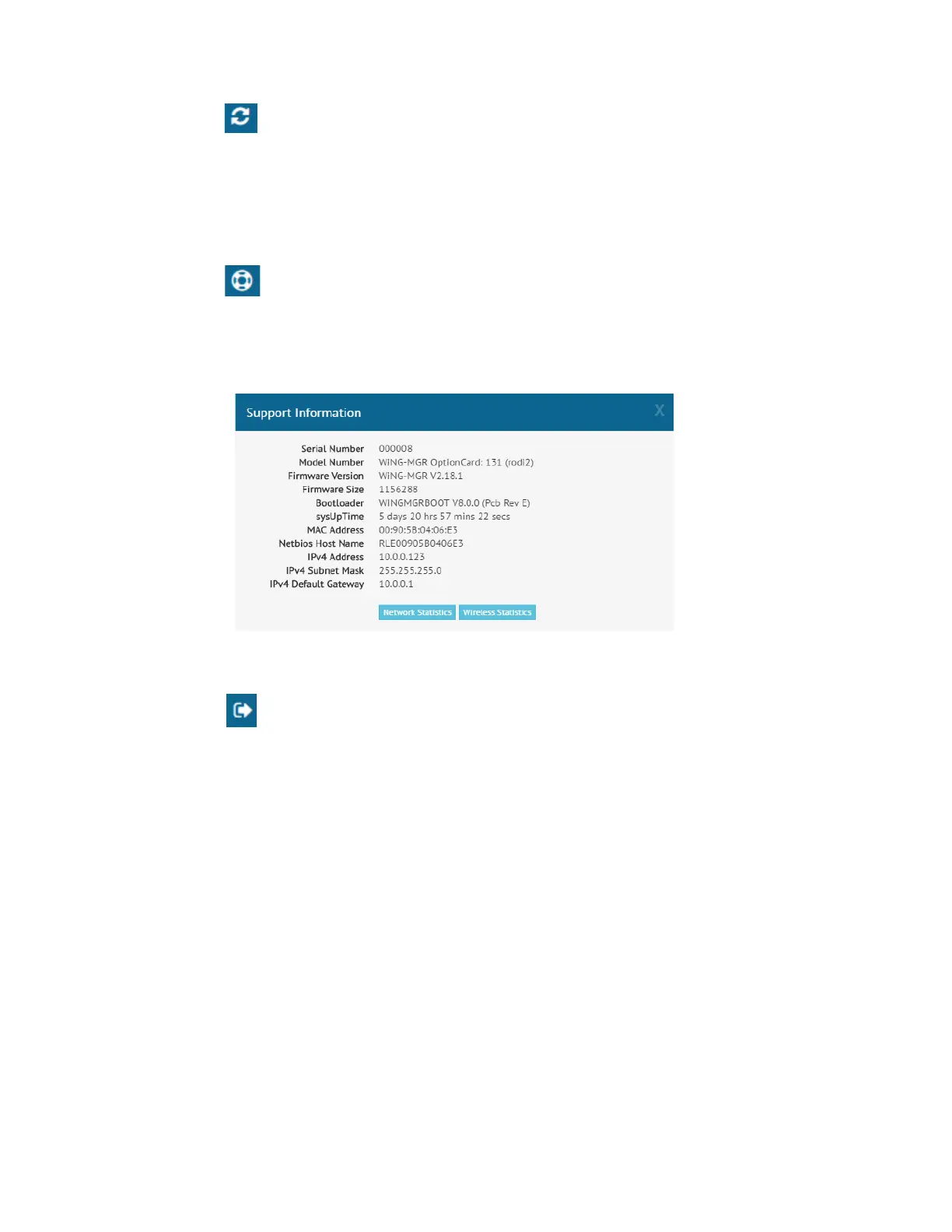
This pop up window displays a variety of information specific to your device in a singular
location. Direct links to network and wireless metrics are also available from this modal. If
you need to contact RLE’s technical support team, you’ll be asked for the information found
on the support information modal window.
Figure 3.6
Support Information
3.1.6 Sign In/Out
Use this option to sign into and out of the WiNG-MGR user interface.


 To Next Page