Robotiq Screwdriving Solution - Instruction Manual
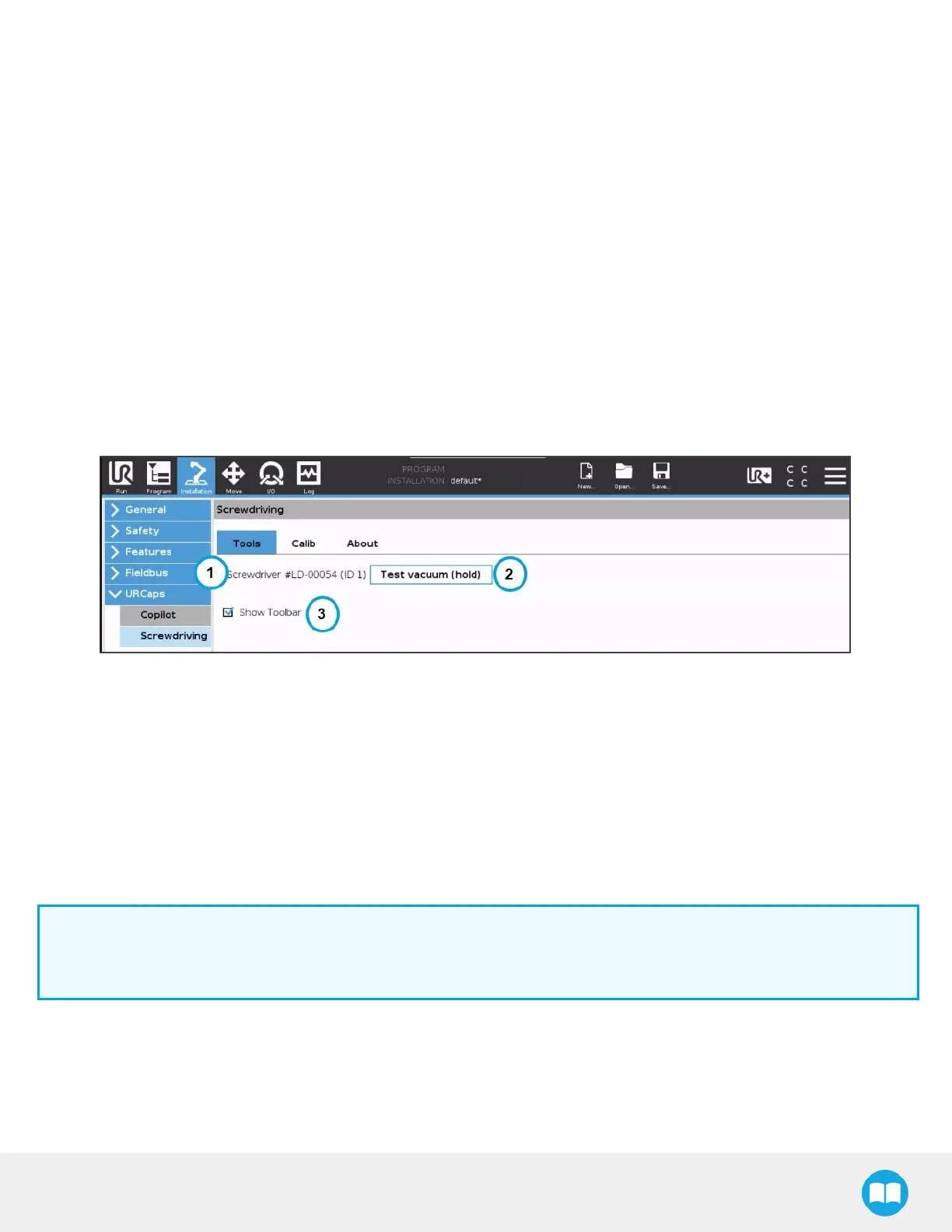
5.1.1.Installation Menu
Getting to the Installation menu:
l
CB-Series
a. From the PolyScope homepage, tap Program Robot.
b. Tap the Installation tab.
c. Select Screwdriving from the navigation pane on the left.
l
e-Series
a. In the PolyScope interface, tap the Installation button in the top ribbon.
b. Expand the URCapsdropdown menu in the navigation pane on the left.
c. Select Screwdriving.
ToolsTab
1. Screwdriver serial number
o
Displays the serial number of the activated Screwdriver.
2. Test vacuum (hold) button
o
Hold the button to enable vacuum action.
3. ShowToolbarcheckbox
o
Tick to enable/display the Screwdriver Toolbar
o
Untick to disable/hide the Screwdriver Toolbar
Info
Should the Tools tab not be displaying a Screwdriver, please open the Screwdriver Toolbar and tap on the Activate
button.
50



 To Next Page