System Operations Page 3-
Radio Buttons allow an item to be selected from a list of
options. Radio buttons are presented in groups of two or more;
each group being considered as a single field. The arrow keys
may be used to move between the radio buttons and the Enter or
Space button used to select it. The selected item is indicated
by an "*" inside the parenthesis. Selecting a radio button
de-selects all other buttons in the same group. Some radio
buttons are intended for answering yes/no questions. These
Radio Buttons may be selected by entering "Y" or "N".
Check Boxes
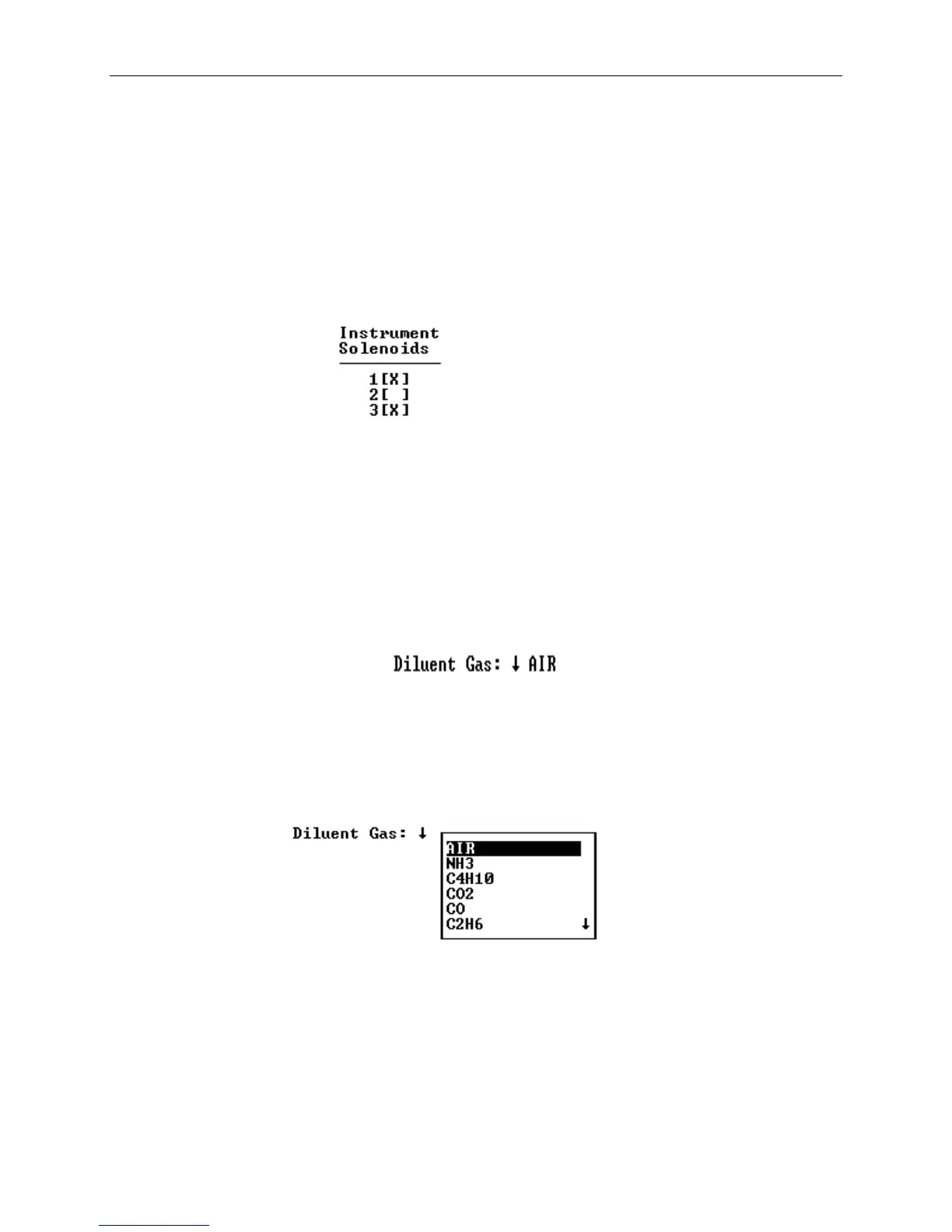
Check Boxes are similar to Radio Buttons in that they allow
options to be selected, however any number of Check Boxes in
a group may be selected. Check Boxes are selected by entering
"1", "+", "Y" or "X", de-selected by entering "0", "-" or "N"
or toggled by entering "." or Space. Though they may be
presented in groups on the screen, each Check Box is considered
to be a separate field.
Drop-down List Boxes
Drop-down list boxes appear similar to Text Edit Fields, however
a down-arrow () to the left of the field indicates that a
selection list may be dropped by pressing the down arrow or Enter
button. When dropped, the Drop-down List Box presents a list
of options, as shown below:
The Desired item may be selected from the list by using the up
and down arrows to position the cursor and then pressing Enter.
Arrows to the right of the list indicate when there are more
items below or above the visible area of the box.


 To Next Page