34 PLU/Inventory Maintenance SAM300 Reference Manual v1.0
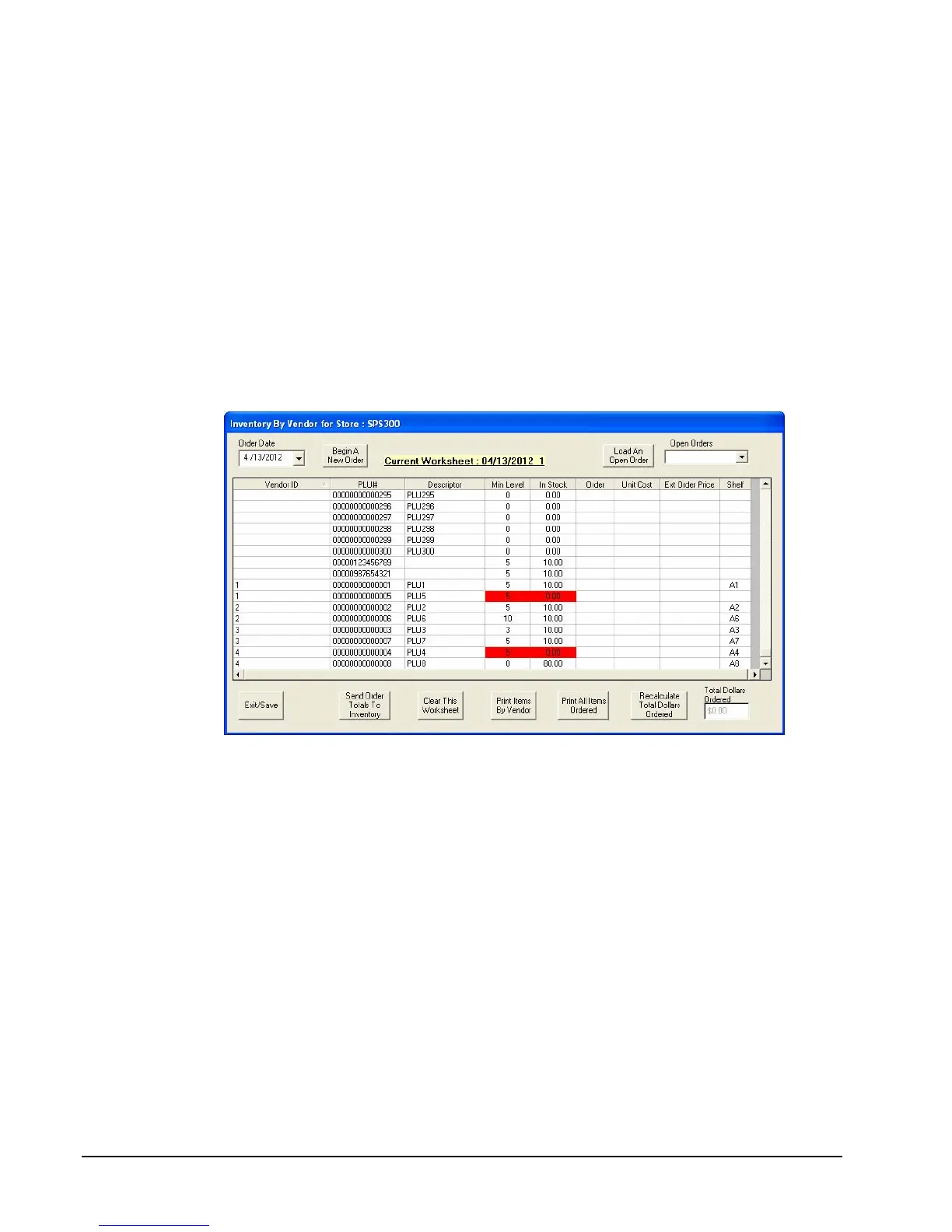
Add Inventory by Vendor
1. Choose Inventory, Add Inventory, and then Add By Vendor from the Edit ECR
Data menu. An empty Inventory By Vendor window displays.
2. If an order date is not entered, today’s date will default. Enter or select an Order Date if
you wish to create an order to be placed on a different date.
3. Click Begin a New Order.
The window will be loaded with a list of all PLUs sorted first by Vendor, and secondarily
by PLU#. Use the scroll bar at the right to view the entire list and find the shelf number
where you wish to edit PLUs.
Note that where PLU stock is less than the minimum inventory level, the fields are
highlighted red for easy identification.
4. Add stock or stock orders by clicking in the appropriate field in the Order column. Enter
cost in the Unit Cost field. Enter price or decimal quantities using the decimal key. If
you wish to enter waste, enter inventory with a negative sign (-).
5. Continue to enter stock/orders for as many PLUs as required. If necessary, you can click
Clear This Work Sheet to exit without saving changes.
6. If required click Print Out All Items Ordered to print a hard copy of the complete
order, or click Print Items By Vendor to print separate orders for each vendor.
7. If you wish to enter the order to inventory immediately:
Click Send Order Totals To Inventory.
If you are placing an order and wish to send orders to inventory at a later time:
Click Exit/Save. The suspended order will be saved by date and by consecutive number
for order placed that date.


 To Next Page