SAM300 Reference Manual v1.0 PLU/Inventory Maintenance 29
Add Inventory
This tab has options to adjust Inventory levels by item, by shelf, or by vendor.
By Item, By shelf and By vendor inventory adjustment functions allow orders to be entered,
printed and suspended. Suspended orders can be recalled, adjusted if necessary and sent into
inventory when the product is received.
Items entered using a portable data terminal (using either Metrologic™ ScanPal™ or
Optimus8™ terminals) can be uploaded to your PC and accessed from the By item inventory
adjustment window.
Add Inventory by Item
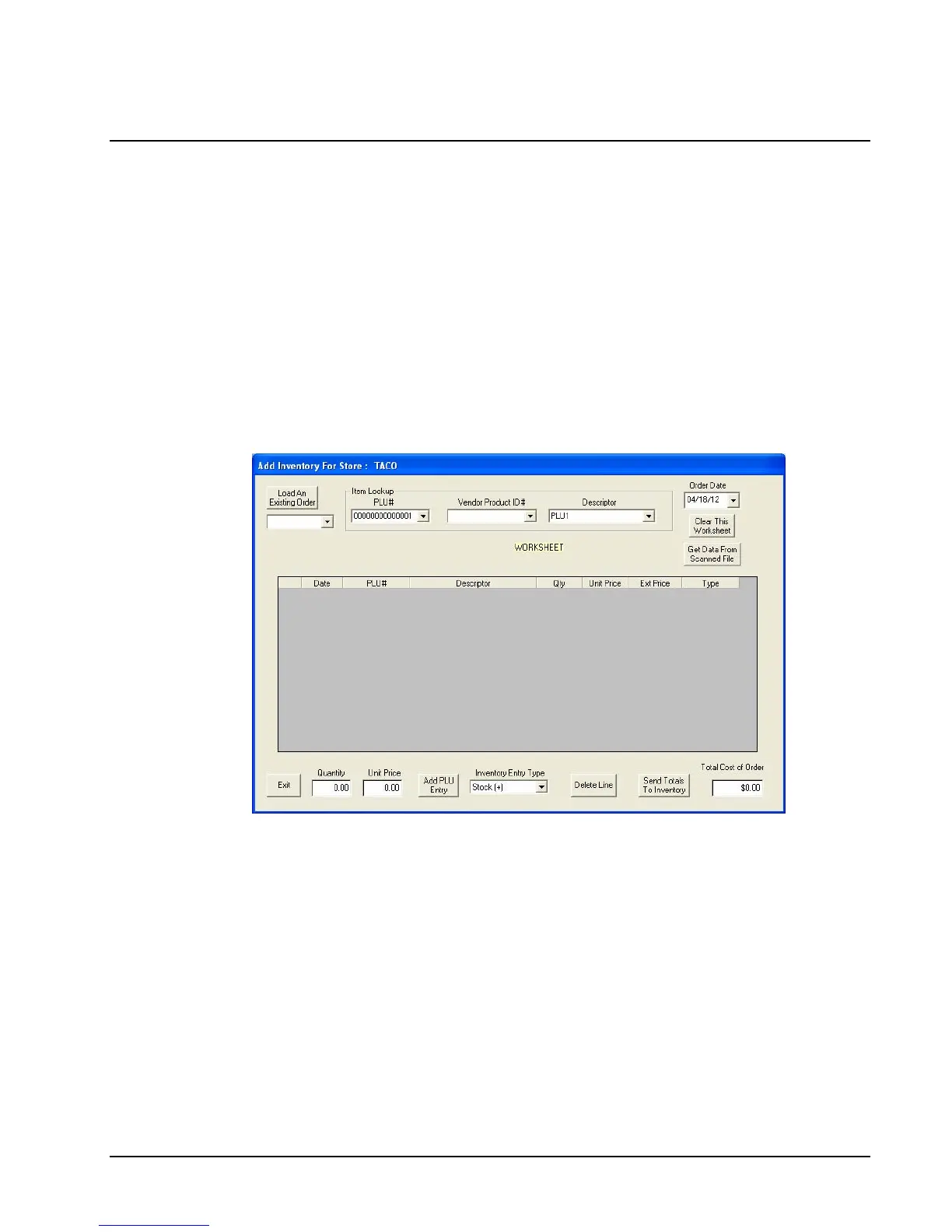
1. Choose Inventory, Add Inventory, and then Add By Item from the Edit ECR Data
menu. The Add Inventory dialog for the selected store displays:
2. Select the PLU you wish to adjust from the PLU Number Lookup, Vendor Product ID#,
or PLU Descriptor Lookup drop-down list boxes.
3. Select the Date Stock Received from the drop-down list.
4. Click the Inventory Entry Type drop-down list box. Select Stock (+), Transfer In (+),
Transfer Out (-), Promo (-), or Waste (-).


 To Next Page