70 Utilities SAM300 Reference Manual v1.0
Convert Polled File to CSV File
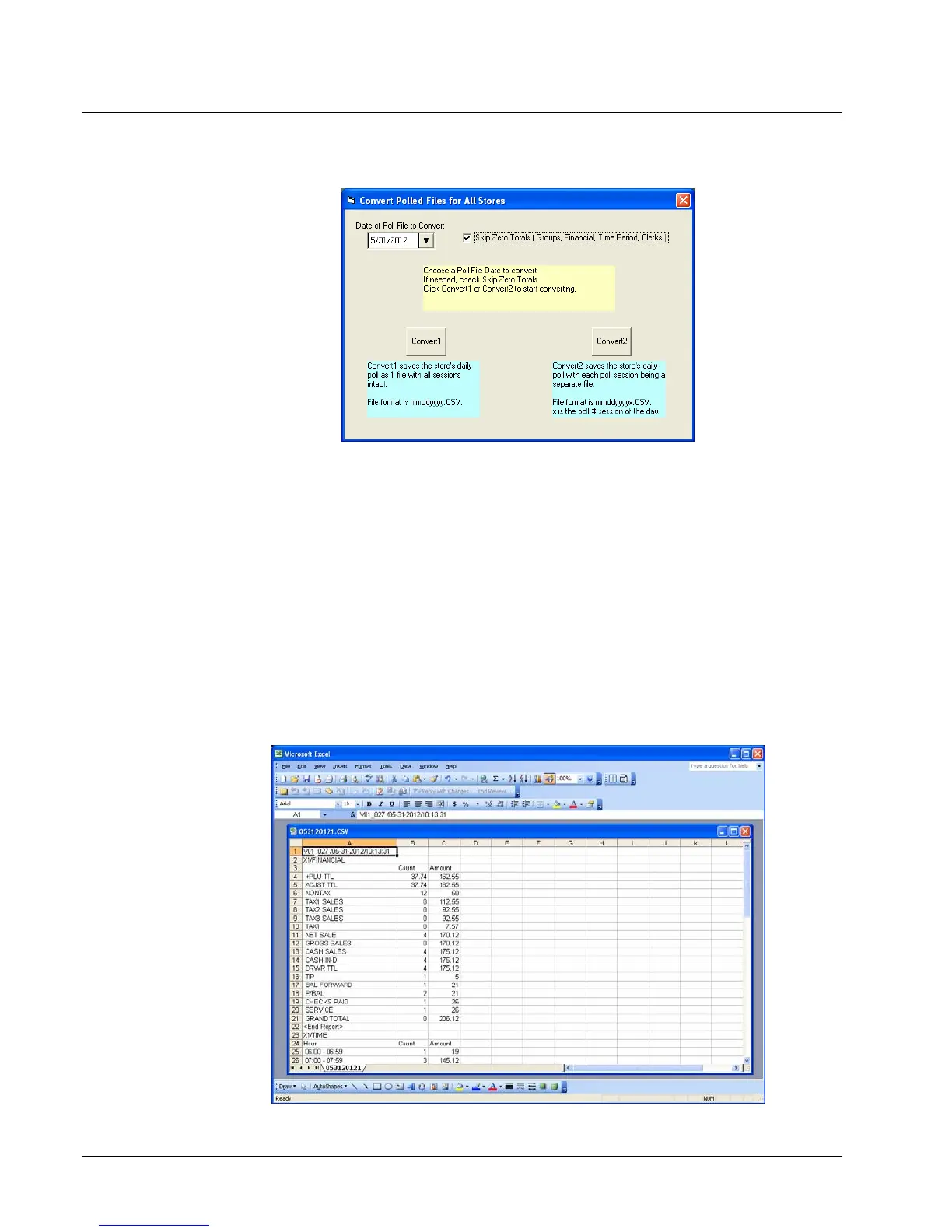
1. Choose Convert Polled File to CSV File from the Utilities menu.
2. Select the date of the poll file you wish to convert. Choose the Skip Zero Totals check
box if you wish to report only fields with values other than zero.
3. Click Convert1 to save the poll file as one report – if you poll multiple reports multiple
times a day all of the reports will append to the same report file. When you run the
Convert1 all of the reports will be in one date stamped CSV file (03032008.CSV).
Click Convert2 to save report files individually - if you poll multiple reports multiple
times a day all of the reports will append to the same report file. When you run the
Convert2 a date stamped CSV file will be created for each time that you had polled that
day. (030320081, 030320082, 030320083)
4. When complete, the “Finished Converting” message will display. The CSV file will
appear in the Poll Folder for your store, i.e. C:\SAM300\STORES\V01_027\POLL.
5. The screen below is an example of the report as seen in Microsoft Excel™:


 To Next Page