SAM300 Reference Manual v1.0 Print 55
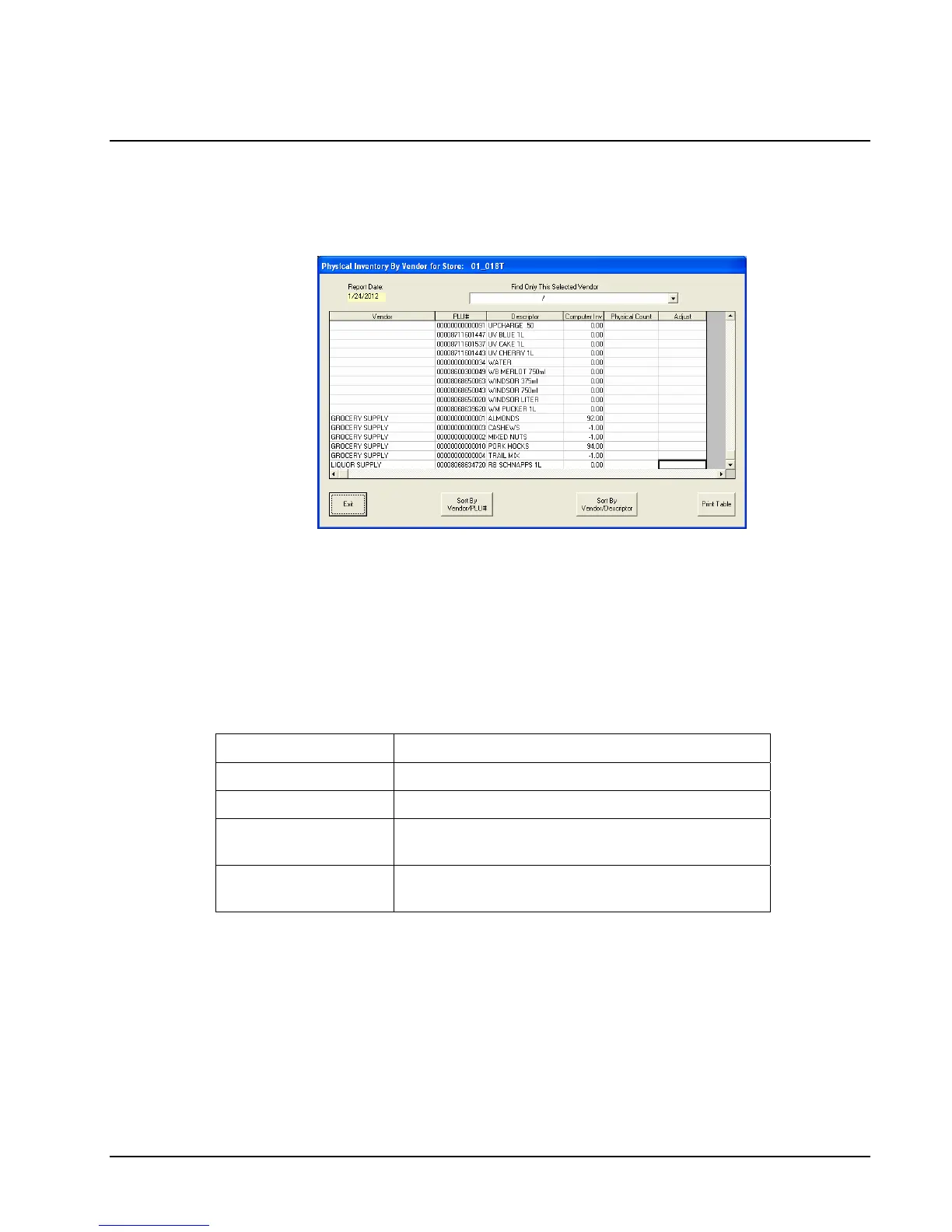
Physical Inventory By Vendor
1. Choose Physical Inventory By Vendor from the Print menu to view inventory items
by Vendor, organized by Vendor/PLU# or Vendor/Descriptor. The report indicates the
expected inventory level and provides and worksheet for entering a physical inventory.
2. Select the vendor from the Find Only This Selected Vendor drop down list box.
This will display PLUs from just that one vendor, if no selection is entered all PLUs from
all vendors will display.
3. Chose a sorting method by clicking the Sort By Vendor/PLU# or Sort By
Vendor/Descriptor button.
4. Click Print Table to print the report.
5. Close the window to return to the main menu.
Field Description
Vendor
Vendor selected.
Computer Inv
Historical Purchases minus Historical Sales
Physical Count
Column provided to manually enter physical
inventory count
Adjustment
Column provided to manually enter the
adjustment (Computer Inv – Physical Count)


 To Next Page