66 Utilities SAM300 Reference Manual v1.0
Inventory Comparison Procedure
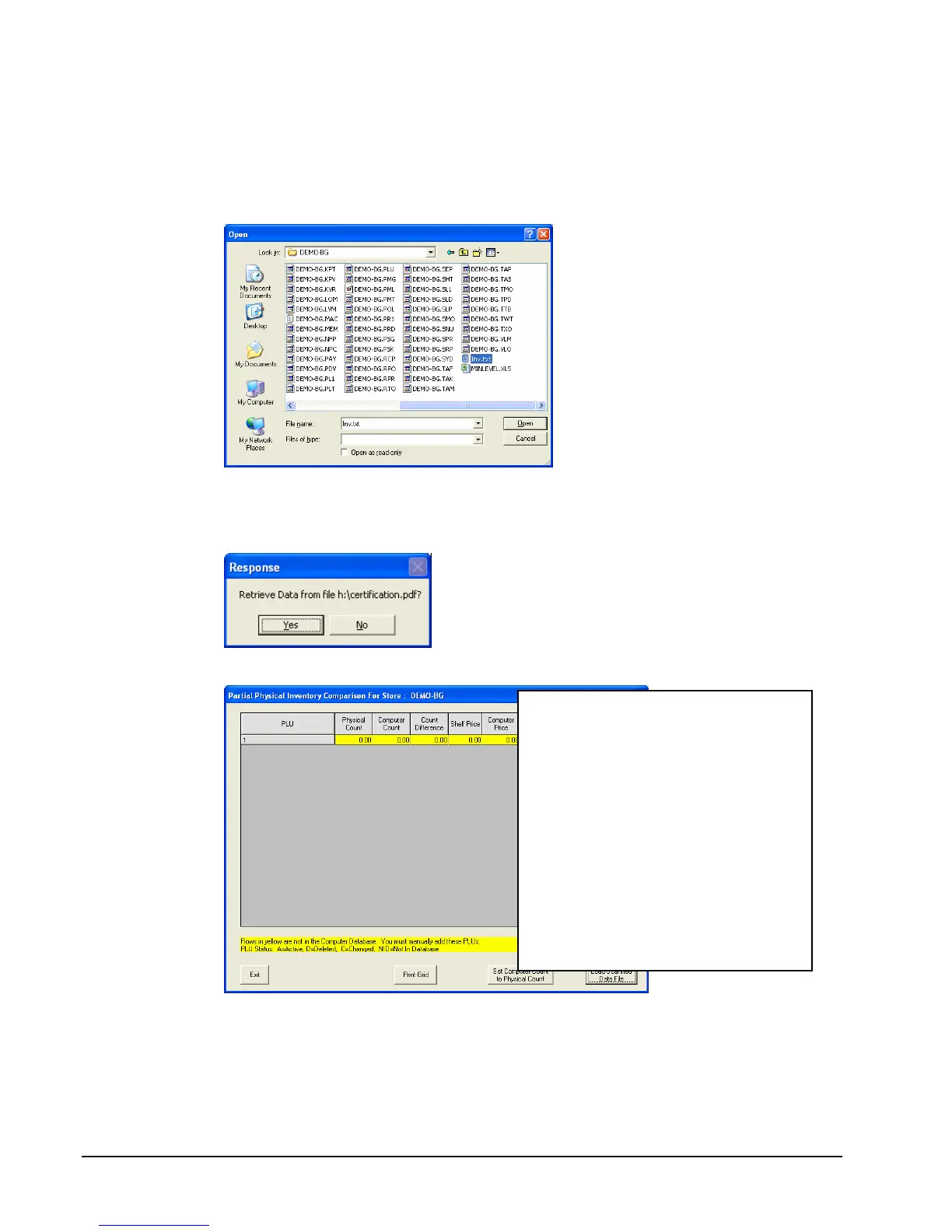
1. Choose Partial Physical Inventory Comparison or Physical Inventory Comparison from
the Utilities menu.
2. Click the Load Scanned Data File command button.
3. From the Open dialog, locate the folder and file where you located the inventory record
text file. Click Open.
4. The Response Dialog displays.
5. Click Yes. The scanned information will now display.
6. Click the Print Grid Button to print the spreadsheet to your default printer.
Notes: When you choose “Set Computer
Count to Physical Count”, you will have
an “Adjust” row in the Inventory History,
Purchase History updating your inventory
to the new physical inventory counts you
entered into the portable data terminal.
Price corrections must be made manually
in the PLU file or on the product in the
store, which ever is correct.


 To Next Page