OfficeServ 100 Installation Manual/Ed.00
© SAMSUNG Electronics Co., Ltd. 4-3
MP(XRC855T in the MCP1 Board) Processor Status: MP Run LED
OFF indicates that Power is OFF
MP
ON indicates that the MP is booting Flicker indicates normal operation.
SP(68EC000 in the 008 Base Board) C#2) Processor Status: SP Run LED
OFF indicates that Power is OFF
SP
ON indicates that the SP is booting Flicker indicates normal operation.
4.3 Card Verification
Before connecting all MDF cable, plug in a test cable to the first DLI port. Connect a
digital Telephone set and verify that it is working. Use maintenance program MMC 727 to
verify the system version, and that all cards are recognized by the CPU. Remove the test
cable and plug in all Amphenol-type cables to the MDF. At this time, it is recommended
that the system be defaulted using MMC 811.
See the Programming manual for more details. Proceed with the rest of the installation.
4.4 Default Trunk and Station Numbering
Upon initial power up, the CPU reads each slot for the existence of a card and identifies the
type of card. It stores this as the default configuration.
The system assigns trunk numbers beginning with 701 and continues. Station numbers are
assigned in the same manner. The lowest station is assigned station number 201 and
continued Keyset daughter boards are assigned numbers beginning with 301 and continued.
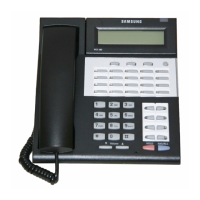
Default data assigns the 24 button phone in the lowest port to the operator group and all
trunks ring that station until default is changed. It is recommended that the operator station
will default to a 24 button key set as extension 201.
Station and trunk numbers can be changed, rearranged and reassigned as needed using
MMC 724.








 To Next Page