Drives24
Do not use any force when inserting the navigation DVD, MP3 CD or
audio CD into the drive. It will be drawn into the slot automatically.
– Press the button ⇒ page 23, fig. 25 to open the display.
– Check to make sure there is no navigation DVD, MP3 CD or audio
CD already in the drive.
– Hold the navigation DVD, MP3 CD or audio CD by the hole in the
centre and the outer edge ⇒ page 23, fig. 26.
– Guide the navigation DVD, MP3 CD or audio CD straight (label
side up) into the drive ⇒ page 23, fig. 25. The DVD/CD will be
pulled in automatically.
Use the CD function ⇒ page 51 for operating audio CDs (CD-A) inserted in
this drive. For MP3 CDs, use the MP3 function ⇒ page 54.
If you insert an MP3 CD and do not play it immediately, the ID3 tags will load
in the background. If you start playing the MP3 CD immediately, the ID3 tag
for the current track will be displayed.
When you have inserted the navigation DVD into the drive, you can use the
navigation functions and the system will display the TMC traffic reports.
If the message Please check navigation DVD appears in the MMI display, the
Navigation function cannot be used. For possible causes, refer to ⇒ page 26.
If Navigation being initialised... Please wait. is displayed on the display, the
navigation system is loading (start phase). You can use the system once the
message disappears and a navigation menu is displayed.
Note
• Please observe the notes for handling CDs ⇒ page 26.
• In view of the variety of CD-Rs and CD-RWs and the difference in memory
capacities, the quality of the MP3 function may vary in the case of some
memory media.
• When you insert the navigation DVD for the first time, new software for the
navigation system will automatically be installed. It will then no longer be
possible to use older navigation DVDs.
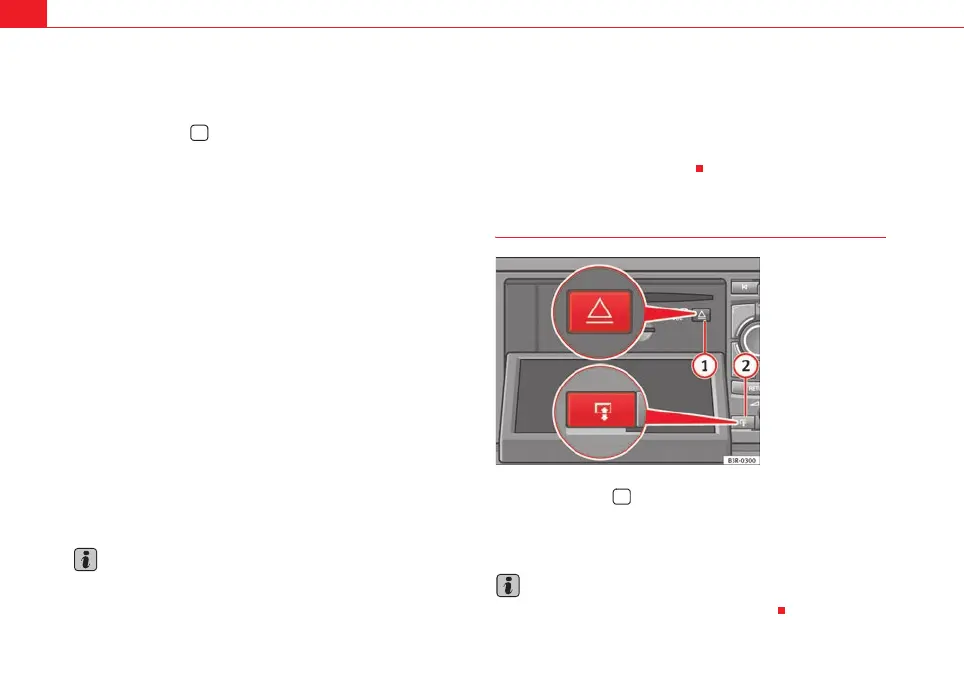
Ejecting a DVD/CD
– Press the button ⇒ fig. 27 to open the display.
– When the display is fully open, press the Eject button
⇒ fig. 27.
Note
Please observe the notes for handling CDs ⇒ page 26.
A
2
A
1
Fig. 27 Display open:
Ejecting navigation DVD
2
A
1
media_systemE_EN.book Seite 24 Montag, 21. September 2009 1:48 13



 To Next Page