Navigation (NAV)*116
– In the main navigation menu ⇒ page 104, fig. 121, select the
top destination from the “Start route guidance” list.
– Select Start route guidance ⇒ page 112.
If you have activated the Display as top destination function when making
entries in the directory (⇒ page 117 or ⇒ page 66) ⇒ page 115, fig. 135,
they are listed in a destination entry menu ⇒ page 104, fig. 121 under the
menu item “Start route guidance” ⇒ page 118.
You can choose to have entries which are stored in the directory as top desti-
nations displayed with a “push pin” on the map ⇒ page 115, fig. 136; to
activate this function, call up the “Map contents” submenu and place a
checkmark next to Top destinations ⇒ page 134.
"Memory" Menu
Last destinations
The last entered destinations are stored and can be loaded
directly as a new destination.
–Press the Memory control button in the navigation menu.
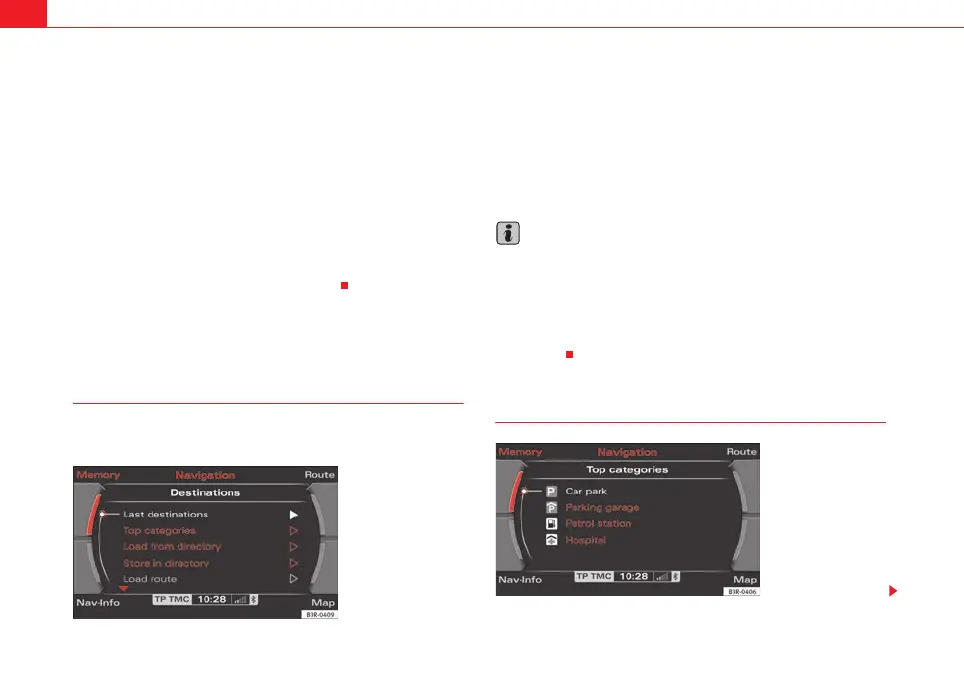
– Select Last destinations ⇒ fig. 137. You will see a list of the most
recently entered destinations. This list is updated automatically.
– Select the desired station from the list of radio stations.
– Select Start route guidance ⇒ page 112.
Note
• There are sometimes destination entries in the list that cannot be
displayed completely because they are too long (too many characters). If you
select one of these entries using the control knob, a second window will open
up after a few seconds. This screen will show more information about the
selected entry.
• You can delete the list of last destinations in the Setup Navigation menu
⇒ page 135.
Top categories
Fig. 137 Navigation:
Select last destinations
Fig. 138 Navigation: Top
categories
media_systemE_EN.book Seite 116 Montag, 21. September 2009 1:48 13



 To Next Page