Navigation (NAV)* 117
Operating RADIO, MEDIA (audiovisual
systems)
NAME, TEL NAV, INFO CAR, SETUP
– Press the Memory control button in the navigation menu.
–Select Top categories ⇒ page 116, fig. 137. You receive a list of
the top categories of the special destinations in the immediate
vicinity which are stored on the navigation DVD.
– Select the desired category (e.g. petrol station) ⇒ page 116,
fig. 138. A list of the special destinations for the category
selected will then be displayed.
– Select a destination from the list.
–Select Set as destination. The data will be uploaded to the desti-
nation entry menu automatically.
–Select Start route guidance.
The special destinations are sorted according to the distance from your
current location.
The following top categories are available:
• Car park
• Parking garage
• Petrol station
• Hospital
Note
If no top destination can be found for the category you have chosen, this indi-
cates that there is no matching entry for the selected criteria in your imme-
diate vicinity.
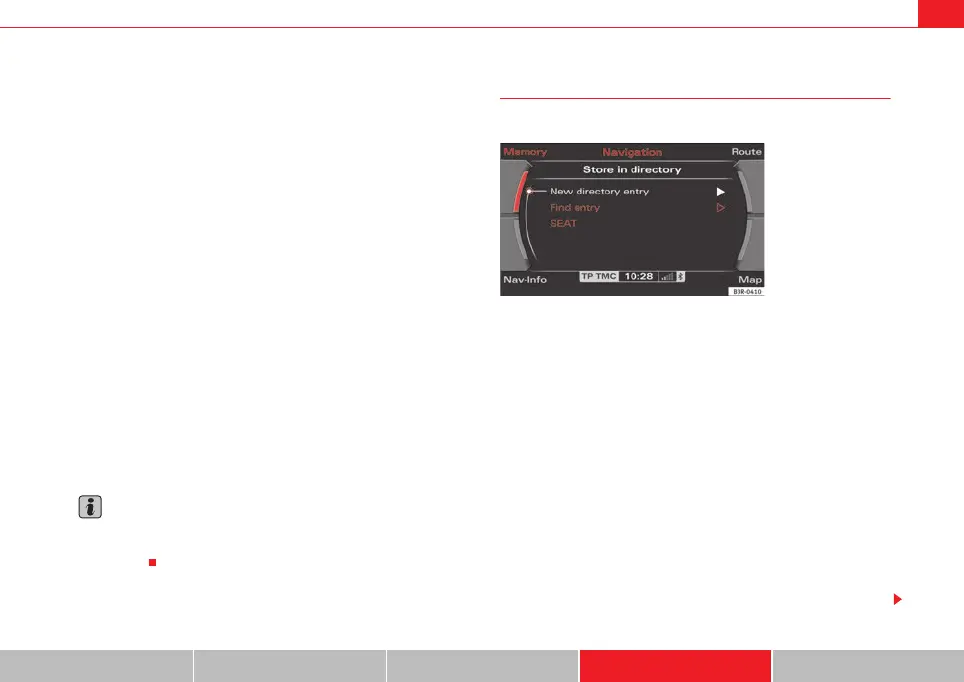
Storing a destination in the directory
The current destination can be stored in the directory.
– Enter a single destination ⇒ page 104.
–Press the Memory control button.
– Select Store in directory.
– Select New directory entry ⇒ fig. 139 and complete the direc-
tory card or
– Select Find entry to file the destination under an existing direc-
tory card.
– Select Display as top destination ⇒ page 115, fig. 135 and
press the control knob. A check appears after the option
.
– Select Store entry.
Use the option Store in directory to assign an entry in your directory to a
destination ⇒ page 104.
Fig. 139 Navigation:
Storing current destina-
tion in directory
media_systemE_EN.book Seite 117 Montag, 21. September 2009 1:48 13



 To Next Page