Display 15
Operating RADIO, MEDIA (audiovisual
systems)
NAME, TEL NAV, INFO CAR, SETUP
Display
Display orientation
Description
The main menu or the submenus appear on the display when
a function button is pressed.
When you press one of the function selector buttons ⇒ page 9 the display
will show the main menu for that function, or one of its submenus
⇒ page 11, “History function”. The centre of the display contains the options
you can select for the function.
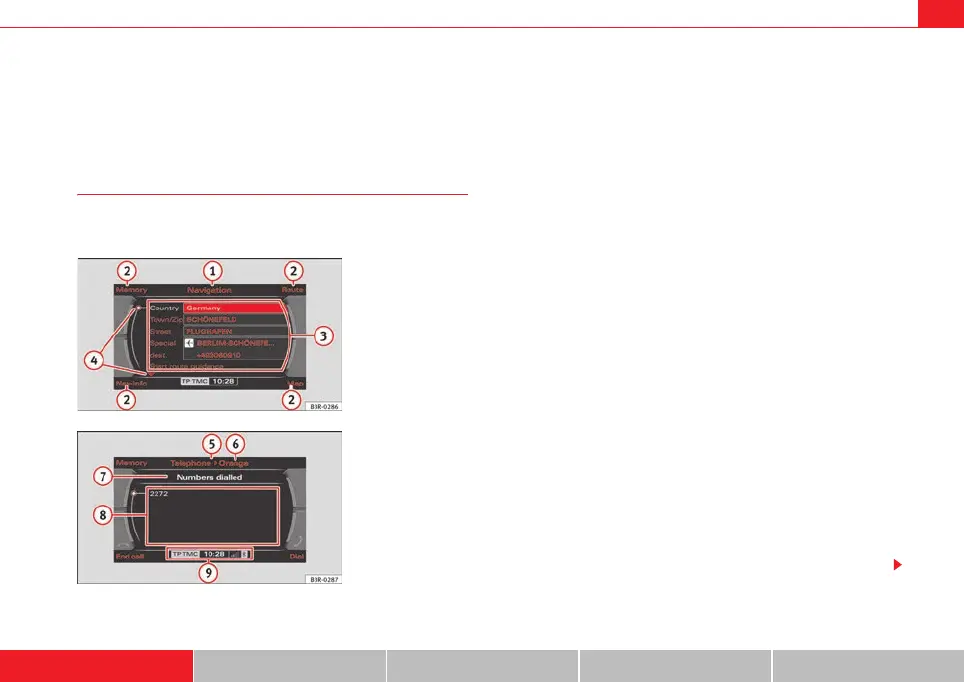
The following describes the different sections of the display shown in the
illustrations ⇒ fig. 13 and ⇒ fig. 14.
Track
The title line shows the main function that you are currently in (e.g. navigation
system*) ⇒ fig. 13. If Setup is displayed on the title line as well, you are in a
Setup menu ⇒ fig. 14.
Use the function selector buttons to switch between main functions
⇒ page 9.
Corners of the display
These functions depend on the menu you are currently in and are operated
using the control buttons. The control buttons are logically assigned to the
menus in the corners of the display. The top right corner of the screen corre-
sponds to the top right control button (⇒ page 9).
Display centre
Radio station or track lists are displayed in the centre of the display in radio,
CD and MP3 mode. In the NAV* function, the individual destination mode is
displayed. In the main Setup menus, a list of available functions is displayed.
Orientation symbols
The different symbols in the display are use to select various additional func-
tions ⇒ page 17.
Fig. 13 Display: Main
navigation menu
Fig. 14 Display: A tele-
phone menu
1
A
2
A
3
4
media_systemE_EN.book Seite 15 Montag, 21. September 2009 1:48 13



 To Next Page