Navigation (NAV)*112
– Press the control knob to switch to the map side menu
⇒ page 125.
– Change the map scale if required ⇒ page 126.
– Activate the cursor in the active side menu by rotating and
pressing the control knob ⇒ page 129.
– Use the cursor to find the corresponding destination on the map.
– Press the button to disable the cursor.
– Select the third legend option (destination flag) ⇒ page 111,
fig. 130 using the rotary pushbutton.
– Select Set as destination ⇒ page 111, fig. 131.
– Enter stopover(s) if desired ⇒ page 120.
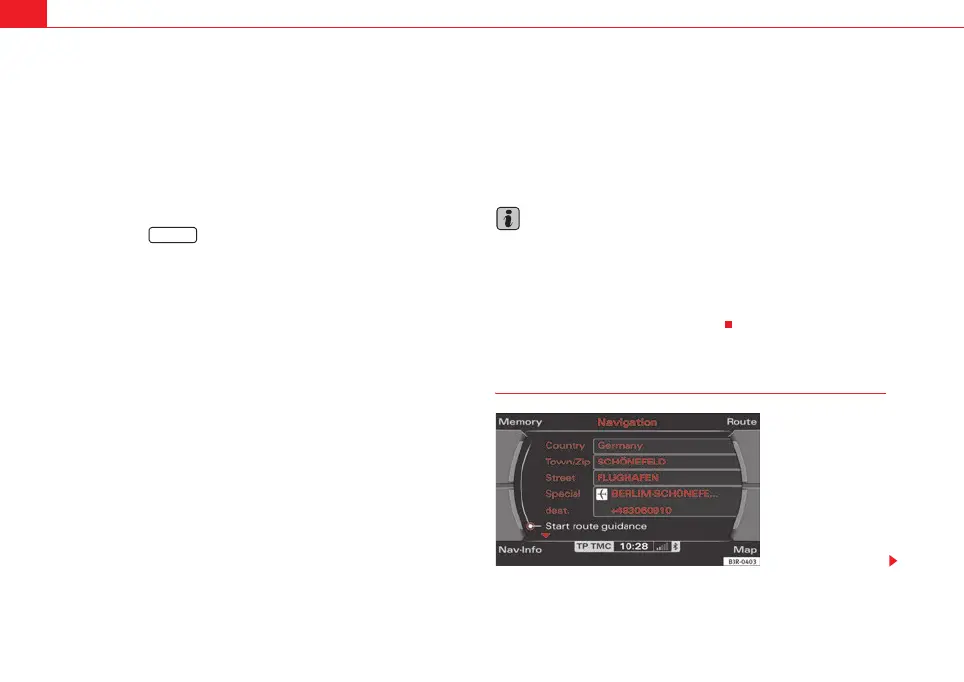
– Select Start route guidance ⇒ page 112.
If you enter a town in the destination input menu ⇒ page 104, fig. 121 before
you press the control button Map, the map display will switch to the centre of
the town you have selected.
Select Detail info
If additional information is available for the selected point on the map, you
can display it by selecting the Detail info function. If the “Detail info” function
is greyed out, no details are available on the navigation DVD.
Select Set as stopover
You can set additional stopovers via the map display if the mode route with
stopover ⇒ page 120 is activated.
If you have not activated the mode route with stopover, this option cannot be
selected (it is greyed out).
Option Store in directory
You can also store the selected point on the map in the directory ⇒ page 117.
This position can be assigned to an existing entry or to a new entry in the
directory. If you are creating a new entry, first enter a name using the
keyboard. You can then enter additional information for the entry. Should you
wish to have the entry listed in the destination input menu ⇒ page 104,
fig. 121, select the option Display as top destination ⇒ page 115.
Note
• You can also select a destination from the map in the town and street
submenus ⇒ page 104.
• You can also set a point on the map as the destination using the cursor,
even if the destination is not located on a street (e.g. via position coordi-
nates). In such cases, the system attempts to bring you as close as possible
to your destination using digitalised streets.
Starting route guidance
RETURN
1
Fig. 132 Navigation
system: Start route guid-
ance
media_systemE_EN.book Seite 112 Montag, 21. September 2009 1:48 13



 To Next Page