EasyManua.ls Logo

Seca 514 - User Manual

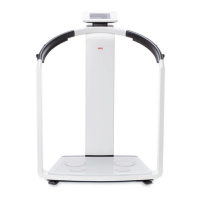
Seca 514
58 pages
Print Icon
To Next Page IconTo Next Page
Loading...
seca 515/514
Administrator Manual
Software version 1.1 from
Build 550

Table of Contents

Questions and Answers

  • A
    Amanda AndrewsSep 12, 2025
    Why can't data be transmitted between Seca 514 and Seca 115?
    • A
      Ana RamirezSep 12, 2025
      If data transmission cannot be set up between your Seca Medical Equipment and Seca 115, it indicates that the software versions are incompatible. Ensure you are using compatible software versions: the device should have a minimum software version of 1.1, and the PC software should have a minimum software version of 1.4.
  • L
    Lindsay RamirezSep 12, 2025
    Why is the Seca patient file not shown in the patient tab after switching tabs on Seca 514?
    • J
      James OliverSep 12, 2025
      If, after temporarily calling up a different tab, the assigned Seca patient file is no longer shown in the patient tab of your Seca Medical Equipment, it means the Seca patient file was assigned, but the assignment was not confirmed. Assign the Seca patient file again and press the confirm button before calling up another tab.
  • M
    Mark KhanSep 10, 2025
    Why is an evaluation parameter value shown in red on Seca 514?
    • N
      noblekristiSep 10, 2025
      If a value of an evaluation parameter is shown in red on your Seca Medical Equipment, it indicates that the value is outside the normal range determined for that parameter. Repeat the measurement to rule out any measurement errors. If the repeat measurement also produces a value outside the normal range, consider this value in further investigations.
  • T
    Tiffany GilbertSep 9, 2025
    What does 'Electrode detection failed' mean on Seca Medical Equipment and how to resolve it?
    • R
      Robert MillsSep 9, 2025
      If the following message appears on your Seca Medical Equipment: “Electrode detection failed,” it may be due to the patient’s skin being too dry or too calloused. In this case, spray the skin at the contact points with electrode spray. If the issue persists, the electrodes may be faulty, and you should inform Seca service.
  • A
    angelagrantSep 8, 2025
    Why are not all modules activated in module selection on Seca Medical Equipment?
    • S
      Sarah JohnsonSep 8, 2025
      If not all modules are activated in the module selection on your Seca Medical Equipment, it's because the default module selection specified has deactivated some modules. You can activate the missing modules directly in the module selection and perform the measurement, or adapt the default module selection.
  • S
    Shaun LopezAug 23, 2025
    Why is the print function not available on my Seca Medical Equipment?
    • F
      francisrobertAug 23, 2025
      If the print function is not available on your Seca Medical Equipment, it may be due to incompatible software versions or no network connection set up between the device and the Seca 115 PC software. Ensure you are using compatible software versions (device min. software version 1.1, PC software min. software version 1.4), and set up a Seca 360° wireless network or an Ethernet connection.
  • V
    Vanessa JacksonSep 6, 2025
    Why can't I enter waist circumference after bioimpedance measurement on Seca 514?
    • Y
      yfowlerSep 6, 2025
      If you cannot enter a waist circumference following a bioimpedance measurement on your Seca Medical Equipment, the Health risk evaluation module is likely deactivated. If the module is not required, proceed to complete the measurement. If the module is required, activate the evaluation module.
  • J
    Jill RobbinsSep 5, 2025
    Why can't I enter a PAL value after bioimpedance measurement on Seca 514 Medical Equipment?
    • J
      Jeffrey ValenciaSep 5, 2025
      If you cannot enter a PAL value following a bioimpedance measurement on your Seca Medical Equipment, it means the Energy evaluation module is deactivated. If this module is not required, continue and complete the measurement. If it is required, activate the evaluation module.
  • A
    Amber MorrisSep 4, 2025
    Why do bioimpedance measurement results deviate on Seca 514 Medical Equipment?
    • E
      Elizabeth LewisSep 4, 2025
      If the results of a bioimpedance measurement deviate significantly from expected results on your Seca Medical Equipment, it could be because the patient moved during the measurement. Ask the patient not to move and repeat the measurement. Another reason could be that the patient used different pairs of hand electrodes on the left and right; ensure the patient uses the same hand electrodes on both sides and repeat the measurement. If neither of these are the cause, the electrodes may be faulty, and you should inform Seca service.
  • M
    Maria GreerSep 3, 2025
    Why doesn't 0.00 appear before weighing on my Seca 514?
    • T
      Travis LucasSep 3, 2025
      If 0.00 does not appear before weighing on your Seca Medical Equipment, it indicates that the device had a load on it before it was switched on. Remove the load from the device, switch it off, and then switch it back on again.

Summary

Device Description

Intended Use

Explains the primary purpose and application areas of the medical Body Composition Analyzer.

Functionality and Features

Details the device's capabilities, including weight, height, and bioimpedance measurements.

Contraindications

Lists conditions or situations where bioimpedance measurements should not be performed.

Safety Information

General Safety Instructions

Provides essential safety guidelines for operating the device safely and preventing hazards.

Patient Safety and Device Integrity

Covers precautions against electric shock, injuries, infections, device damage, and result integrity.

Packaging Handling

Instructions for handling and storing the device's packaging.

Device Overview

Controls and Indicators

Identifies and explains the device's physical controls, buttons, LEDs, and display symbols.

Color Symbols and Other Controls

Details the meaning of various color symbols and control elements on the device interface.

Menu Structure and Navigation

Outlines the hierarchical structure of the device's menus and how to navigate through them.

Device and Type Plate Identification

Explains the markings and labels found on the device and its type plate.

Packaging Identification

Describes the symbols and information found on the product packaging.

Making the Device Operational

Scope of Delivery and Initial Setup

Lists all included components and guides through the initial power connection and setup.

Device Setup and PC Network Integration

Covers device placement, network connection via Ethernet or wireless, and PC software integration.

Operation with seca 360° Stadiometer

Explains how to use a seca 360° stadiometer for height measurement wirelessly.

Operating Concept

User Interface and Basic Operations

Details touchscreen operation, switching on/off, selecting functions, and data entry methods.

Measurement Procedure and Device States

Guides through the typical measuring process, including assigning patients and saving results.

Automatic Standby and Switching Off

Explains the device's automatic standby feature and the procedure for safely switching it off.

Configuring the Device

Bioimpedance Measurement Configuration

Guides on adapting default module selection for bioimpedance analysis.

User Administration and Access Control

Covers setting up user accounts, PINs, passwords, and accessing the Administrator menu.

System and Network Settings

Details configuring units, regional settings, date/time, and network parameters.

Display Settings and Network Setup

Covers adjusting display brightness/volume and setting up Ethernet and wireless networks.

Ethernet Network Integration

Step-by-step guide to integrate the device into an Ethernet network.

Securing CLS Network Communication

Instructions for setting up the seca CLS network for PC communication.

Securing 360° Wireless Network

Detailed steps for setting up a seca 360° wireless network connection.

Viewing Wireless Device Status

Explains how to view connected wireless devices and their status.

System Data and Software Versions

Information on viewing software versions, scale logbook, and making system settings.

Exporting System Log File

Procedure for exporting system log files for analysis and troubleshooting.

Administrator PIN and Touchscreen Calibration

Steps for changing the administrator PIN and calibrating the touchscreen display.

Restoring Factory Settings

Guide on how to reset the device to its original factory default settings.

Service Functions and Software Updates

Details on using service functions like software updates and exporting/importing settings.

Troubleshooting

Power, Display, and Basic Operation Issues

Addresses problems related to power, dark/unresponsive displays, and initial weighing.

Bioimpedance Analysis and Measurement Errors

Solutions for bioimpedance-specific errors, module activation, and result deviations.

Data Transmission and Connectivity Problems

Troubleshoots issues with setting up device-to-PC communication and patient file access.

Print Function and Reporting Issues

Solves problems related to print function availability and report generation.

Optional Accessories

Spare Parts

Technical Information

Wireless Network Specifications

Provides technical details about the seca 360° wireless network capabilities.

Software Compatibility and Modifications

Details compatibility between device and PC software versions and recent modifications.

Disposal, Warranty, and Conformity

Seca 514 Specifications

General IconGeneral
BrandSeca
Model514
CategoryMedical Equipment
LanguageEnglish

Related product manuals