ADN Digital Conference System | 91
Using the “Conference Manager” software
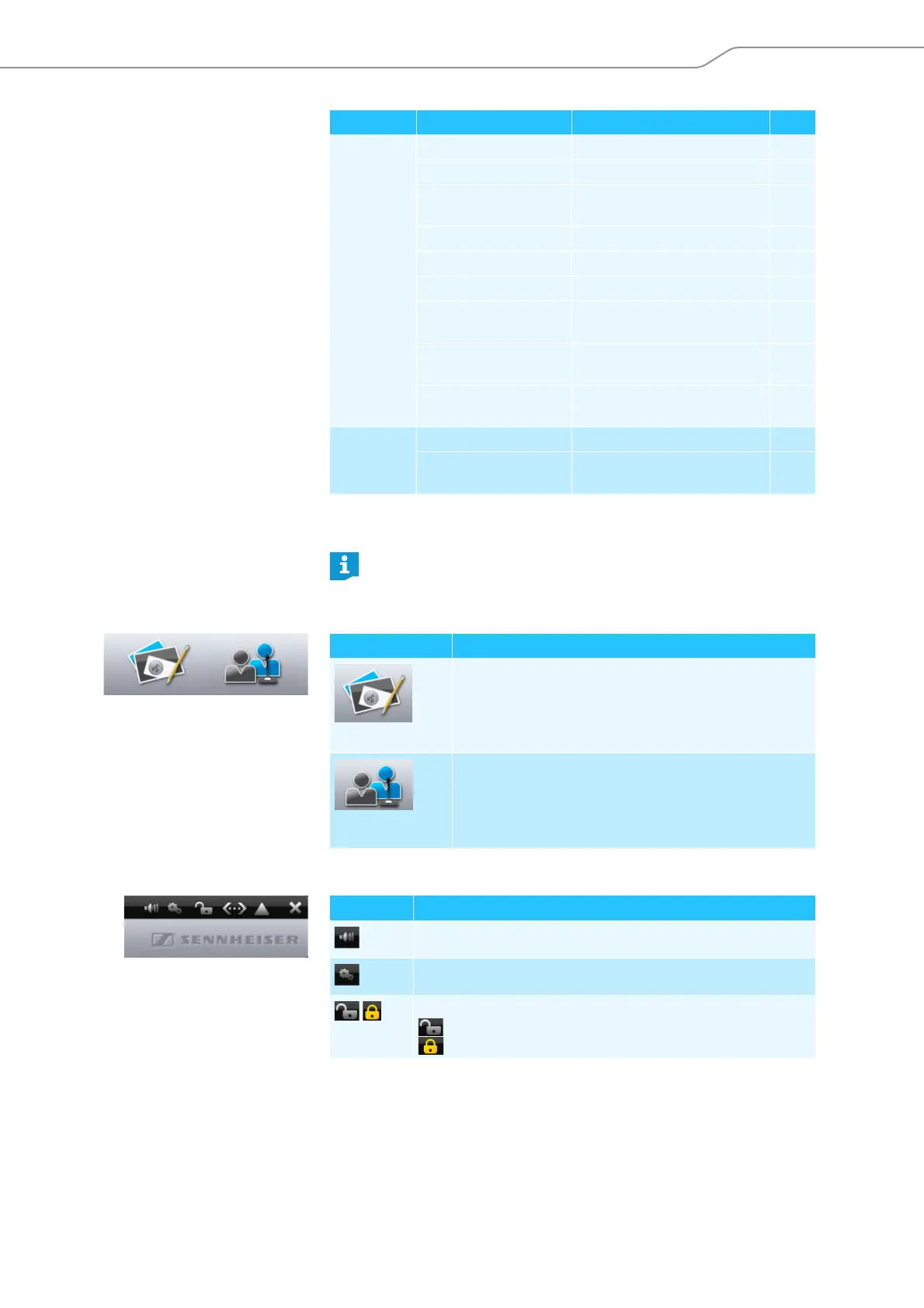
Buttons for selecting the views
Toolbar
Settings Conference Settings ... Opens the conference settings 126
Audio Settings ... Opens the audio settings 130
Conference Recording Opens the audio recording
function
141
Language Adjusts the language 98
Set Password ... Sets the password protection 98
Network Opens the network settings 98
Re-init Conference Re-initializes the conference
units
124
Restore Factory Settings Restores the factory default
settings of the software
99
System Properties
**
Opens the hardware settings for
screen, mouse and keyboard
97
Help Help ... Starts the help function –
About ... Displays the current software
version
–
* only visible when you are using the Windows version of the software
** only visible when you are using the central unit’s integrated software
Alternatively, you can also use the keyboard shortcuts listed next to the
commands.
Menu Submenu Function Page
Button Function
Changes to the Room View window where you can configure
and/or control the conference system via a graphical
interface.
The Room View window changes depending on whether
“Setup” or “Live” operating mode is set (see page 93).
Changes to the Delegate View window where you can create
a delegate list and control the conference by means of the
list.
The Delegate View window changes depending on whether
“Setup” or “Live” operating mode is set (see page 93).
Button Function
Opens the “Audio Settings” window (see page 130)
Opens the “Conference Settings” window (see page 126)
Displays the status of the central unit’s lock mode (see page 129)
“Device Unlocked“
“Device Locked“



 To Next Page