134 丨 Travel and Entertainment
CP/AA
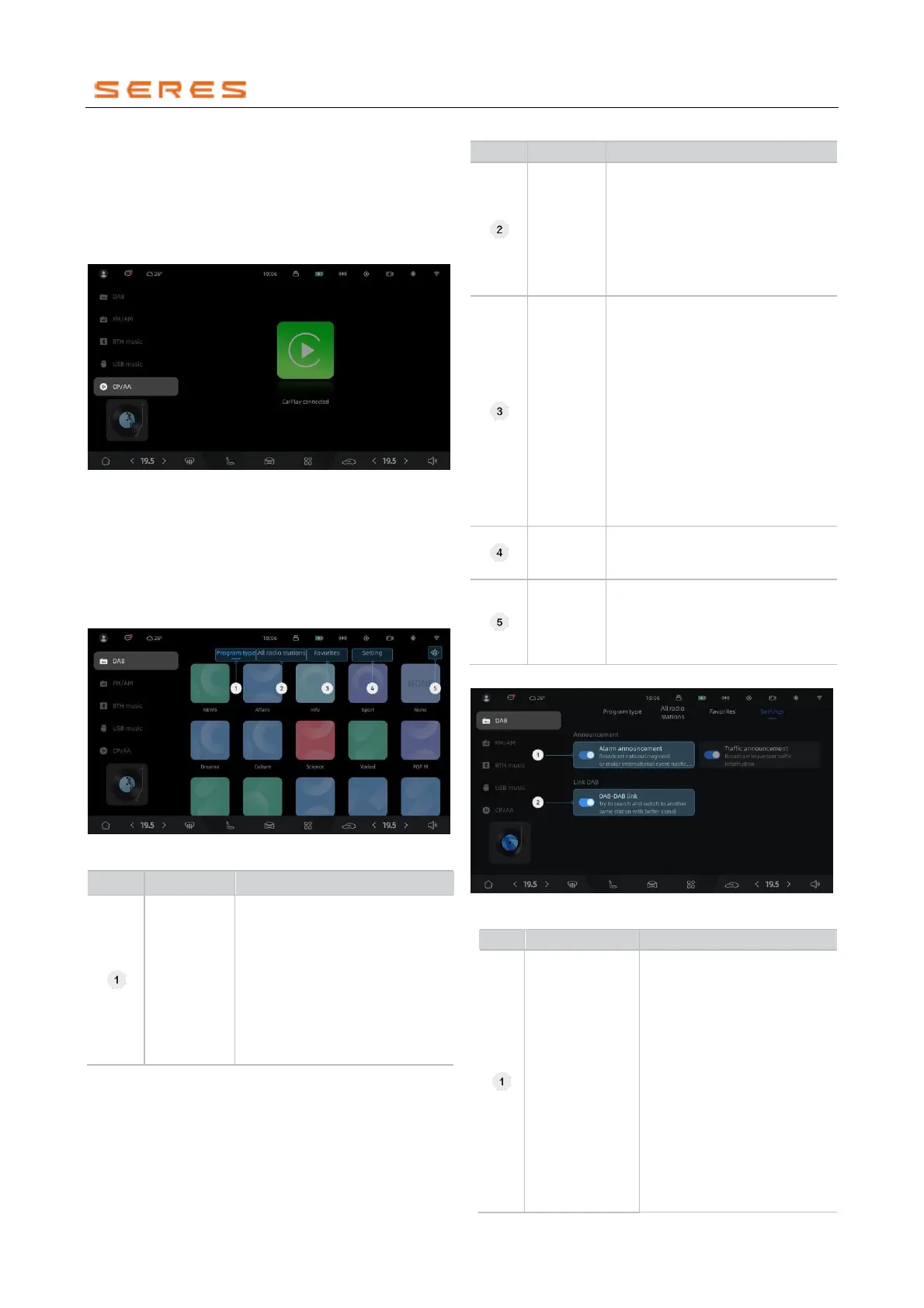
CP stands for CarPlay, and AA stands for Android Auto.
When CP/AA is successfully connected, clicking on the
icon will take you to the music application's playback
details page, and you can switch the audio playback focus
to CP/AA. At this point, the Vehicle system will actively
invoke the phone's player to play music.
* The image is for reference only; please refer to the actual
product
DAB
DAB (Digital Audio Broadcasting), the third generation of
broadcasting following traditional AM and FM analog
broadcasting, provides CD-quality audio and is particularly
suitable for broadcasting genres such as classical music,
symphonic music, and pop music.
Home
* The image is for reference only; please refer to the actual
product
Click on the program types label
to display a current list of
categories containing valid
stations, such as music, sports,
finance, and more. Choose any
category to display all valid
stations in that category. Click
on any station to enter the
playback details page and start
playback.
Click on the all stations label to
display all currently available
stations. Click on any station to
enter the playback details page and
start playback. Stations are sorted
in the order they were scanned and
identified, with the earliest scanned
stations listed first.
Click on the favorites list label to
display all stations currently
favorited under the user's account.
Favorited stations are sorted in the
order they were favorited, with the
most recently favorited listed first.
Click on a station to enter the
playback details page and start
playback (if the clicked station is
not in the current all stations list,
meaning its signal cannot be
currently found, playback will not be
possible, and a popup will notify the
user).
Users can open or close features
such as announcements and DAB
links in the settings.
When users click this button, it
initiates an automatic station
search. Once the search is
complete, it establishes a list of all
available stations in the area.
Settings
* The image is for reference only; please refer to the actual
product
Users can click the
announcements button to
enable/disable
announcements (emergency
announcements cannot be
disabled). When an enabled
announcement is triggered, it
appears in the form of a
popup. Users can click the
close button on the popup to
close the announcement
popup in advance (emergency
announcement popups cannot
be manually closed), restoring
normal broadcast program
playback.



 To Next Page