EasyManua.ls Logo

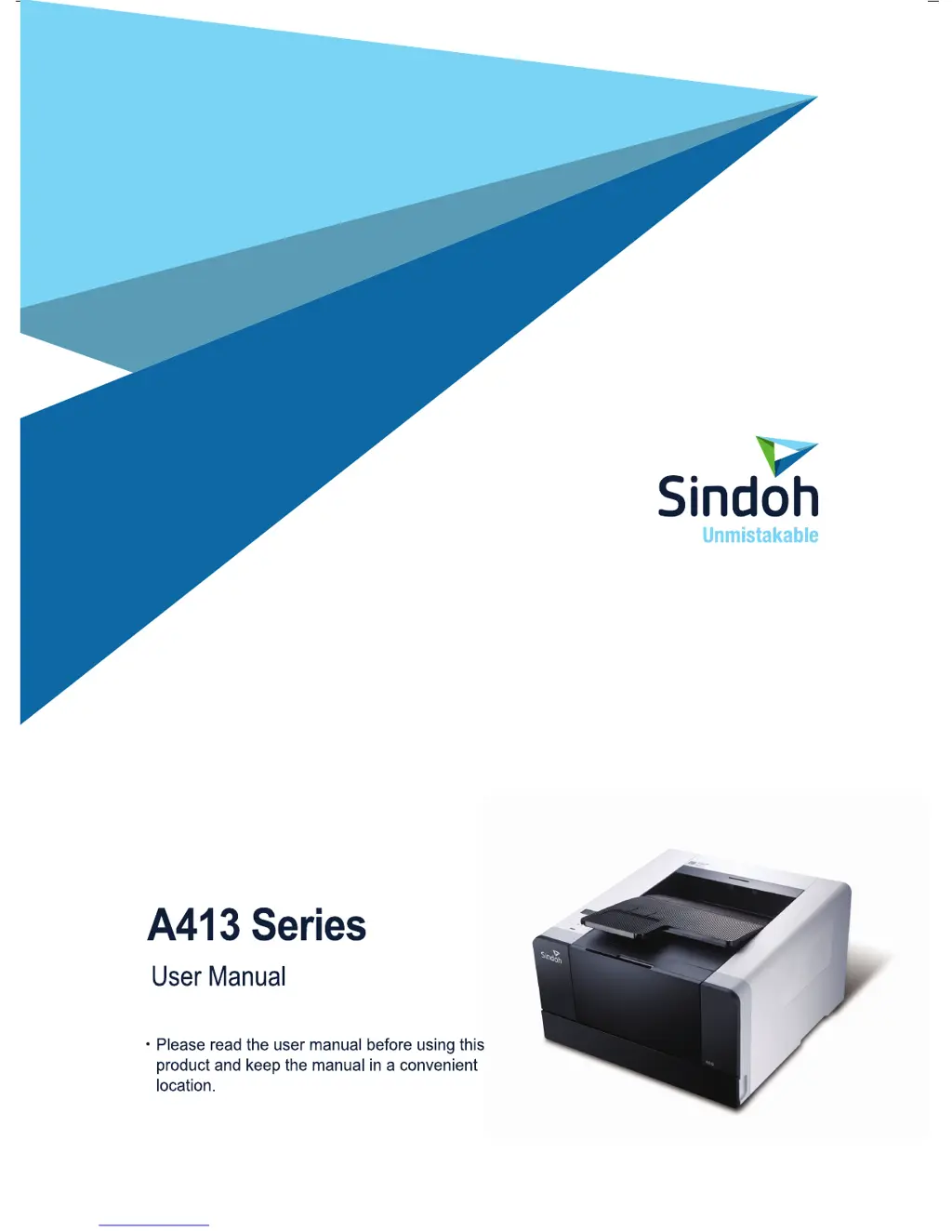
Sindoh A413dn - User Manual

Sindoh A413dn
134 pages
Print Icon
To Next Page IconTo Next Page
Loading...

Table of Contents

Questions and Answers

  • W
    waltonchristopherSep 3, 2025
    What to do if LCD displays nothing on Sindoh All in One Printer?
    • T
      Theresa PowellSep 3, 2025
      If the LCD of your Sindoh All in One Printer displays nothing, turn off the printer, wait 10 seconds, and then turn it back on.
  • R
    Rick JonesSep 2, 2025
    How to resolve a 100 paper jam (MPT) in Sindoh All in One Printer?
    • A
      Alexander RamirezSep 2, 2025
      To resolve a 100 paper jam in the MPT (Multi-Purpose Tray) of your Sindoh All in One Printer, remove all paper loaded on the MPT, close the cover, and open the front cover before removing the jammed paper from inside the printer.
  • C
    Christopher LeeSep 1, 2025
    How to clear 102 paper jams in Trays 2 of Sindoh All in One Printer?
    • D
      davidellisSep 1, 2025
      To clear 102 paper jams in Trays 2 of your Sindoh All in One Printer, gently pull Tray 2 and remove the jammed paper.
  • P
    Phillip SmithAug 31, 2025
    How to resolve a 101 paper jam in Tray 1 of Sindoh All in One Printer?
    • M
      Michael AdamsSep 1, 2025
      To resolve a 101 paper jam in Tray 1 of your Sindoh All in One Printer, pull the jammed paper out.
  • N
    Nicole RichardAug 30, 2025
    How to address 107 paper jam under the device (2-sided paper jam) in Sindoh All in One Printer?
    • J
      James GoldenAug 30, 2025
      To address a 107 paper jam under the device (2-sided paper jam) in your Sindoh All in One Printer, follow the given steps to remove the jammed paper. Pull out Tray 1 completely, locate the handle on the bottom left side of the printer, and gently pull the jammed paper towards you. Also, open the back exit cover and remove any paper there.
  • K
    Karen CampbellAug 29, 2025
    How to clear 106 paper jam (exit area cover) in Sindoh All in One Printer?
    • E
      Eric RobinsonAug 30, 2025
      To clear a 106 paper jam in the exit area cover of your Sindoh All in One Printer, open the front cover and the cover of the exit area in the back. Gently pull out the jammed paper. You may also need to open the back exit cover.
  • E
    Emily PageAug 29, 2025
    How to troubleshoot 104/105 paper jam under the cartridge in Sindoh All in One Printer?
    • V
      Vincent MeyerAug 29, 2025
      To troubleshoot a 104/105 paper jam under the cartridge in your Sindoh All in One Printer, follow the indicated steps. If removing the jammed paper is difficult, try removing it from the feeder cover on the back or opening the back exit cover. Also, remove any remaining paper from the MPT, close the MPT cover, and then open the front cover.
  • J
    John JohnsonAug 28, 2025
    How to fix smeared toner on paper from Sindoh All in One Printer?
    • D
      Donald RogersAug 28, 2025
      To address the issue of smeared toner on paper when using your Sindoh All in One Printer, set paper weight to Heavy and choose Rough texture from the print setting. Verify the paper is suitable for the printer and the correct paper type is selected in Printer Setting or Driver. Try using copier paper for best results. If the issue persists, the toner cartridge may be defective and need replacement.
  • C
    Carolyn WilkersonAug 27, 2025
    How to resolve toner stains on paper from Sindoh All in One Printer?
    • K
      Kimberly ReyesAug 27, 2025
      To resolve toner stains on paper from your Sindoh All in One Printer, check if the paper exits straight without warping. The toner cartridge may have an issue. Clean the send roller with a cloth if toner is smudged. Assign the correct paper size in Print Settings or Driver. You can also try opening and closing the front cover.
  • G
    ggeorgeAug 27, 2025
    Why is text blurred when printing with my Sindoh All in One Printer?
    • S
      Sean LewisAug 27, 2025
      If text appears blurred when using your Sindoh All in One Printer, the toner may be low, so replace the toner cartridge. The drum cartridge may also be defective. You can also set toner density to 8 or higher in Printer Setting or Driver. Ensure correct settings are selected in the printer driver for special paper types. Finally, check that the paper isn't wet and doesn't have a rough surface.

Summary

Safety Precautions

General Safety Warnings

Crucial safety instructions to prevent injury or death.

Before Use: Device Safety and Operation

Safety Information and Handling

Details safety aspects like laser, heat, electric shock, and general handling.

Precautions for Installation and Use

Details precautions for installing, moving, and operating the device safely.

Printer Installation

Unpacking and Initial Setup

Steps for unpacking the printer and preparing for installation.

Cartridge Preparation and Installation

Procedures for preparing and installing the toner cartridge correctly.

Printer Driver Installation

Detailed guide for installing printer drivers and utilities on a PC.

Using the Printer

Network Configuration

Guides for setting up wired and wireless network connections.

Printer Management

Replacing Toner and Drum Cartridges

Step-by-step guide for removing and installing toner and drum cartridges.

Troubleshooting

Paper Jam Removal Guide

Detailed instructions for clearing paper jams from various locations.

Printer Quality Issues

Solutions for common print quality problems like blurred text or stains.

Sindoh A413dn Specifications

General IconGeneral
FunctionsPrint, Copy, Scan, Fax
Print TechnologyLaser
Print Resolution1200 x 1200 dpi
Monthly Duty Cycle100, 000 pages
Processor1.2 GHz
ConnectivityUSB, Ethernet, Wi-Fi
Paper Output150 sheets
Max Paper SizeA4
ADF Capacity50 sheets
Copy Resolution600 x 600 dpi
Fax Speed33.6 Kbps
Print Speed (Black)40 ppm
Duplex PrintingYes
Media Sizes SupportedA4, A5, A6, B5, Letter, Legal, Executive
Scanner TypeFlatbed, ADF
Scan Resolution600 x 600 dpi
Scan Speed20 ipm
Copy Speed40 cpm
First Print Out Time (Black)6.5 seconds

Related product manuals