EasyManua.ls Logo

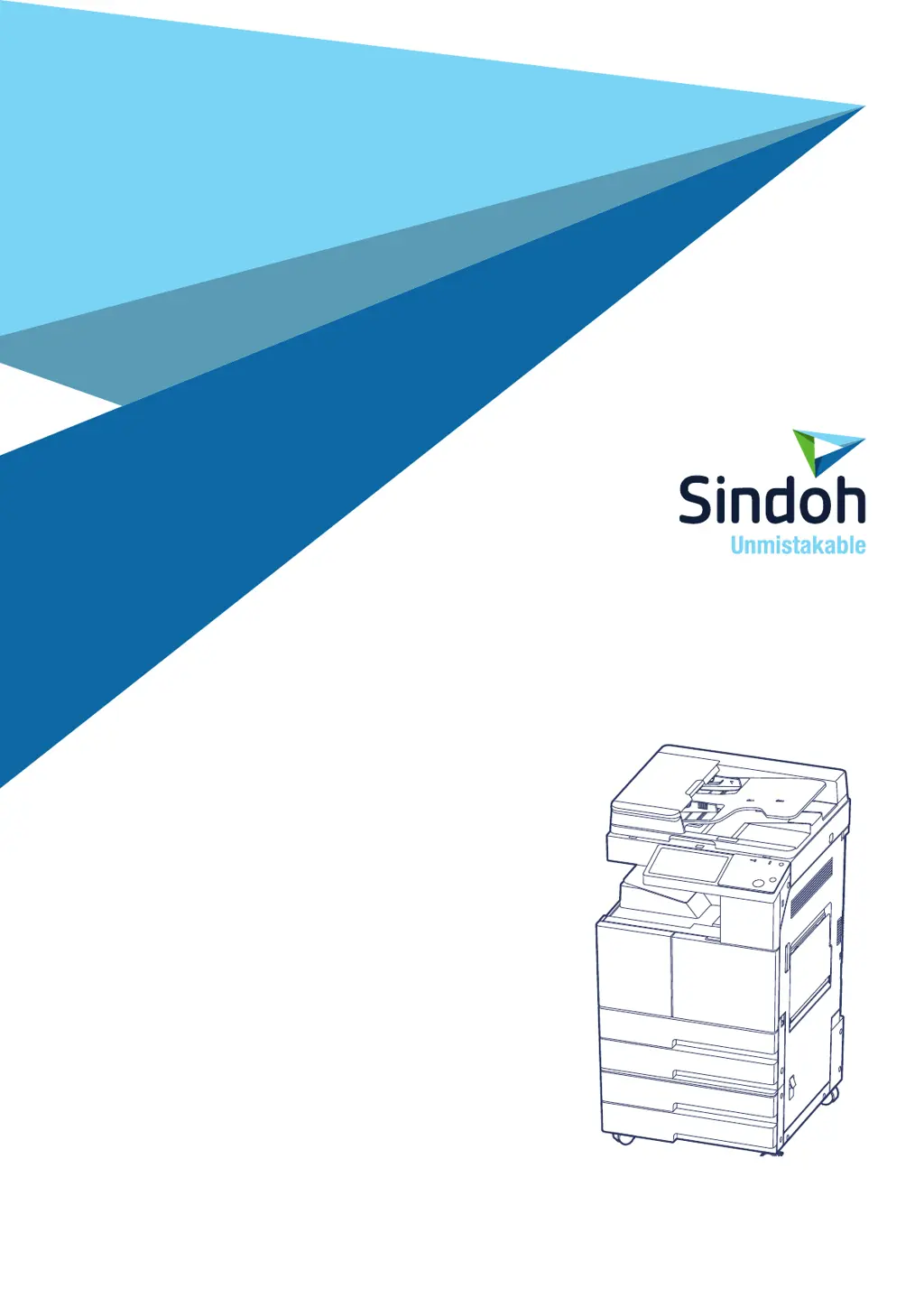
Sindoh MF Series - User Manual

Sindoh MF Series
306 pages
Print Icon
To Next Page IconTo Next Page
Loading...
●Pleasereadthisusermanualbeforeusingthedeviceand
keepthemanualforfuturereference.
User Manual
N610/MFSeries

Table of Contents

Questions and Answers

  • S
    Shelby MaySep 9, 2025
    How to remove paper jammed in the scanner of Sindoh MF All in One Printer?
    • N
      Nicole RiceSep 9, 2025
      If paper is jammed in the scanner of your Sindoh All in One Printer, and a message like 'ARDF internal original jam' appears, open the scanner cover and remove the jammed paper.
  • D
    Douglas ClarkSep 7, 2025
    What to do when Sindoh MF All in One Printer says 'Toner near end'?
    • B
      Brooke HodgesSep 8, 2025
      When the Sindoh All in One Printer displays 'Toner near end', you should replace the low toner bottle with a new one.
  • S
    Samantha HoffmanAug 22, 2025
    What to do if my Sindoh MF says 'Paper jam: XX Remove the paper'?
    • B
      briannahigginsAug 22, 2025
      If your Sindoh All in One Printer displays 'Paper jam: XX Remove the paper,' it signifies that paper is jammed inside the device. Simply remove the jammed paper to resolve the issue.
  • B
    Bruce MendezSep 5, 2025
    What does 'No paper out' mean on my Sindoh MF All in One Printer?
    • L
      Lindsey GarzaSep 5, 2025
      If your Sindoh All in One Printer displays 'No paper out,' it means paper or another object is jammed. Check the error message and remove the jammed paper or object.
  • H
    Heather GarciaSep 4, 2025
    Why does nothing appear on the screen of my Sindoh MF All in One Printer?
    • H
      hwilliamsSep 4, 2025
      If nothing appears on the screen of your Sindoh All in One Printer, it might be in power save mode. Exit the power save mode.
  • D
    David MendozaSep 2, 2025
    Why is my Sindoh MF All in One Printer not working?
    • N
      Nancy WiseSep 3, 2025
      If your Sindoh All in One Printer is not working, make sure the power switch is turned 'ON'.
  • H
    helenfergusonSep 1, 2025
    What to do if Sindoh MF All in One Printer displays error code 'EC'?
    • J
      Jacqueline JonesSep 1, 2025
      If the Sindoh All in One Printer displays 'EC : (error code) Turn power off and power on again,' it means an error occurred in the device. The error code appears if a system check-up is required. Call customer support center or contact MFP admin.
  • A
    Angel AlvaradoAug 31, 2025
    What does 'Dust over the limit has been detected on ARDF glass' mean on Sindoh MF All in One Printer?
    • J
      John MercerAug 31, 2025
      If your Sindoh All in One Printer displays 'Dust over the limit has been detected on ARDF glass. Continue?', it means that while you scan/copy on ARDF, a warning message appears when dust continues to present over the limit. Remove dust or dirt before resuming the job. If you disregard and continue to scan or copy documents, the copied or scanned document may have black vertical lines.
  • W
    whitebrendaAug 30, 2025
    Why does my Sindoh MF say 'Connect USB memory'?
    • A
      Andrew PattersonAug 30, 2025
      If your Sindoh All in One Printer displays 'Connect USB memory,' it means the USB drive is not accessible when using USB scan / print. Ensure that the USB drive is properly connected. It may take about 5 seconds after you insert it to recognize the USB drive, so wait 5 seconds or longer before you access it. If it is still not working, some USB drivers may not be recognized; try using a different USB drive.
  • M
    Mario GarzaAug 29, 2025
    What does 'ARDF cover open' mean on my Sindoh MF All in One Printer?
    • M
      Madison CarterAug 29, 2025
      If your Sindoh All in One Printer displays 'ARDF cover open: ARDF cover is open. Close it,' it means that the ARDF cover is open. Close the ARDF cover.

Summary

Before Use

3. Precautions for MFP

Important safety guidelines and precautions for operating and handling the MFP.

3.2 Install MFP

Guidelines for proper installation, including spacing and environmental conditions.

3.6 Handle Consumables

Safety precautions and guidelines for handling toner and other consumables.

3.7 Precautions in Using the Device

Safety warnings related to hot components, toner powder, and device usage.

4. Safety Information

General safety guidelines covering electrical shock, heat, and laser radiation.

Preparation for using MFP

11. Install MFP Driver

Instructions for installing the necessary printer and scanner drivers.

Copying

1. Make a copy

Detailed guide on performing a copy, including basic operations and settings.

Printer

1. Install drivers

Step-by-step guide for installing printer and scanner drivers on a computer.

2. Print from computer

Instructions on how to print documents from a computer using the MFP.

4. Configure printer driver setting

Methods to access and modify printer driver settings for optimal output.

Scanner

1. How to install a driver

Procedure for installing the scanner driver required for device operation.

2. Scan a document with computer

Scanning documents using TWAIN compatible applications on a computer.

4. Scan setting

Configuring scan settings like resolution, size, and file format.

5. Scan to send

Sending scanned images via email, FTP, shared folder, or WebDAV.

Fax(Optional)

1. Basic Fax Functions

Overview of fundamental fax operations, including dialing and using the address book.

2. Fax setting

Configuring fax settings such as resolution, original type, and density.

3. Fax Tx;Rx

Detailed procedures for transmitting and receiving faxes using various methods.

Simple Mode

1.1 Simple copy

Using the Simple Mode for basic copying functions with default settings.

General Settings

1. General Settings

Configuring basic device settings, network, paper, language, and reports.

1.2 Network setting

Configuring wired and wireless network connections for the MFP.

Additional Functions

6. Internet fax

Sending and receiving faxes via email over the internet.

Use Web Monitor

1. Use Web Monitor

Accessing and navigating the web-based monitoring interface for device management.

Maintenance and Troubleshooting

1. Replace consumables

Instructions for replacing the toner bottle when it is depleted.

3. Fix document or paper jam

Steps to remove document jams from the ARDF and paper jams from various device areas.

4. Error messages

Understanding warning signals on the LED and error messages on the LCD panel.

5. Troubleshooting

Guidance for resolving common device issues like 'Device is not working' or image quality problems.

Sindoh MF Series Specifications

General IconGeneral
Print TechnologyLaser
Print ResolutionUp to 1200 x 1200 dpi
CategoryAll-in-One Printer
FunctionsPrint, Copy, Scan, Fax
Scan ResolutionUp to 600 x 600 dpi
Duplex PrintingYes
ConnectivityUSB, Ethernet, Wi-Fi

Related product manuals