11 12
Getting started
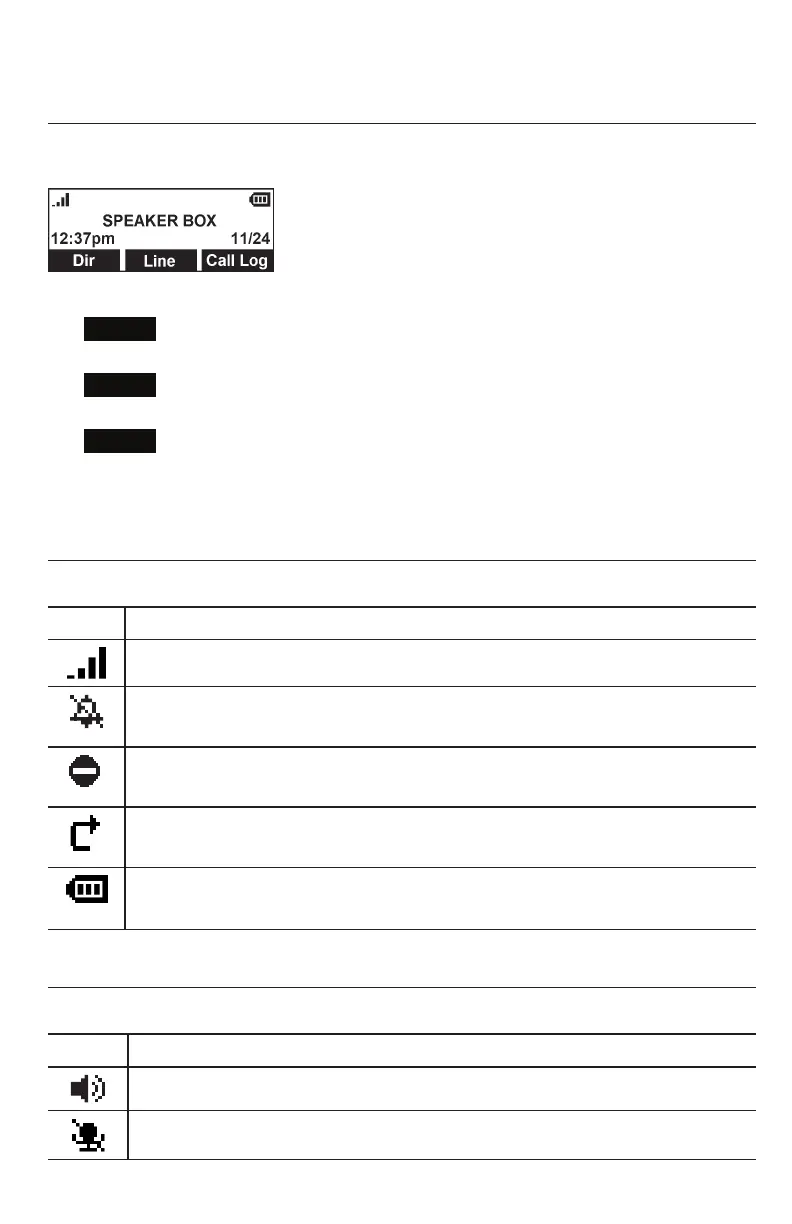
Idle screen
The Idle screen appears after the phone is connected and configured for your SIP PBX
service. The Idle screen indicates that you have no active or held calls.
From the Idle screen, you can press:
•
Dir
to view the directories that are available to you.
See "Directory" on page 28.
•
Line
to select another line (account). When you make a call, the phone will
use the selected line/account.
•
Call Log
to view the phone’s call history. See "Call History" on page 33.
Note that the default Idle screen soft keys are shown above. Your phone’s soft keys
are programmable and may differ from what is listed here.
Idle mode screen icons
In idle mode, the following screen icons indicate your phone’s current settings.
Icon Status
Signal strengh (1 to 4 bars).
Ringer is OFF, or temporarily off during a call.
Do not disturb is ON.
Call Forward Always is ON.
Battery level of conference phone
(1 to 3 bars, blink for battery empty).
Active call screen icons
During a call, the following screen icons indicate the call’s status.
Icon Status
The conference phone is active.
Microphone is muted on the conference phone and wireless microphones.


 To Next Page