27
D862 User Manual Getting to Know Your Phone
You can set and change the data in the phone manager at any time.
1. Press the function key underneath Menu on the phone's display and select Help to look up the
phone's IP address.
2. Enter the IP address into the browser's address bar on a computer in the same network as the
phone.
3. If user or admin name and password have been set, enter them and click Authenticate; if not, just
click Authenticate.
Setting administrator name and PIN
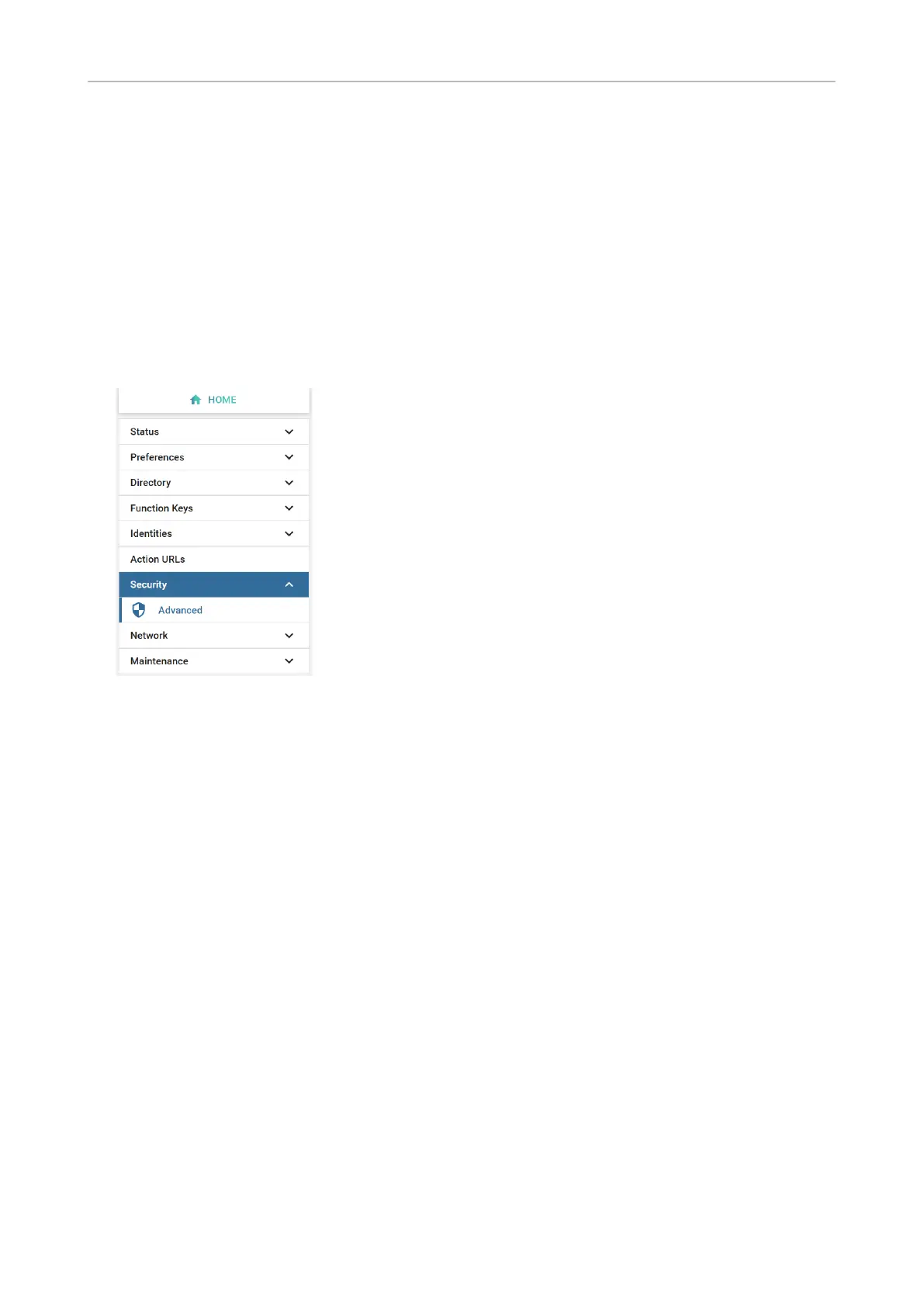
1. Click Security in the vertical menu on the left side.
2. Click Advanced in the Security submenu.
3. Set User Name, User Password, Admin Name, and Admin Password in the respective text elds.
Note: The admin elds are not available in user mode, and names and passwords may have been
set by your IP provider or network administrator.
Valid values are arbitrary character strings of numerals, letters, and/or special characters of
any length. Keep in mind that you may have to enter these characters on the phone's keypad
(see "Entering numerals, letters, special characters, and symbols" on page 23). Write the
passwords down and store them in a safe place!
4. Click Apply.
Setting HTTP user name and password
1. Click Network in the left lateral menu.
2. Click Advanced.
3. Scroll down to HTTP Server and set the User name and Password in the respective text elds.
◦ User name. Valid values are character strings of letters and numerals, e.g. john or jh24.
◦ Password. Text string.
4. Select the authentication scheme to be used by clicking on or o on the toggle switch.
◦ Basic scheme: o.
◦ Digest Authentication Scheme: on. This is the more secure option and the default setting.



 To Next Page