56
D862 User Manual Conguring the Function Keys
The keys on the second and third module can be used only when a second and third module,
respectively, are connected to the phone. Expansion module keys are not shown in the phone menu
or on the function keys page when no expansion module is connected.
Conguring the functions on the Phone Manager web interface
1. Click Function Keys in the left lateral menu.
2. Click SmartLabel keys (Line keys).
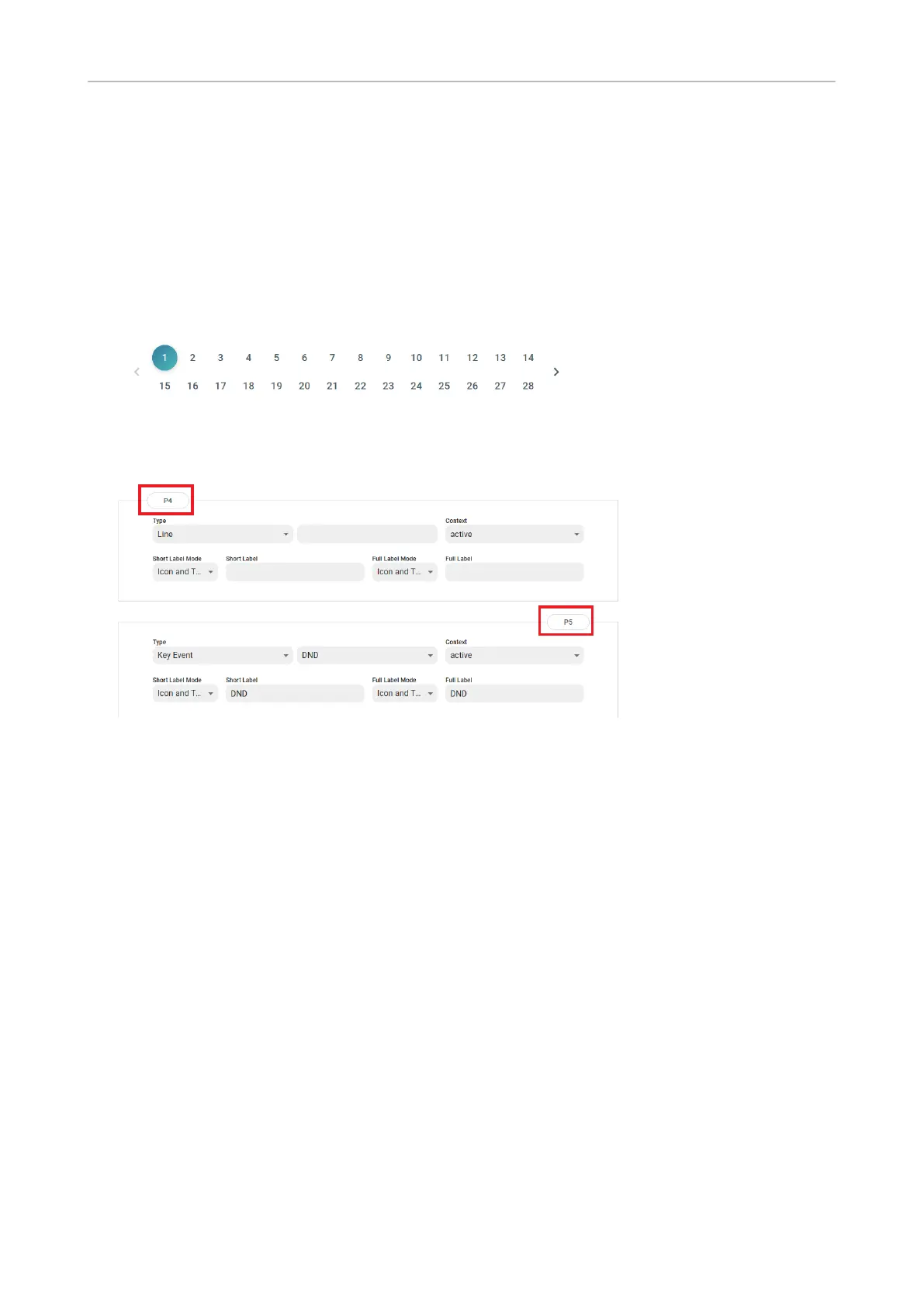
3. At the bottom of the main window is the page indicator.
4. Depending on the number of lateral keys available on your phone type you'll nd numbered keys
on each page. For example, if your phone has four SmartLabel keys on either side of the display,
the page contains keys P1 through P8.
Number
Number
5. Select a key.
6. If you make any modications to the settings, click Apply to save them before opening the other
subpage or any other page of the phone's web interface, and before closing the web interface.
Selected examples for function key programming
This chapter will show you a few examples for customizing function key settings to your needs and
preferences, using the phone's web interface:
• First example: Extension monitoring and call pickup via one of the phone's freely programmable
and self-labeling function keys with LED
• Second example: Speed dialing with a freely programmable function key with LED
• Third example: Changing setting of context-sensitive key
P4 is situated on the left
side of the display, P5 on the
right. See the diagram at
"SmartLabels" on page 25.



 To Next Page