60
D862 User Manual Customizing the Phone Settings
Customizing the phone settings
See "The phone's web interface" on page 30 on how to open the phone’s web interface, how the
web interface works, and how to change the settings. See "User mode/administrator mode" on page
26 on the dierence between administrator and user mode.
If you have access to administrator mode, but do not consider yourself to be an expert on SIP and SIP
phones, we recommend that you do not change any of the technical settings since this may adversely
aect the phone’s performance or put it out of order altogether.
If you want more information on a web interface setting, click on the radio button with the question
mark that you see to the right of each item. It links to a page on Snom’s Wiki with detailed
information about that particular item.
On customizing the function key settings, see the chapter "Conguring the function keys" on page
52.
Note: Any changes you make on the web interface will not take eect until you click
on Apply. Changes will be lost if you open another page or tab of the web interface or
if you close the web interface without rst clicking on Apply.
Identities/accounts
The phone supports up to 8 accounts or "phone numbers" with one or more providers or within
an oce or organization network. On Snom phones these accounts or phone numbers are called
"identities".
Note: If your phone is part of an oce network, you may need to contact your
administrator to congure new or change existing identities, as this can only be done
when the phone is running in administrator mode and when the PBX settings allow it.
See "Initializing and registering the phone" on page 14 for more information on required input data.
Conguring and editing identity/account
The settings are accessible in administrator mode only. In user mode it is possible to select a
dierent outgoing identity and to reregister active identities.
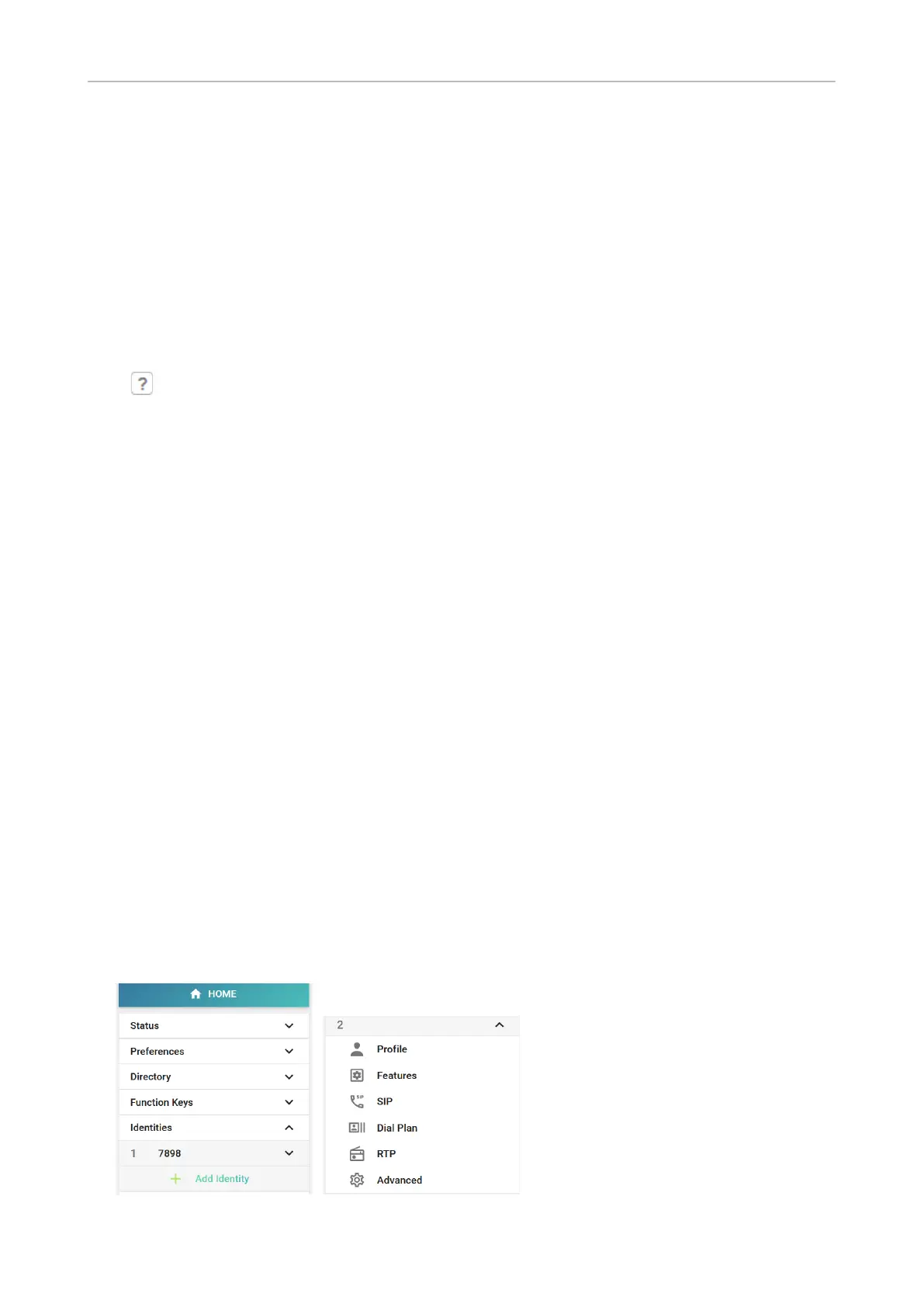
Open the phone manager, click Identities in the menu on the left, and select a congured identity or
Add identity to open the conguration menu.
Click Apply to save your settings.



 To Next Page