Display options for SmartLabel keys
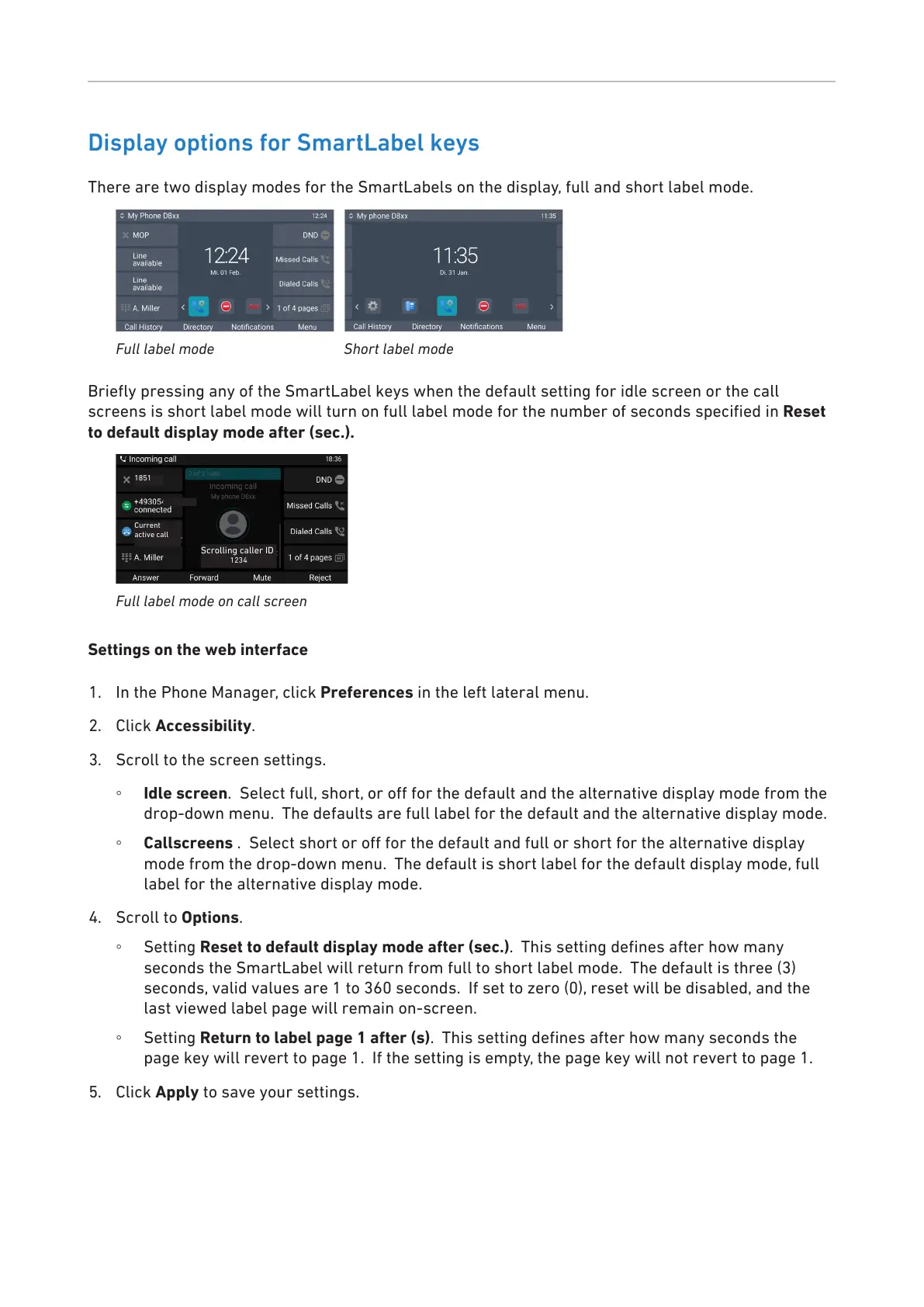
There are two display modes for the SmartLabels on the display, full and short label mode.
Full label mode Short label mode
Briey pressing any of the SmartLabel keys when the default setting for idle screen or the call
screens is short label mode will turn on full label mode for the number of seconds specied in Reset
to default display mode after (sec.).
Scrolling caller ID
1234
Current
active call
1851
Full label mode on call screen
Settings on the web interface
1. In the Phone Manager, click Preferences in the left lateral menu.
2. Click Accessibility.
3. Scroll to the screen settings.
◦ Idle screen. Select full, short, or off for the default and the alternative display mode from the
drop-down menu. The defaults are full label for the default and the alternative display mode.
◦ Call screens . Select short or off for the default and full or short for the alternative display
mode from the drop-down menu. The default is short label for the default display mode, full
label for the alternative display mode.
4. Scroll to Options.
◦
Setting Reset to default display mode after (sec.). This setting defines after how many
seconds the SmartLabel will return from full to short label mode. The default is three (3)
seconds, valid values are 1 to 360 seconds. If set to zero (0), reset will be disabled, and the
last viewed label page will remain on-screen.
◦ Setting Return to label page 1 after (s). This setting defines after how many seconds the
page key will revert to page 1. If the setting is empty, the page key will not revert to page 1.
5. Click Apply to save your settings.



 To Next Page