16
D862 User Manual Setting up the Phone
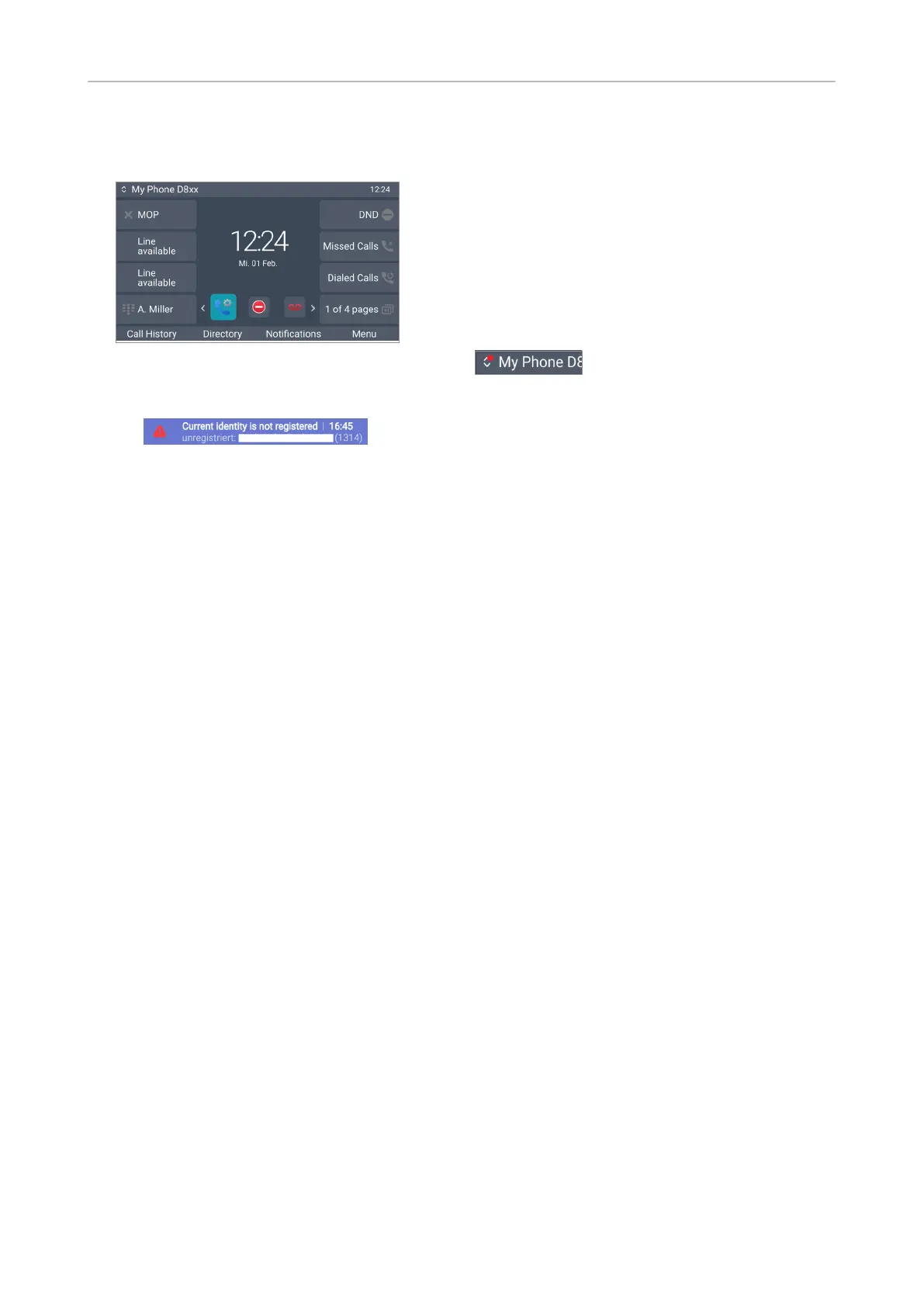
After successful registration you will see the idle screen with the registered identity in the upper left
corner:
Note: If the account is preceded by a red dot and the phone is not
working, the server may be down, either for servicing or due to a malfunction. Press
the key underneath Notications to see details.
The registration and initialization should be completed as soon as the server is up
and running again. You may want to check with your administrator or your provider if
nothing happens within a reasonable amount of time.
What to do if initialization and registration are unsuccessful
Your network or your VoIP provider may require more login data than requested by the Snom phone
during the initialization and registration process. This data is entered on the web interface of the
phone. Contact your network system administrator or your VoIP provider for more information.
1. When you have received all necessary data, open the phone manager.
2. Open the prole of Identity 1 and enter any additional login information you have received from
your provider. See "Identities/accounts" on page 60 for more information.
Note: A number of IP telephony service providers and a number of SIP PBXs require
settings that are dierent from Snom’s standard factory settings. Snom’s web page
lists numerous providers and PBXs that have been tested for interoperability with
our phones and specic settings that may be required. Do not change the standard
conguration unless you know what you are doing. Expert help may be required.
Correcting the clock
The phone receives the time and date from your NTP time server. If the time and/or date on the
display are incorrect, you may need to set the correct time zone in the phone manager.
1. Click Preferences, then Time & Date.
2. In Time, select the timezone from the drop-down menu of Time Zone and click Apply.
If the time is still incorrect, there may be a problem with the time server. Contact your network
administrator or your IP provider.
Time and date formats
The default settings are 24-hour clock, e.g. 17:35, and U.S. date format MM/DD/YEAR, eg. 11/23/2022.
You can change both in the phone manager.



 To Next Page